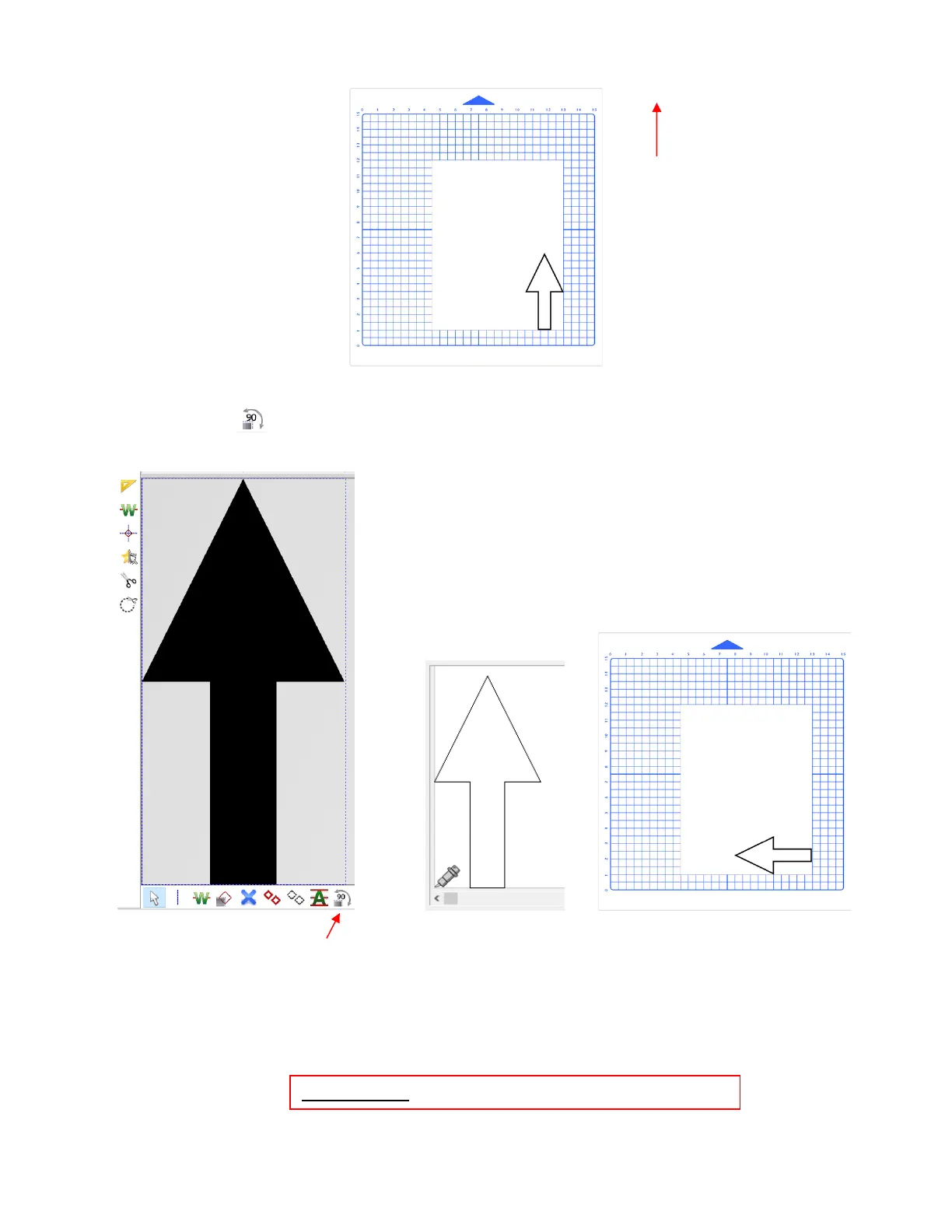
• If you want the arrow to draw so that it points towards the left instead of upwards, click once on the Rotate
90 degrees icon on the Sub-toolbar at the bottom of the screen. The main screen, cut preview and
resulting drawing of the arrow will result in this:
• Subsequent clicks of the Rotate 90 degrees icon will continue to rotate the arrow. Continue practicing with
this and other shapes until you feel confident you understand the correlation between what you see on the
screen and what actually gets drawn. Also, refer to Section 2.02.2 for more details on controlling where
images will cut.



 To Next Page