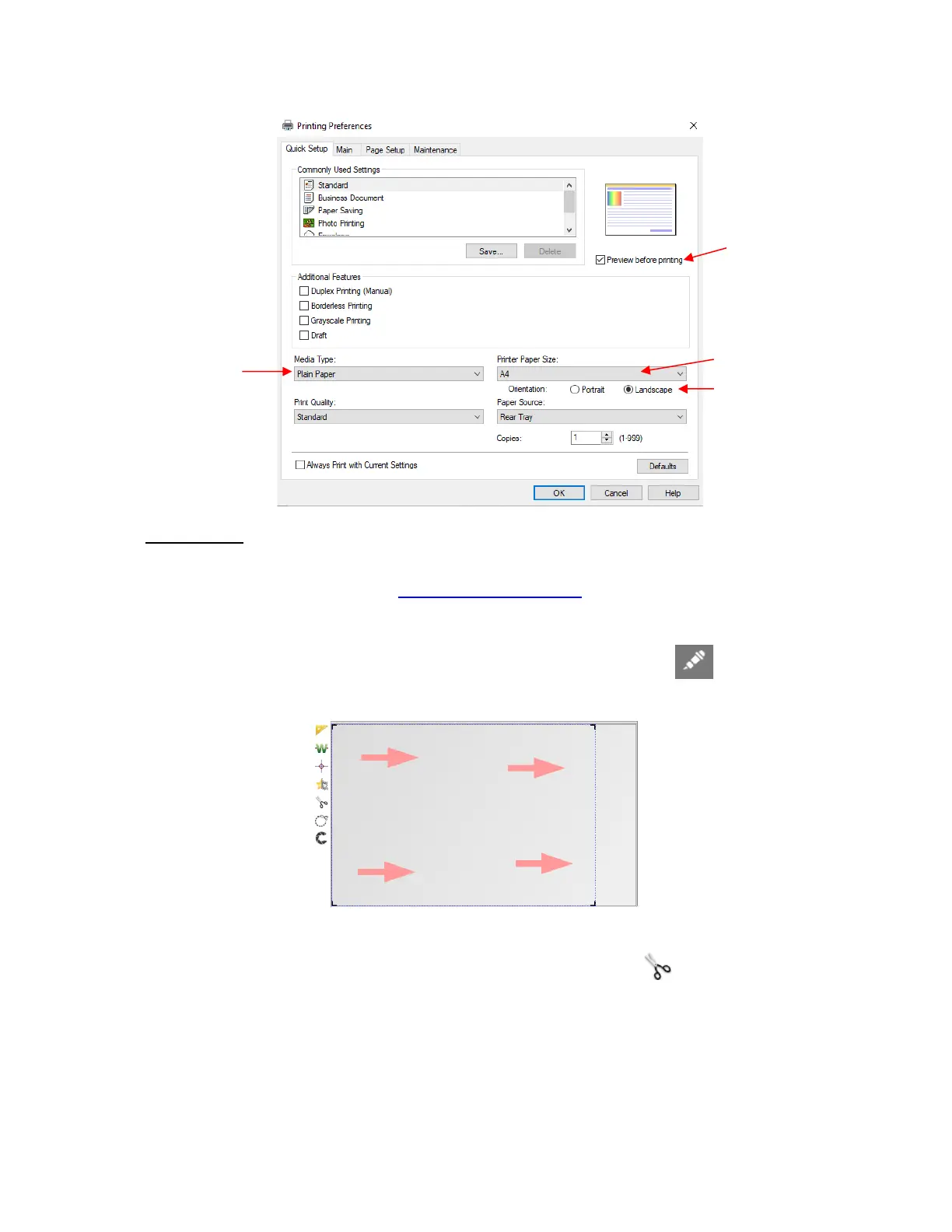
IMPORTANT: Borderless printing can move the registration marks relative to where they are positioned
in the design project. If you need to activate this setting, please read the following document:
https://tinyurl.com/y66u5lzf
Click on OK and then Print to produce the printout for cutting.
(5) To transfer the project to SingCut Pro, click on the Move image to SignCut icon (or shortcut S). The
cut lines and reigistration marks will appear:
(6) Place the printout onto the cutting mat or load the printout directly if a cutting mat isn’t required. Note that in
SignCut Pro, you can use the cut preview window (click on the Cut out icon or press the shortcut I) to
verify the orientation based on the location of the first reg mark to be scanned:



 To Next Page