Chapter 4 • Downloading Downloading New Updates
4-16 ©X-431 USA
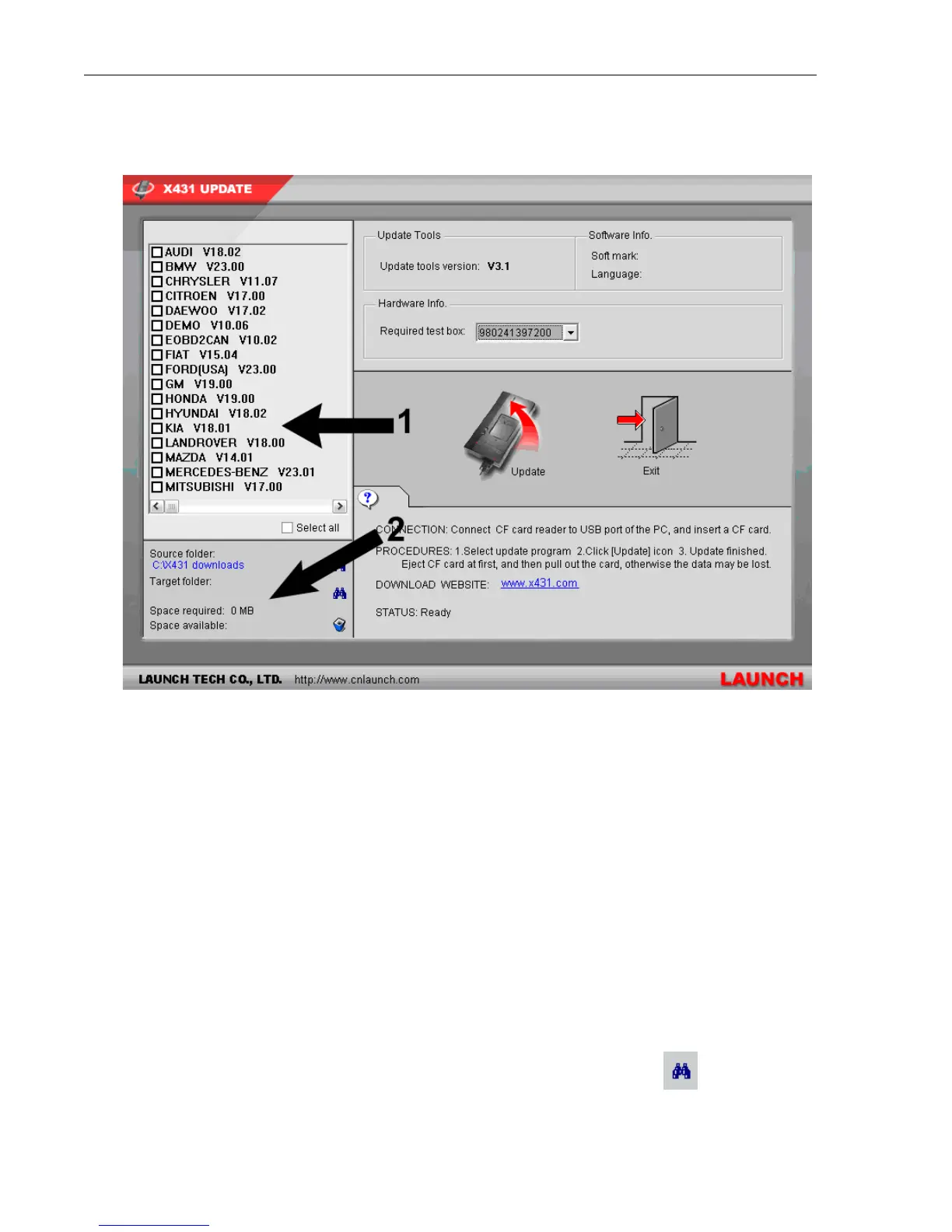
3. Double-click the X431 Update icon on your Desktop. The X431
Update program opens.
There are two areas on this window to which you need to pay attention.
In the upper left corner is the vehicle list, which is taken directly from
the X431 Downloads folder that is on your local drive. Each vehicle line
title is followed by its version number. Also notice the empty
checkboxes next to each line. You can check these off one by one to
select the lines that you want to make available to the X-431. Or at the
bottom of the list you can check off the Select all checkbox to select all
of the lines in the list. Any programs you load onto the CF Card remain
there until you manually delete them.
The second area is below the vehicle list and contains your Source
folder destination, Target folder destination, and the space statistics for
your CF Card. Your Source folder is the X431 Downloads folder that
you created previously. The Target folder is the CF Card Reader. The
space statistics will change depending on the contents of the x431
update folder and the capacity of the CF Card.
4. To change the Source folder, click the binoculars to the right.


 To Next Page