Chapter 5 • Using the X-431 To Get Started
5-2 ©X-431 USA
4. The LCD screen will light up and will read “Press the Hot-Key to adjust
Touch Panel.” Similar to a palm pilot, the touch screen has quadrants
that need to be initialized. If you do not press the Hot Key, you will be
taken to the X-431 Desktop, which allows you to begin diagnosing a
vehicle.
If this is the first time you are using your X-431 or if you are having
trouble with your LCD Display, then you should press the Hot Key to
initialize the quadrants.
5. The screen will read “Detecting noise...Please wait.” Then a cross-hair
cursor will appear on the screen and travel to the center of the screen.
Using the stylus, press and hold it to the cross-hair until the cross-hair
glows. Then remove the stylus from the LCD. The cross-hair moves to
another location. Repeat this procedure for the four corners.
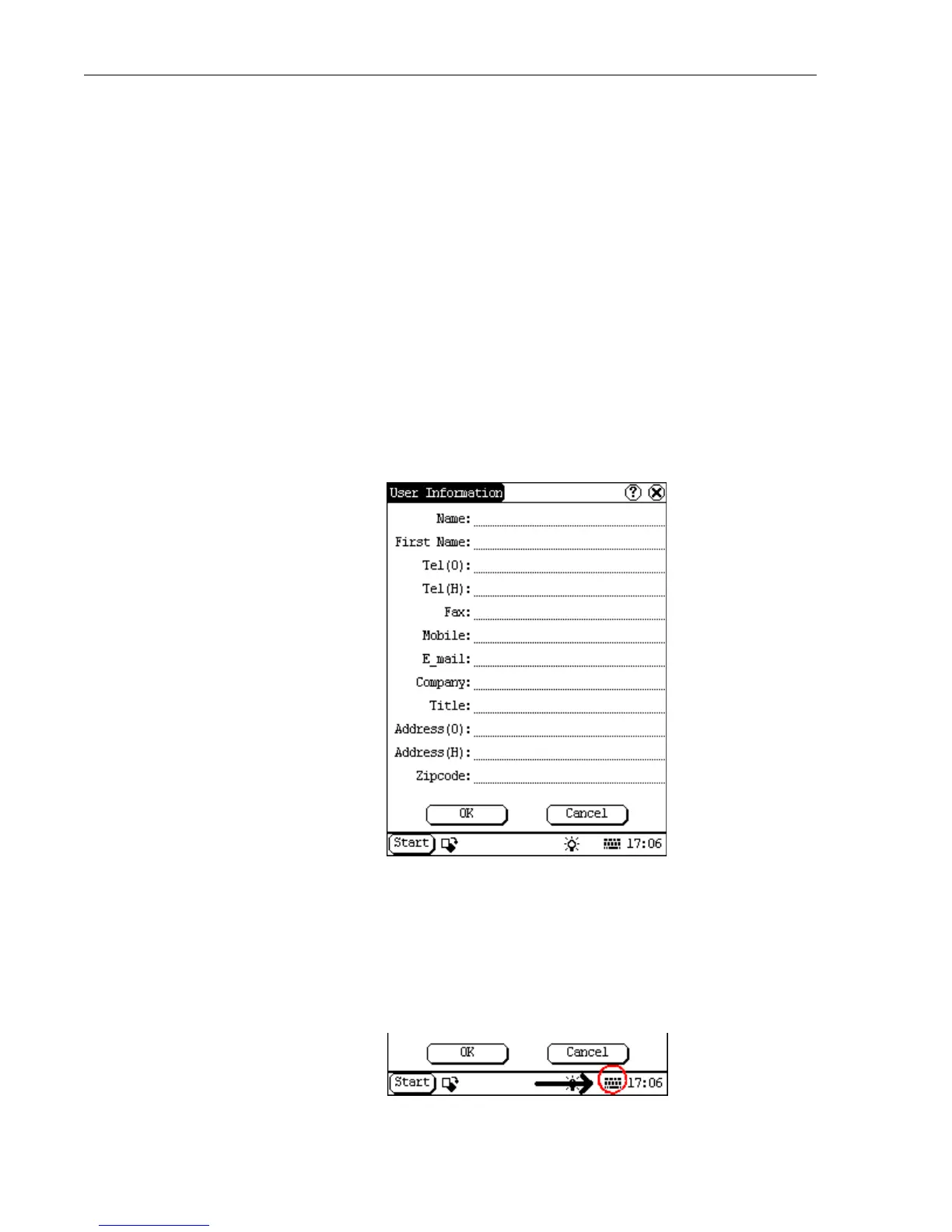
6. The User Information screen appears. The information you input here
will be displayed on any printouts.
Unless you fill out this screen now and press OK, it will appear every
time you turn the machine on (you do not have to fill out every field).
To input information you will need to launch the Keyboard.
a. On the bottom of the screen next to the clock, is a symbol of a
Keyboard. Tap it with the stylus to launch the Keyboard (or tap it
again to close the Keyboard).


 To Next Page