Video orientation: Flip--vertically reflect the display of the live video; Mirror--horizontally
reflect the display of the live video. Select both options if the Network Camera is installed
upside-down (ex. on the ceiling) to correct the image orientation.
Overlay title and time stamp on video: Select this option to place the video title and time on the
video streams. The time refers to System Time.
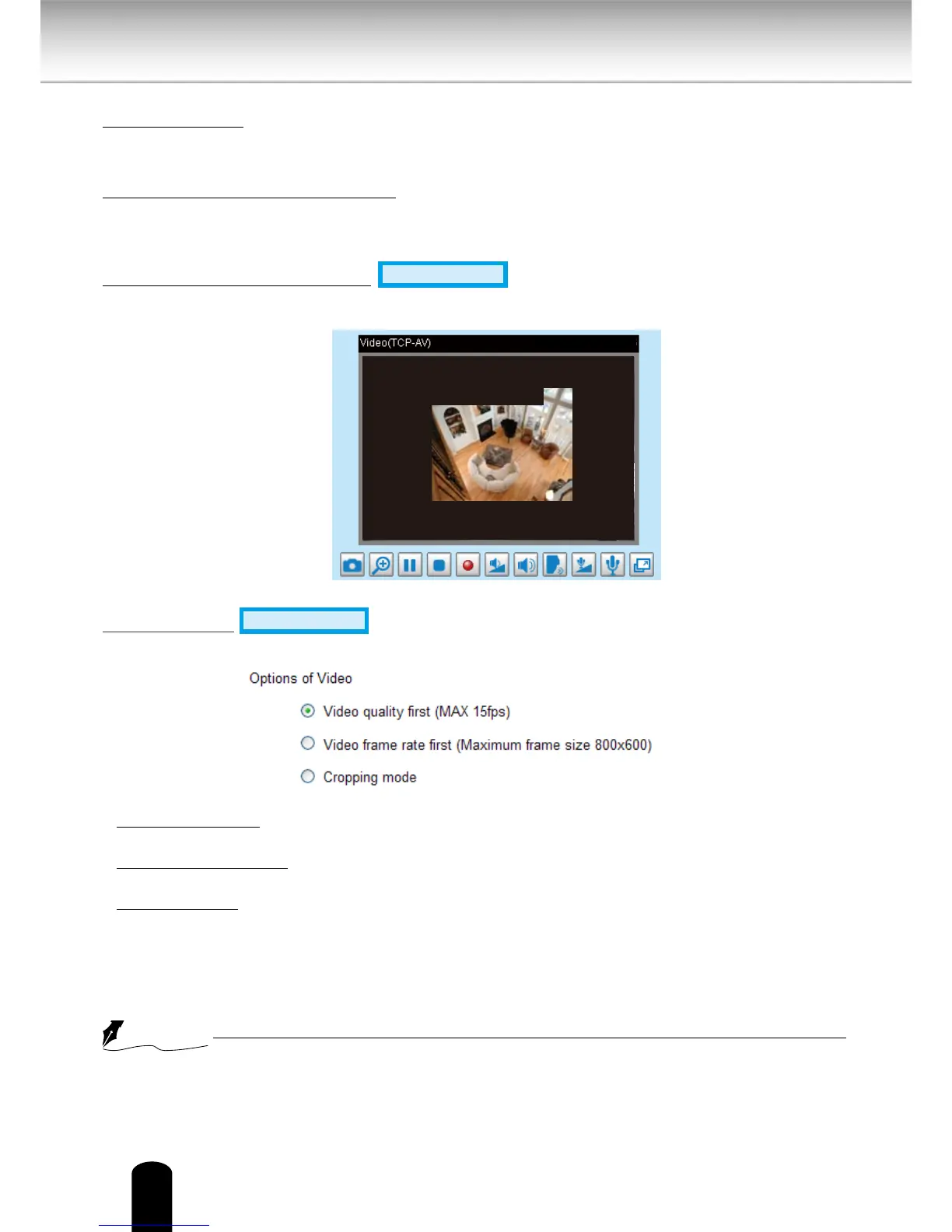
Note that when the frame size is set to 176 x 144 as shown in the picture below, only the time
will be stamped on the video streams.
Enable time shift caching stream
Advanced Mode
: Check this item to enable the time shift
cache stream on the Network Camera, which will store video in the camera’s embedded
memory for a period of time depending on the cache memory of each Network Camera.
Options of Video
Advanced Mode
There are three options for you to choose: Video Quality first, Video frame rate first, and
Cropping mode. Select either one mode according to your needs.
■ Video quality rst: Select quality rst will reduce the maximum frame rate to 15fps and clear
the settings of motion and preset-position.
■ Video frame rate rst: Select frame rate rst will reduce the frame size to 800x600 and clear
the settings of motion and preset-position.
■ Cropping mode: Select cropping mode will clear the settings of motion and preset-position.
The cropping function allows users to crop unnecessary information and simply transmit the
image of the target region for viewing or storage. With the trimming, the transmitting data
size and thus, the network load is reduced and a higher frame rate is obtained. As a result,
bandwidth resources and storage space can be used more eciently.
●
In cropping mode, the maximum frame rate will be up to 30fps if the width is under 1280
and the height is under 720; otherwise, the maximum frame rate may be reduced to 15fps.


 To Next Page