Image Settings
Advanced Mode
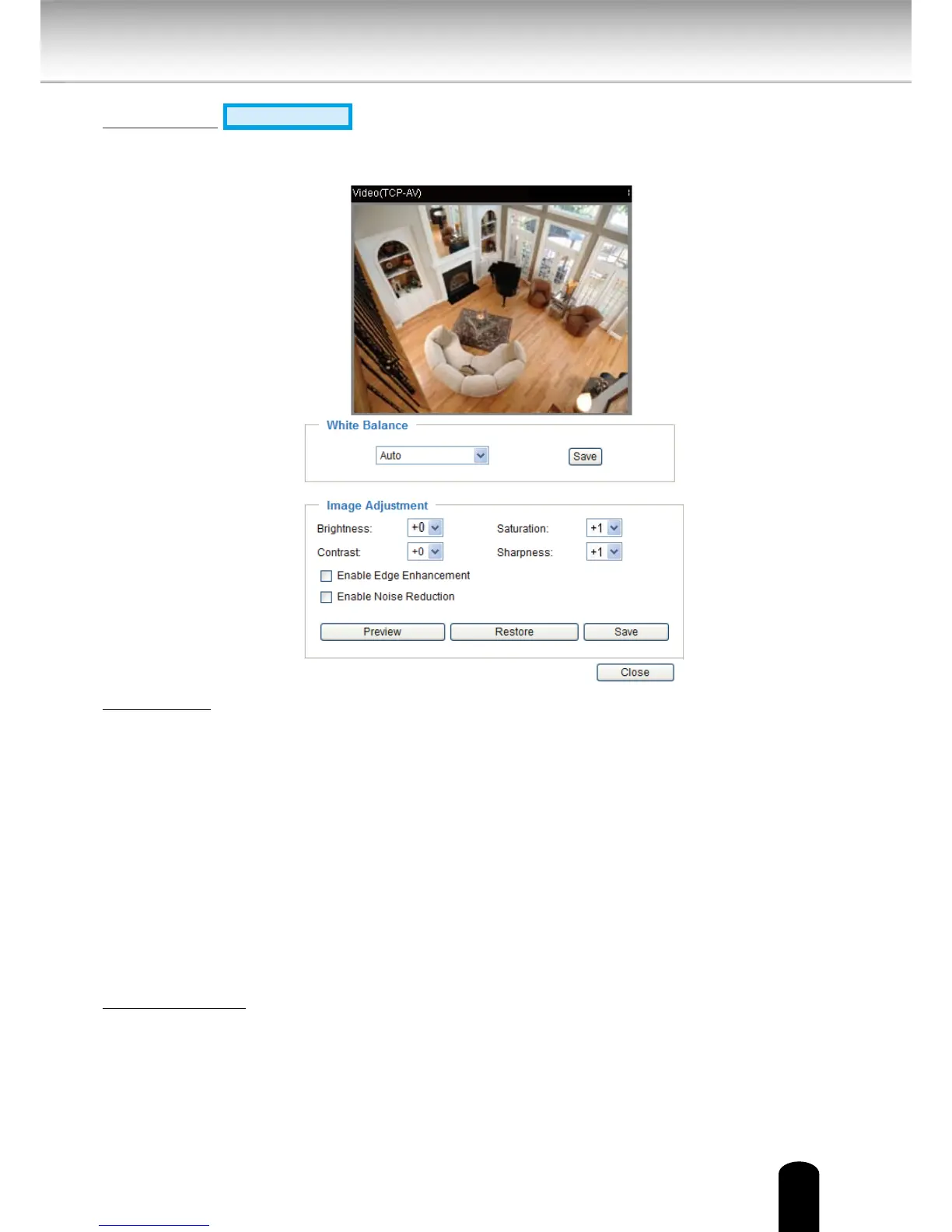
Click Image settings to open the Image Settings page. On this page, you can tune the White
balance, Brightness, Saturation, Contrast, and Sharpness settings for the video.
White balance: Adjust the value for the best color temperature.
■ Auto
The Network Camera automatically adjusts the color temperature of the light in response to
different light sources. The white balance setting defaults to Auto and works well in most
situations.
■ Keep current value
Follow the steps below to manually set the white balance to compensate for the ambient
lighting conditions.
1. Set the White balance to Auto and click Save.
2. Place a sheet of white paper in front of the lens, then allow the Network Camera to adjust
the color temperature automatically.
3. Select Keep Current Value to conrm the setting while the white balance is being measured.
4. Click Save to enable the new setting.
Image Adjustment
■ Brightness: Adjust the image brightness level, which ranges from -4 to +4. The default value
is set to 0.
■ Saturation: Adjust the image saturation level, which ranges from -5 to +5. The default value
is set to +1.


 To Next Page