44
User Manual M65 / M85 / M25 Getting to know
Adding contacts
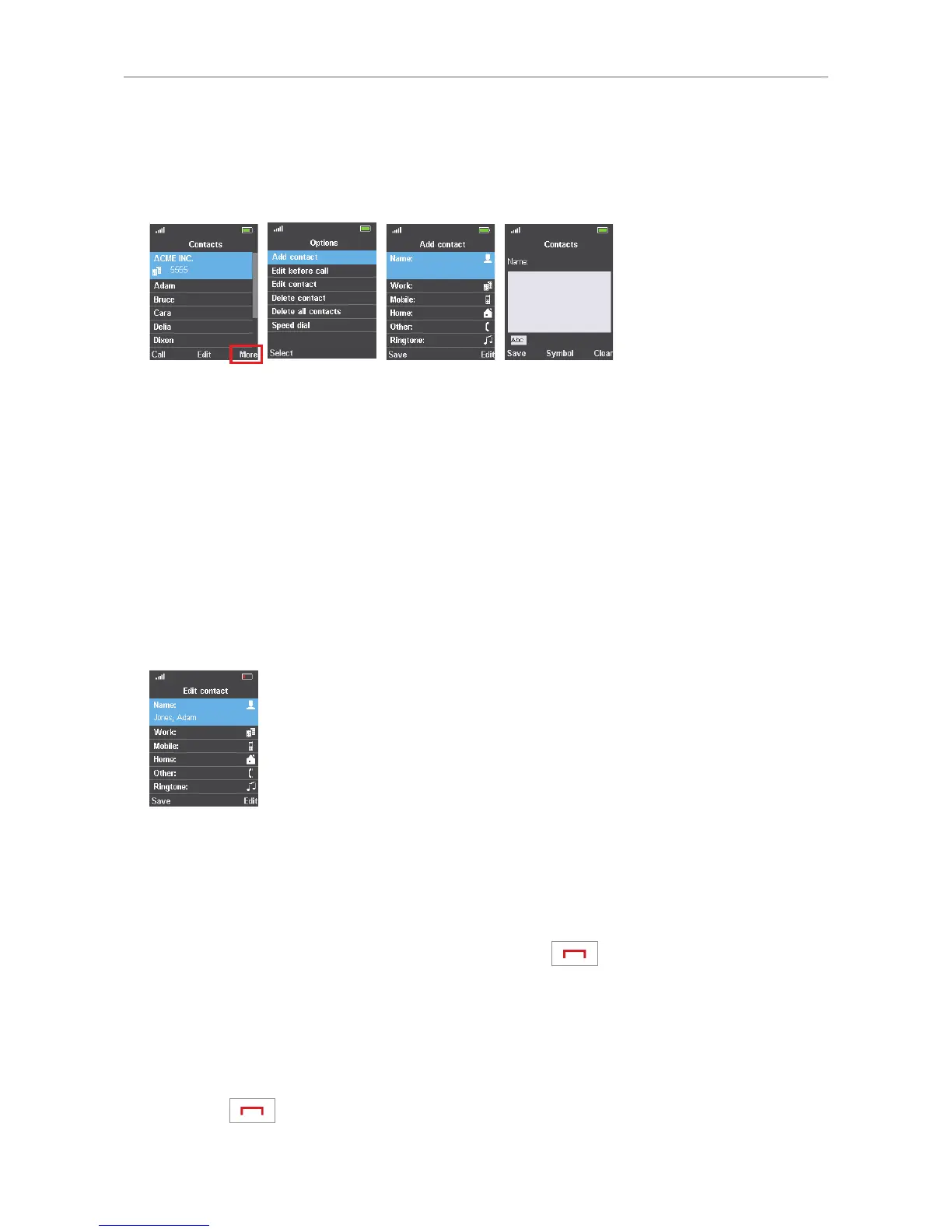
1. Open the contacts menu and press the function key underneath "More" (Fig. 6) to open the
"Options" menu (Fig. 7).
Fig. 6 Fig. 7 Fig. 8 Fig. 9
2. Press the function key underneath "Select" to select the "Add contact" option. The "Add contact"
screen opens (Fig. 8).
3. Press the function key underneath "Edit". The blank editing field for "Name" appears (Fig. 9).
4. For information on entering new contact information see "Editing contacts".
Editing contacts
1. Select the contact with the navigation key (see "Finding your contact" on page 43, Fig. 3 - 4).
2. Press the function key underneath "Edit".
3. Select the data to be edited and press the function key underneath "Edit" (Fig. 10).
Fig. 10
4. Edit the data as explained in the sections "Name" on page 45, "Phone numbers" on page 46,
and "Ringtone" on page 47 .
5. To save your changes and return to the "Edit contact" screen, press the function key underneath
"Save" or the center of the navigation key (the M25 does not have the "Save" option on this screen).
If you do not wish to save your changes, press the red key
to return to the "Edit contact"
screen.
Note: When you have finished editing and saving the individual elements of the contact,
remember to press the function key underneath "Save" to exit the "Edit contact" screen
and return to the "Contacts" screen (Fig. 6). If you don't, none of the changes will be
saved.
If you do not wish to save any of the changes you have made to this contact's data, press the
red key
to return to the "Contacts" screen (Fig. 6).


 To Next Page