56
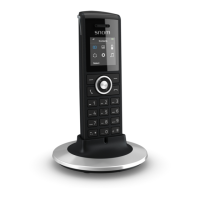
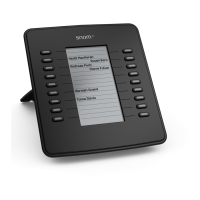
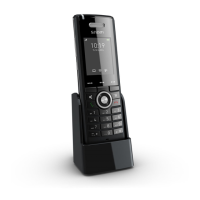
User Manual M65 / M85 / M25 Getting to know
2. Press the OK key or the function key underneath Select to save (Fig. 1). This is the identity
that is shown on your display (Fig. 2).
• Changing the identity for an outgoing call while dialing.
1. Before pressing the green key to dial a number, press the function key underneath Line (
Fig. 3)
.
- When dialing manually: You can do this at any time while or after entering the digits on
the keypad manually.
- When calling a number from the global phonebook, select the contact, then press the
function key underneath Line (Fig. 4).
2. Select the extension to be used for the next outgoing call with the up/down arrows on the
navigation key and press the function key underneath Select (Fig. 1).
3. When dialing manually, the display will return to the Enter number screen (Fig. 3) where
you can enter any remaining digits, if necessary. When dialing a number from the central
directory, the display will return to the directory page with the number you want to dial (Fig. 4).
4. Press the green key
to dial.
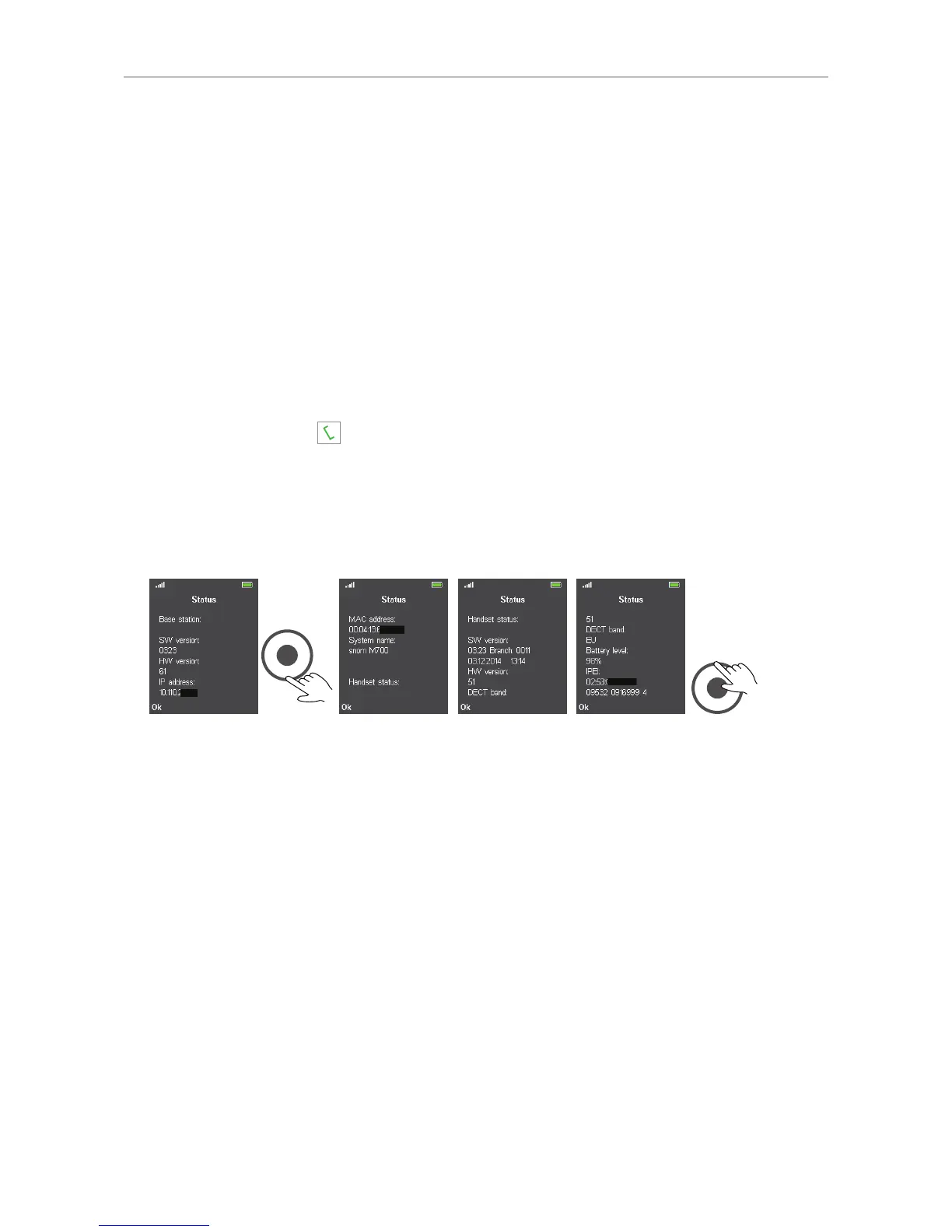
Status
The status screen contains software and hardware information on the handset and on the base
station the handset is registered at. Scroll down and back up to view all the information.
Base station information
Software version (firmware version)
Hardware version
IP address
MAC address
System name*
* This is the base station name entered under "Management Settings"on the web interface of the base
station
Handset information
Software version (firmware version
Hardware version
DECT frequency (i.e., EU, US, etc.)
Battery level
IPEI


 To Next Page