34 Copyright © 2025 Sol-Ark LLC
Custom RJ45 cable (Modbus RS485 mode – legacy)
Create a custom cable that connects battery port pins 1 (white-orange) and 2 (solid orange) to inverter port
pins 1 or 8 and 2 or 7, respectively.
Battery-inverter communication connections
Battery IDs and connections
1. Use the DIP switches on the batteries such that the battery connected to the inverter is set as follower
1 (0001), and each unit behind it shall increase the follower ID by one to be assigned. Each DIP switch
(1-4) represents a binary digit (bit) in the follower ID with a value of 1 or 0.
2. Decimal counting from 0 to 15 in binary format as a 4-bit nibble (half byte):
3. 0 1 2 3 4 5 6 7 8 9 10 11 12 13 14 15 dec
4. 0000 0001 0010 0011 0100 0101 0110 0111 1000 1001 1010 1011 1100 1101 1110 1111 binary
For example: to set the DIP switch to decimal 13 = 1101 binary: [1: ON, 2: ON, 3: OFF, 4: ON]
5. Connect all batteries with the RJ45 cable such that they are all in parallel.
• For CAN communications, connect battery Custom Cable #2 between the battery set to Master (ID:
00) and Battery 2 (ID: 01).
Inverter programming and connections
1. Connect this cable between the battery to the inverter’s
a. (CAN mode): “Battery CANBus” port using Custom Cable #1, with the battery set to ID:00
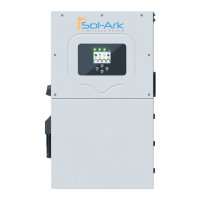
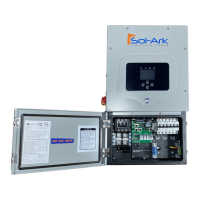
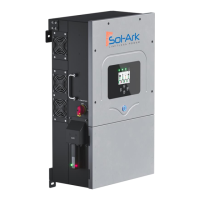
b. (RS485 mode): “Battery CANBus” port (outdoor-rated models) or “RS-485” port (indoor-rated
models), with the battery set to ID:01 xxx should we also say this below on 3b ?? xxx
2. Program the inverter with this battery's appropriate charge/discharge settings.
3. Enable “BMS Lithium Batt” and set its value to:
a. (CAN mode): “00”
b. (RS485 mode): “01”


 To Next Page