4
Press
HOME.
5
Select
"Video"
using
..
/-+.
6
Select
0
using
t/
•.
and
press
~
PLAY
or
ENTER.
II
BDDala
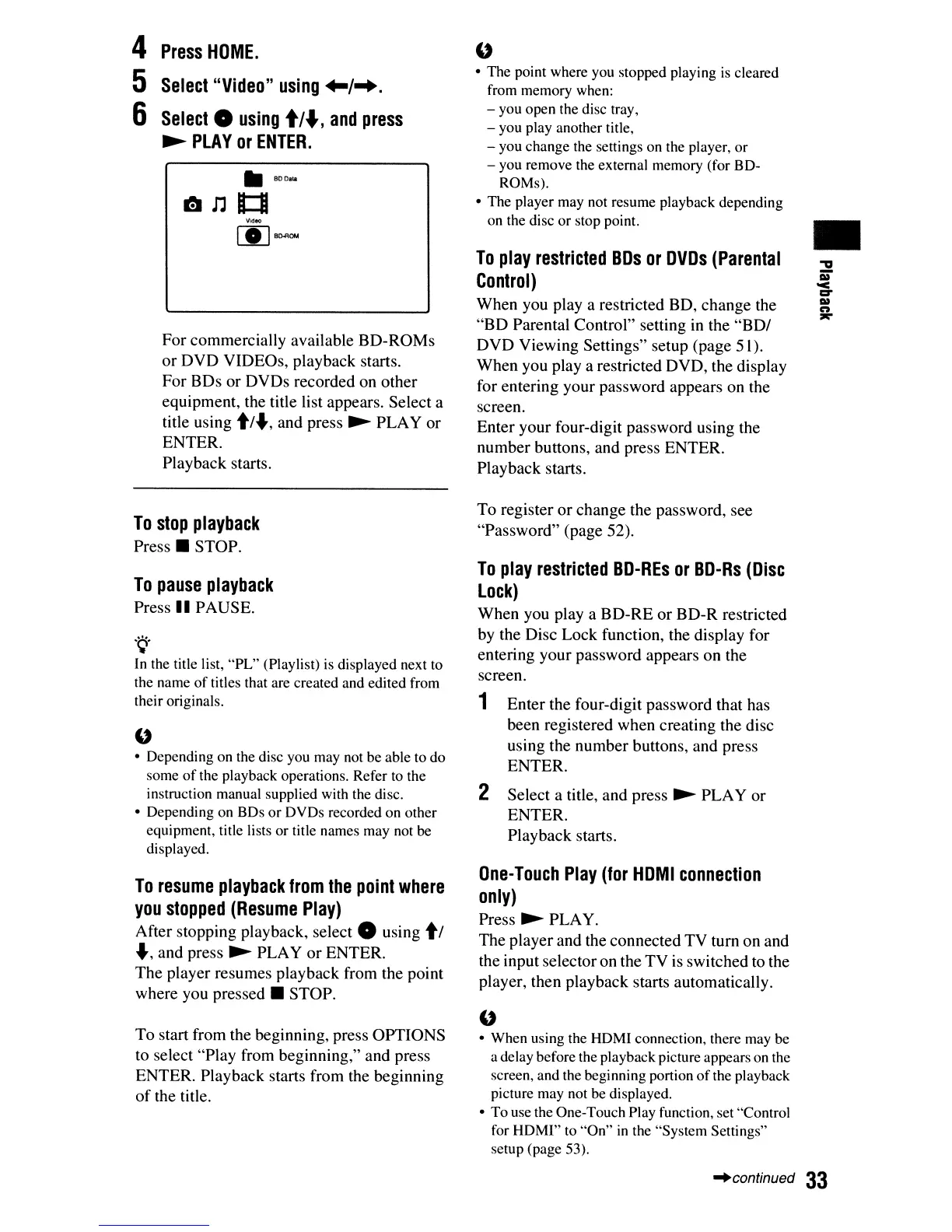
For commercially available BD-ROMs
or DVD VIDEOs, playback starts.
For BDs or DVDs recorded on other
equipment, the title list appears. Select a
title using
t/.,
and press
~
PLAY or
ENTER.
Playback starts.
To
stop
playback
Press.
STOP.
To
pause
playback
Press
II
PAUSE.
.~.
In the title list,
"PL"
(Playlist) is displayed next to
the name
of
titles that are created and edited from
their originals.
u
• Depending on the disc you may not be able to do
some
of
the playback operations. Refer to the
instruction manual supplied with the disc.
• Depending on BDs
or
DVDs recorded on other
equipment, title lists
or
title names may not be
displayed.
To
resume
playback
from
the
point
where
you
stopped
(Resume
Play)
After stopping playback, select 0 using
tl
.,
and press
~
PLAY or ENTER.
The player resumes playback from the point
where you
pressed.
STOP.
To start from the beginning, press OPTIONS
to select "Play from beginning," and press
ENTER. Playback starts from the beginning
of the title.
u
• The point where you stopped playing
is
cleared
from memory when:
- you open the disc tray,
- you play another title,
- you change the settings on the player,
or
- you remove the external memory (for BD-
ROMs).
• The player may not resume playback depending
on the disc
or
stop point.
To
play
restricted
BDs
or
DVDs
(Parental
Control)
When you
playa
restricted BD, change the
"BD Parental Control" setting
in
the
"BDI
DVD Viewing Settings" setup (page 5 l).
When you
playa
restricted DVD, the display
for entering your password appears on the
screen.
Enter your four-digit password using the
number buttons, and press ENTER.
Playback starts.
To register or change the password, see
"Password" (page 52).
To
play
restricted
BD-REs
or
BD-Rs
(Disc
Lock)
When you
playa
BD-RE or BD-R restricted
by the Disc Lock function, the display for
entering your password appears on the
screen.
1 Enter the four-digit password that has
been registered when creating the disc
using the number buttons, and press
ENTER.
2 Select a title, and press
~
PLAY or
ENTER.
Playback starts.
One-Touch
Play
(for
HDMI
connection
only)
Press
~
PLA
Y.
The player and the connected TV turn on and
the input selector on the TV
is
switched to the
player, then playback starts automatically.
u
• When using the HDMI connection, there may be
a delay before the playback picture appears on the
screen, and the beginning portion
of
the playback
picture may not be displayed.
• To use the One-Touch Play function, set "Control
for HDMI" to "On"
in
the "System Settings"
setup (page 53).
•
-'confinued
33





 To Next Page