43
Recording/Playback
z Tips
• See page 108 for indicators displayed on the screen during playback.
• See page 45 for how to switch displays during playback.
• To play back the tape recorded using a monaural microphone connected, see
[MULTI-SOUND] (p. 62).
• To reset the tape counter, press the ZERO SET MEM button. You can also use the ZERO SET
MEMORY button on the Remote Commander
(p. 47).
To search for a scene while viewing a movie
Press and hold m/M during playback (Picture Search). To view during fast forward, press
and hold
M. To view during rewind, press and hold m (Skip Scan).
To adjust the volume
Adjust the volume with the VOLUME/MEMORY button.
To view still images
1 Set the POWER switch to VCR.
2 Press the MEMORY/PLAY button.
3 Select still image that you want to view using the VOLUME/MEMORY button.
To stop viewing still images, press the MEMORY/PLAY button again.
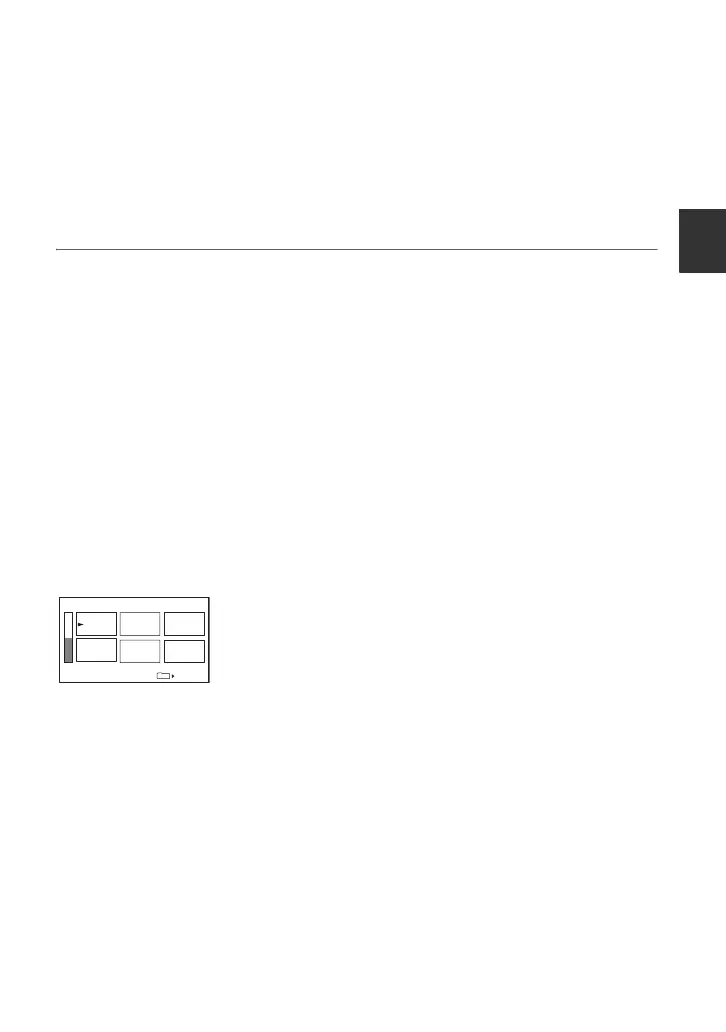
To display the list of still images (index screen)
1 Set the POWER switch to VCR.
2 Press the MEMORY/INDEX button.
3 Select a still image using the VOLUME/MEMORY button.
To display a single image, move B to that image and press the MEMORY/PLAY button.
To stop displaying the list of still images, press the MEMORY/INDEX button again.
To delete still images from the “Memory Stick Duo” media
1 Do the steps of “To view still images” to display still images that you want to delete.
2 Press the MEMORY/DELETE button.
3 Select [YES] with the SEL/PUSH EXEC dial.
The still image will be deleted.
1/19
101–0050
101
Continued ,




 To Next Page