45
Recording/Playback
Changing/checking the settings in your
camcorder
You can turn on and off the display of the
time code, tape counter, and other
information on the screen.
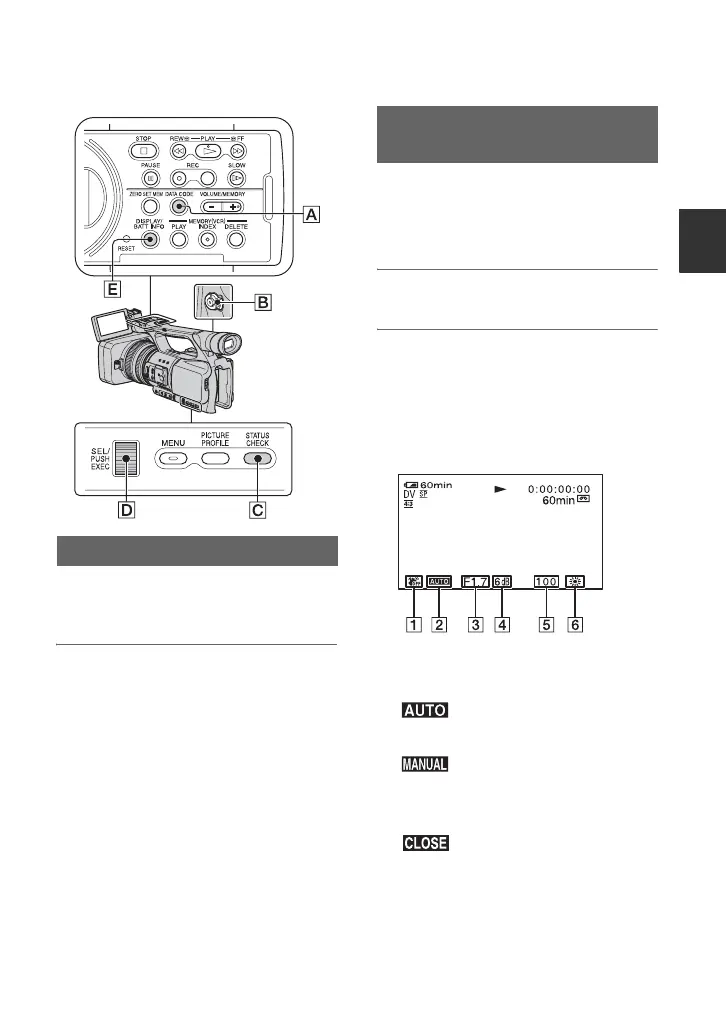
Press the DISPLAY/BATT INFO
button E.
The screen indicators turn on (displayed)
and off (undisplayed) as you press the
button.
z Tips
• You can display the screen indicators during
playback on a TV. Select [V-OUT/PANEL] of
[DISP OUTPUT]
(p. 66).
You can display information, including
date, time and camera data, automatically
stored during recording on the screen
during playback.
1 Set the POWER switch B to VCR.
2 Press the DATA CODE button A
during playback or pause.
The screen changes (date and time
display t camera data display t no
display) as you press the button.
A SteadyShot off
B Exposure
appears during playback of the
movie recorded with the iris, gain and
shutter speed automatically adjusted.
appears during playback of the
movie recorded with the iris, gain and
shutter speed manually adjusted.
C Iris
appears in the iris value display
area during playback of the movie
recorded with the iris manually adjusted
to its maximum value.
D Gain
E Shutter speed
F White balance
Changing the screen
Displaying recording data (Data
code)
Continued ,




 To Next Page