76
Copying still images to a computer
• For details on precautions and compatible
application software, refer also to the operating
instructions of the device to be connected.
• Required hardware: “Memory Stick Duo” media
slot, “Memory Stick” Reader/Writer compatible
with “Memory Stick Duo” media.
For Windows users
You can copy still images stored on a
“Memory Stick Duo” media to your
computer via the “Memory Stick Duo”
media slot of your computer.
1 Turn on your computer.
2 Insert the “Memory Stick Duo” media
into the “Memory Stick Duo” media slot
of your computer.
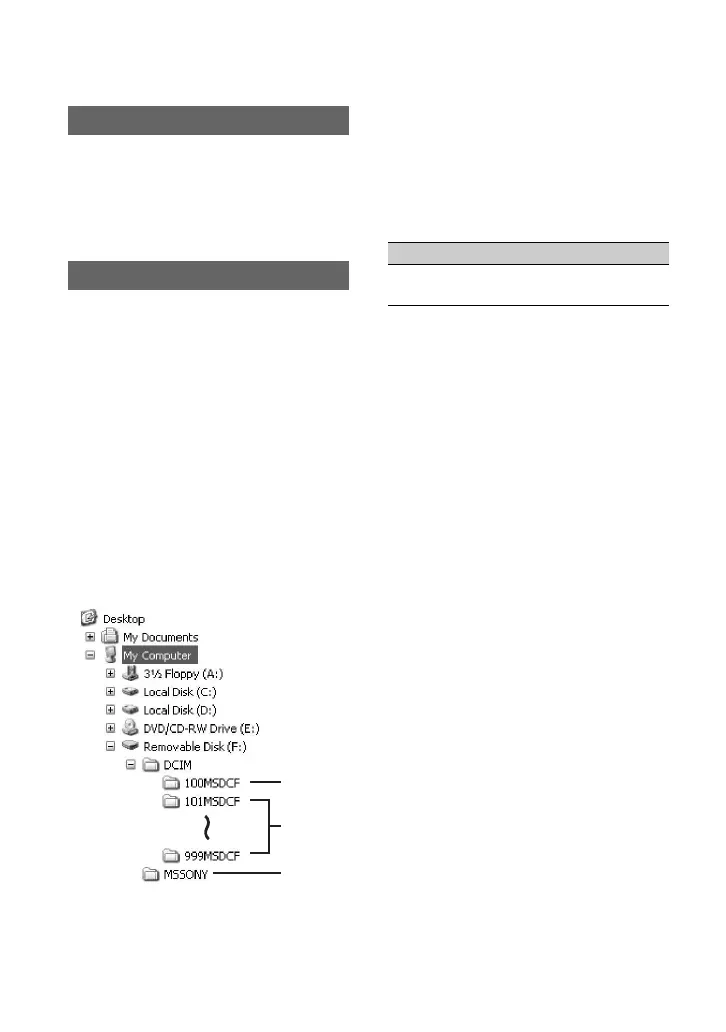
3 Double-click the [Removable Disk]
icon displayed in [My Computer]. Then,
drag and drop a still image from the
folder onto the hard disk drive of your
computer.
A Folder containing image files recorded
by other camcorders without the folder
creation function (for playback only).
B Folder containing image files recorded
by your camcorder when no new folders
have been created, only [101MSDCF] is
displayed.
C Folder containing movie data recorded
by other camcorders without the folder
creation function (for playback only)
ssss are numbers between 0001 and
9999.
For Macintosh users
Double-click the drive icon, then drag and
drop the desired picture file onto the hard
disk of your computer.
System requirements
Copying the pictures
1
2
3
Folder File Meaning
101MSDCF (up
to 999MSDCF)
DSC0ss
ss.JPG
Still image
file




 To Next Page