74
4 Set your camcorder to recording
pause.
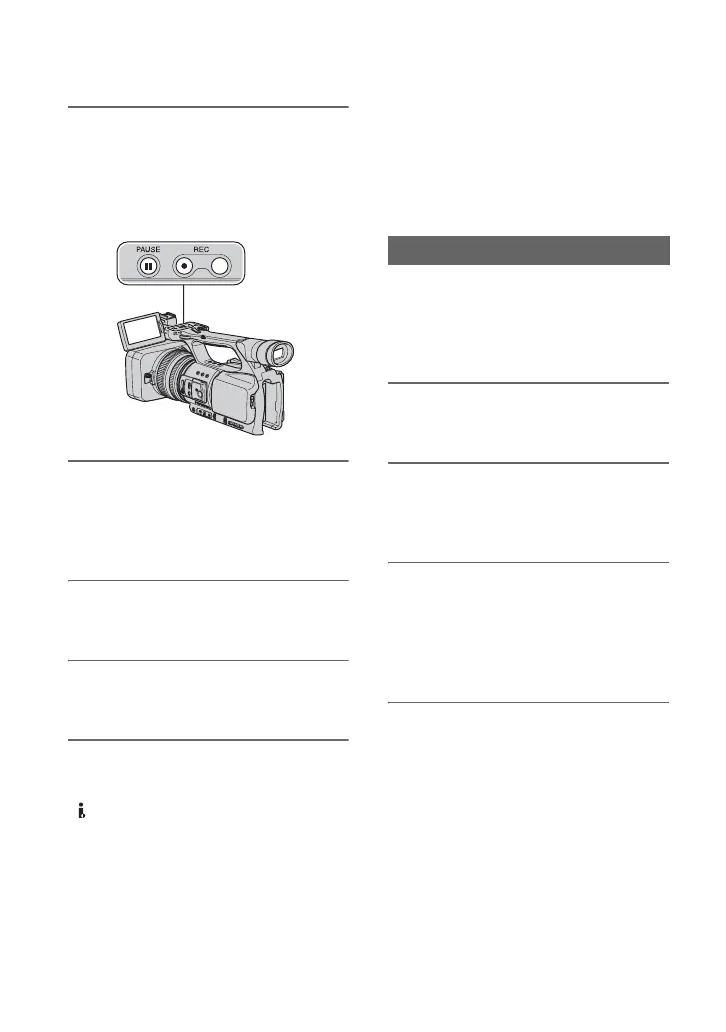
While pressing X (PAUSE), press both
z REC (record) buttons
simultaneously.
5 Start playing the cassette on your
VCR.
The picture played on the VCR appears
on the LCD screen of your camcorder.
6 Press X (PAUSE) again at the
point you want to start recording.
7 Press x (STOP) to stop
recording.
b Notes
• You cannot record TV programs from the
DV interface (i.LINK).
• You can record pictures from DV devices only
in the DV format.
• Note the following when connecting with an
i.LINK cable:
– The recorded picture becomes rough when a
picture is paused on your camcorder while
recording to a VCR.
– You cannot record the picture and sound
separately.
– If you pause or stop the recording and restart
it, the picture may not be recorded smoothly.
z Tips
• When a 4:3 video signal is input, it appears with
black bands on the right and left sides on the
screen of your camcorder.
Be sure to insert a “Memory Stick Duo”
media for recording in your camcorder
beforehand, and set [PHOTO/
EXP.FOCUS] to [PHOTO] (the default
setting)
(p. 69).
1 Perform steps 1 to 3 in
“Recording movies.”
2 Start playing the cassette.
The pictures on the VCR appear on the
screen of your camcorder.
3 Press the PHOTO/EXPANDED
FOCUS button on your camcorder
or the PHOTO button on the
Remote Commander at the scene
you want to record.
Recording still images
Recording pictures from a VCR (Continued)




 To Next Page