52
GB
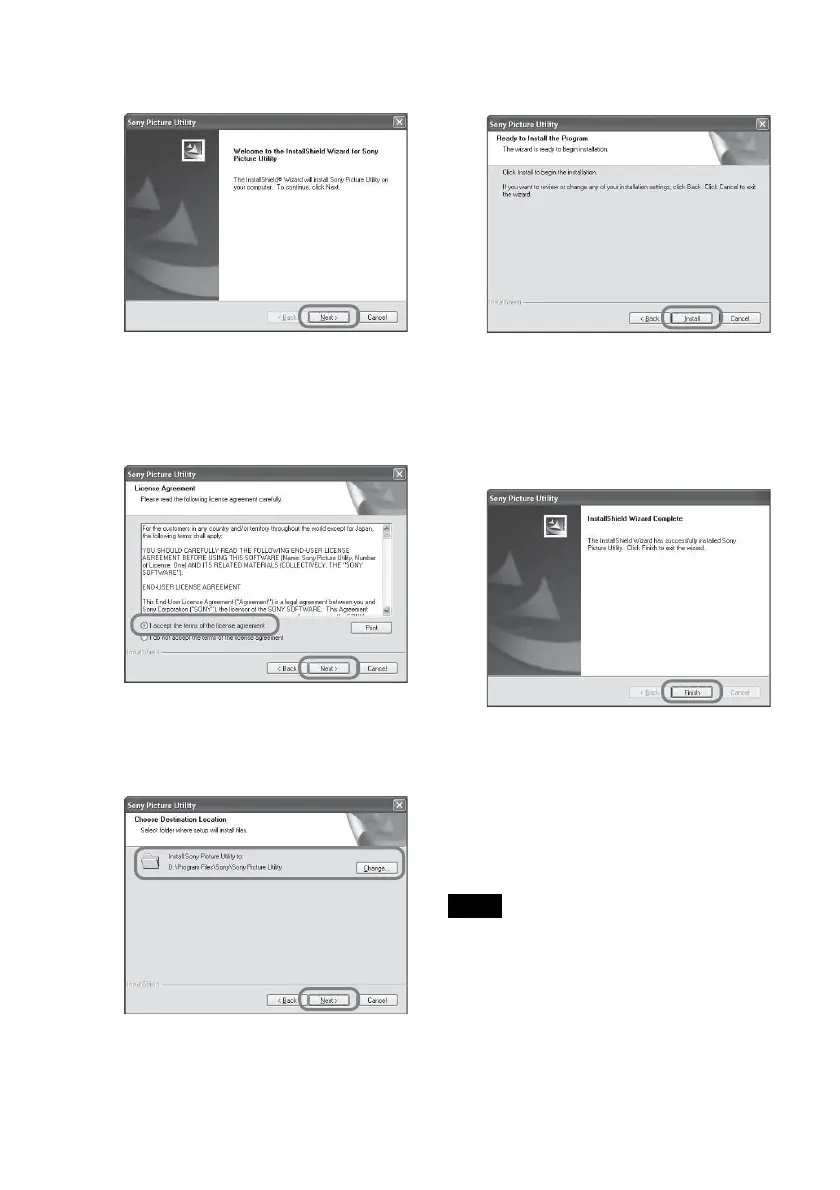
8 Click “Install.”
The “Setup Status” dialog box is
displayed.
When the printer setup is complete,
the “InstallShield Wizard Complete”
dialog box is displayed.
9 Click “Finish.”
The installation of the Picture Motion
Browser is complete. When you are
prompted to restart your computer,
restart it.
10
Remove the CD-ROM from your
computer and keep it for future
use.
Notes
• If the installation fails, perform the
installation procedures from step 2 again.
• The supplied CD-ROM will be required when
you uninstall or re-install the Picture Motion
Browser. Keep it in a safe place for possible
future use.
5 Click “Next.”
The license agreement dialog box is
displayed.
6 Check “I accept the terms of the
license agreement” and click
“Next.”
The dialog box used to specify the
destination folder is displayed.
7 Check the destination and then
click “Next.”
The “Ready to install the program”
dialog box is displayed.



 To Next Page