89
Using your computer
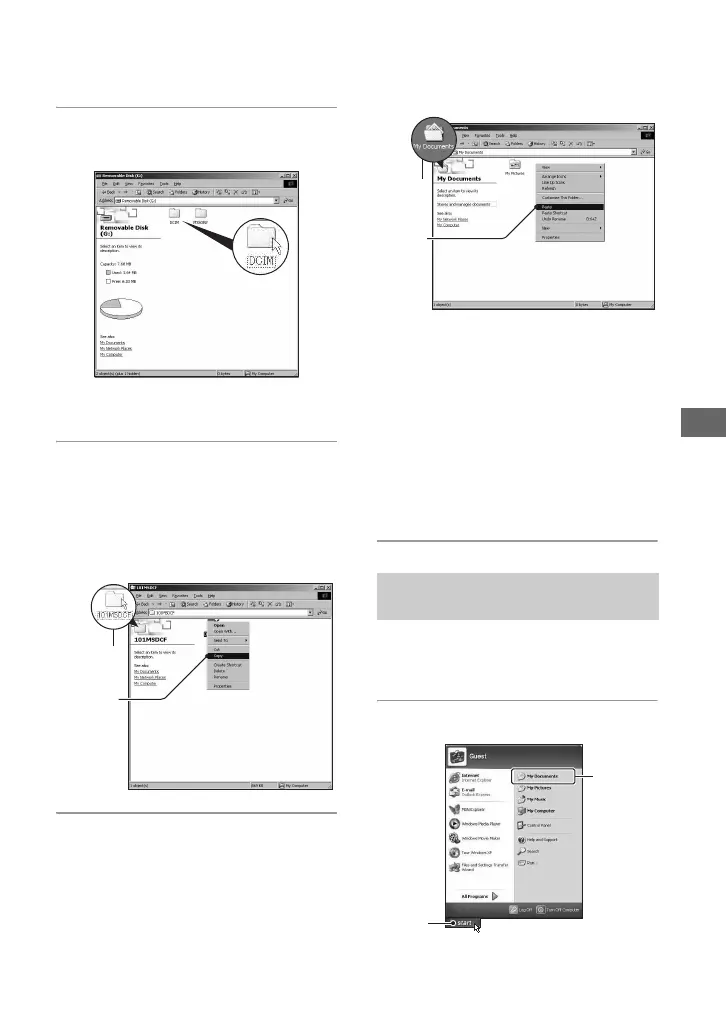
1 Double-click [My Computer] t
[Removable Disk]
t [DCIM].
• If the “Removable Disk” icon is not
displayed, see page 113.
2 Double-click the folder where the
image files you want to copy are
stored.
Then, right-click an image file to
display the menu and click
[Copy].
3 Double-click the [My Documents]
folder. Then, right-click on the
“My Documents” window to
display the menu and click
[Paste].
The image files are copied to the “My
Documents” folder.
• When an image with the same file name
exists in the copy destination folder, the
overwrite confirmation message appears.
When you overwrite an existing image with
a new one, the original file data is deleted.
To copy an image file to the computer
without overwriting, change the file name to
a different name and then copy the image
file. However, note that if you change the
file name (page 92), you may not be able to
play back that image with your camera.
This section describes the procedure for
viewing copied images in the “My
Documents” folder.
1 Click [Start] t [My Documents].
2
1
Stage 5: Viewing images on
your computer
1
2
1
2



 To Next Page