Help Guide
IC Recorder
ICD-UX570F / ICD-UX575F
Setting the clock (Date & Time)
You can set the clock of your IC recorder. Be sure to set it before you start recording.
Note
The clock may tell the time either in 12-Hour format with [AM] or [PM] or in the 24-Hour format, depending on the selected clock
display format (Time Display) on the Settings menu. In addition, the default clock display format depends on the country or region
of your purchase.
The default date display format depends on the country or region of your purchase.
Related Topic
Placing the IC recorder into the HOLD state (HOLD)
5-006-945-11(1) Copyright 2019 Sony Corporation
Select [
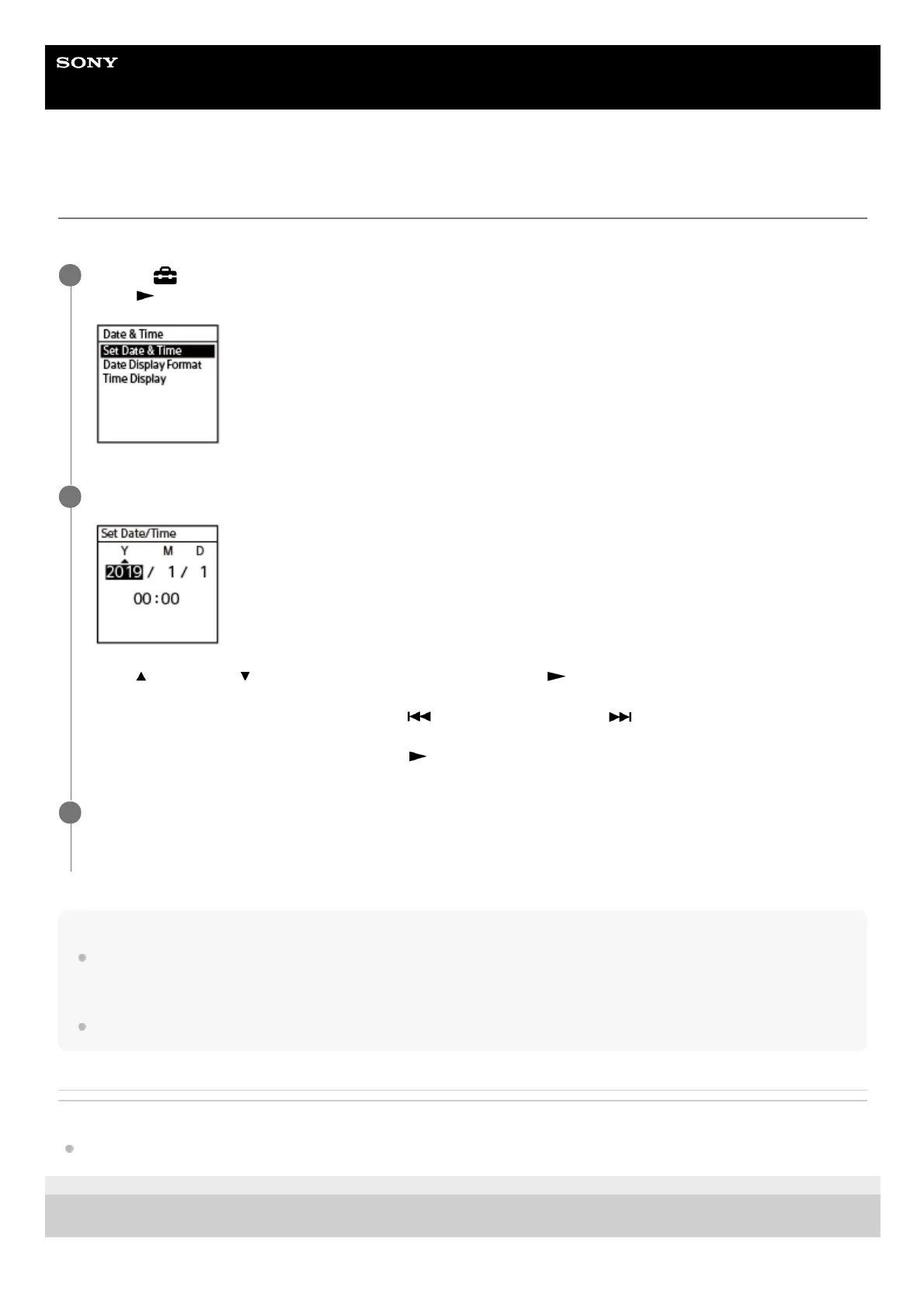
Settings] - [Common Settings] - [Date & Time] - [Set Date/Time] from the HOME menu, and then
press
(play).
1
Set the current date and time.
Press (move up) or (move down) to set an item, and then press (play).
Repeat the actions to set all items.
To move the focus backward or forward, press
(review/fast backward) or (cue/fast forward). You can also
press BACK/HOME to move the focus to the previous item.
When you are finished with the last item, press
(play) to apply the settings to the clock.
2
Press and hold BACK/HOME to return to the HOME menu.
To display the current time, place your IC recorder into the HOLD state.
3



 To Next Page