Help Guide
IC Recorder
ICD-UX570F / ICD-UX575F
Recording audio from an external device with the synchronized recording function
(SYNC REC)
You can make music files without using a computer by recording audio/music from the device (a radio cassette recorder,
a tape recorder, TV, etc.) connected to your IC recorder.
With the synchronized recording function turned on, the IC recorder pauses after 2 seconds of no audio input. When
audio input resumes, it restarts recording, saving the audio to a new file.
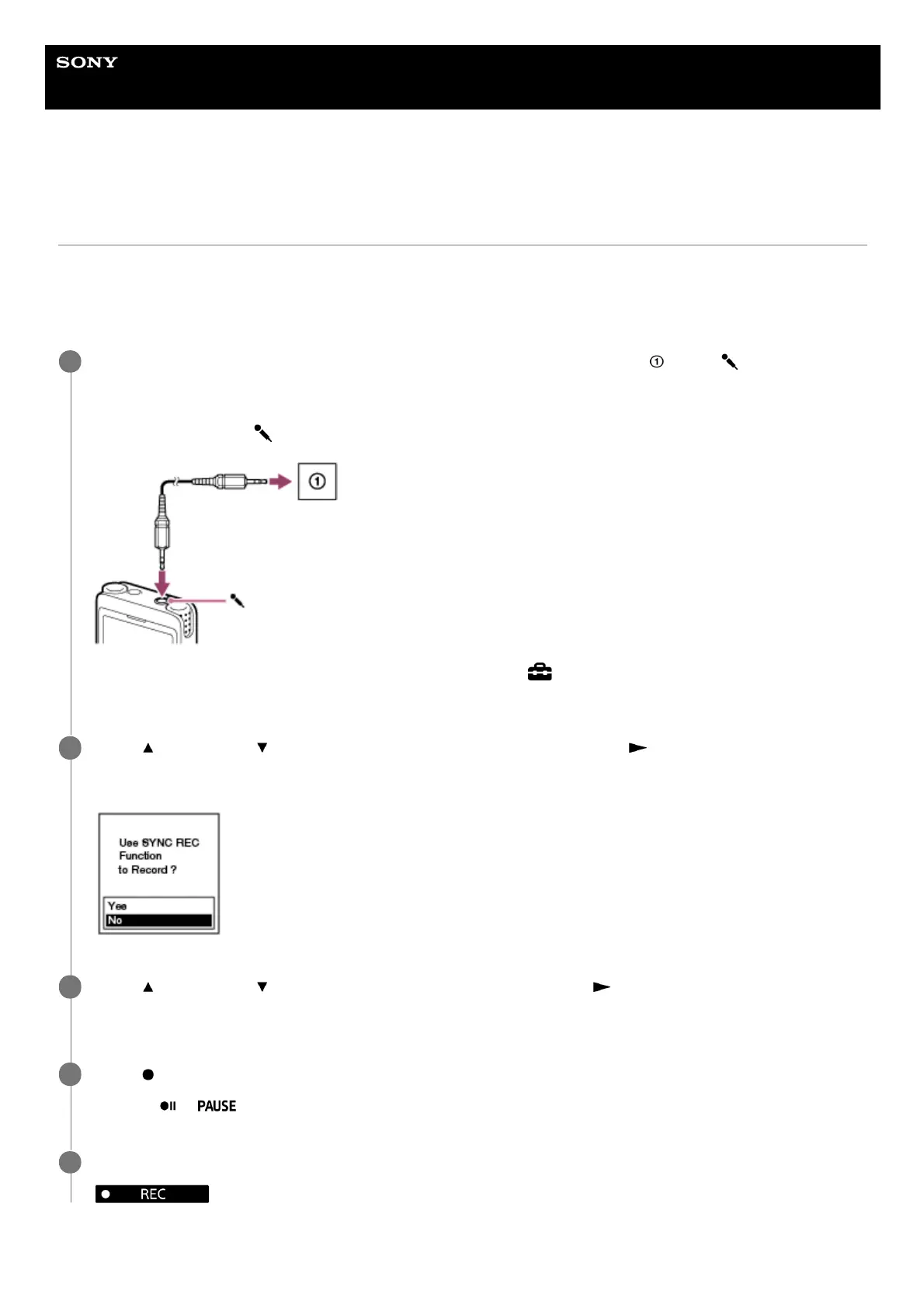
While no IC recorder operations are in progress, connect an external device (
) to the (microphone)
jack on the IC recorder.
Use an audio connection cable (commercially available) to connect the audio output jack (stereo mini-jack) on the
external device and the
(microphone) jack on the IC recorder.
[Ext. Input Setting] appears on the display window. If not, select [ Settings] - [Recording Settings] - [Ext. Input
Setting] from the HOME menu.
1
Press
(move up) or (move down) to select [Audio IN], and then press (play).
[Use SYNC REC Function to Record?] appears on the display window.
2
Press
(move up) or (move down) to select [Yes], and then press (play).
The synchronized recording function is turned on.
3
Press
REC/PAUSE.
Flashing
appears on the display window and the IC recorder pauses.
4
Start playback on the connected external device.
appears and the IC recorder starts synchronized recording.
5



 To Next Page