Help Guide
IC Recorder
ICD-UX570F / ICD-UX575F
Playing a file
You can select a file from the HOME menu for playback.
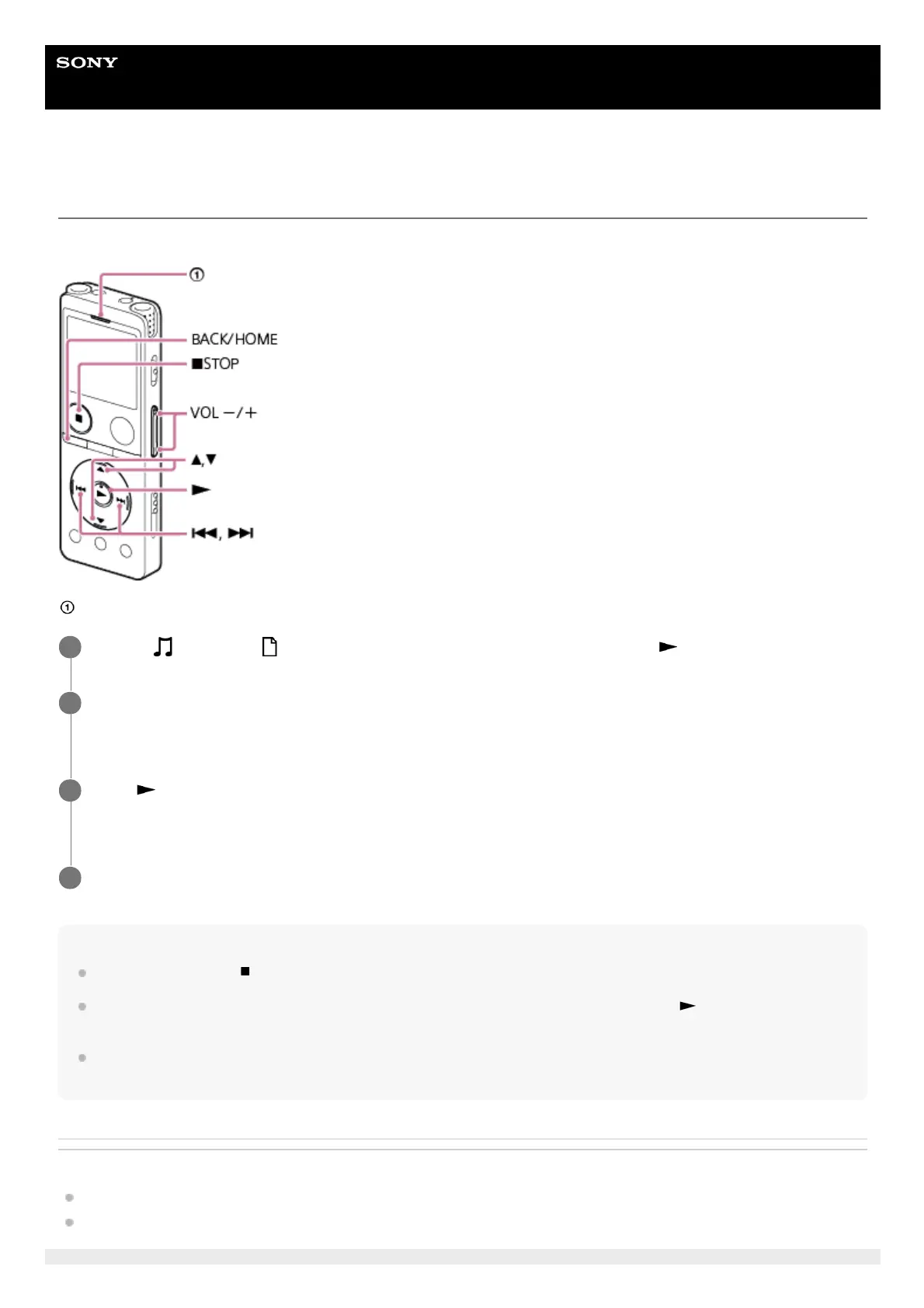
: Operation indicator
Hint
To stop playback, press
STOP.
When you stop recording and the recording standby screen is on the display window, you can press
(play) to play the file you
have just recorded.
The built-in speaker is provided mainly for checking recorded audio files; the sound may be not loud enough or difficult to hear. In
such cases, use headphones (not supplied).
Related Topic
Additional operations available during playback
Playing music files on the IC recorder that were copied from a computer
Select [
Music] or [ Recorded Files] on the HOME menu, and then press (play).
1
Search and select a file.
For instructions on searching a file, see Selecting a file.
2
Press
(play).
Playback starts and the operation indicator lights in green.
3
Press VOL -/+ to adjust the playback volume.
4



 To Next Page