1-20
82
To edit titles on the Dubbing List
1 Follow steps 1 to 7 of “Dubbing Using
Dubbing List” on page 80.
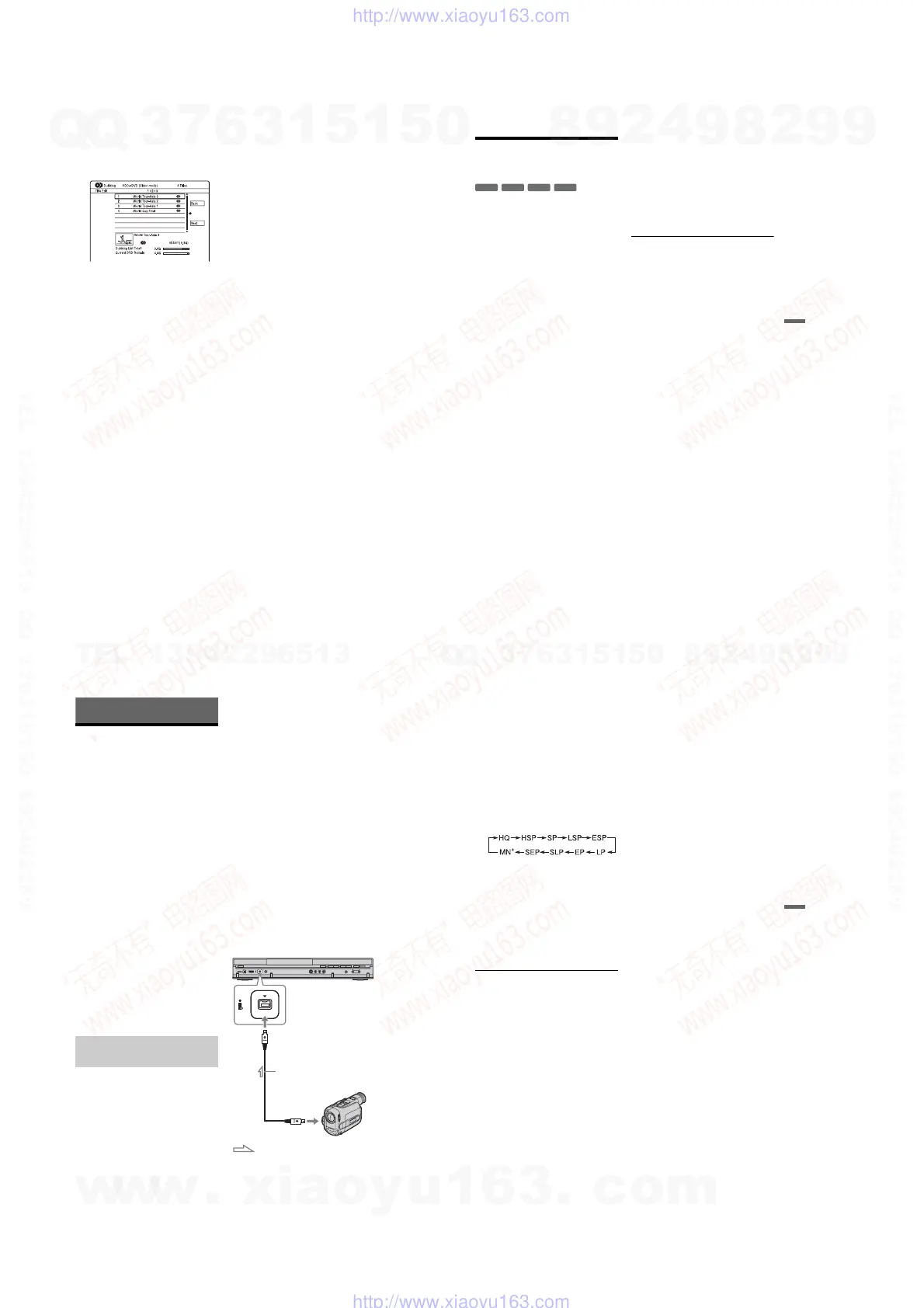
The “Title Edit” display appears.
2 Select a title you want to edit, and press
ENTER.
The sub-menu appears.
3 Select an option, and press ENTER.
The options differ depending on the
dubbing direction or disc type.
“Erase”: Erases the selected title.
“Title Name”: Names or renames a title
(page 37).
“A-B Erase”: Erases the section of the
title (page 73).
“Move”: Changes the order of titles
(page 77).
“Preview”: Allows you to check the
content of a title.
“Divide”: Divides a title into two titles
(page 74).
“Combine”: Combines two titles
(page 77).
“Chapter Edit”: Edits chapters (page 75).
“Set Thumbnail”: Changes the title’s
thumbnail frame that appears in the Title
List (page 34).
“Recording Mode”: Sets the picture
quality of the dubbing.
“Bilingual”: Sets how a bilingual audio
programme is dubbed.
“Cancel”: Exits the sub-menu.
4 Repeat steps 2 and 3 to edit all of the
titles.
5 Go to step 8 of “Dubbing Using Dubbing
List” on page 80 to dub edited titles.
b Notes
• The Dubbing List you created remains after
dubbing. To edit the existing Dubbing List, select
“Use Previous Dubbing List” in step 4. The
Dubbing List is cleared when:
– you change “Input Line System” setting in the
“Basic” setup (page 110).
– you reset the recorder (page 136).
– you open the disc tray (except when dubbing
from the HDD).
– you edit the titles on a disc (except when
dubbing from the HDD).
– you switch the Title List to Original or Playlist
(when dubbing from DVD-RWs/DVD-Rs in
VR mode only).
– you finalise the disc.
• The “seams” that are left over from editing may
remain on the disc after dubbing to DVD+RWs/
DVD-RWs (Video mode)/DVD+Rs/DVD-Rs
(Video mode).
• Finalisation is cancelled if a timer recording
starts, even if you set “Finalise” to “Yes” in step
9.
83
Dubbing (HDD y DVD)
Making a Backup Disc
(DVD Backup)
You can dub all of the contents on a finalised
DVD+RW/DVD+R or finalised DVD-RW/
DVD-R (Video mode) to another recordable
DVD+RW/DVD-RW or unused DVD+R/
DVD-R via the HDD as a backup copy.
b Note
Backup discs of unfinalised discs cannot be made.
1 Press SYSTEM MENU.
The System Menu appears.
2 Select “Dubbing,” and press ENTER.
3 Select “DVD Backup,” and press
ENTER.
4 Select “Start new DVD Backup,” and
press ENTER.
• If you have previously dubbed backup
data to the HDD, select “Resume
writing data,” and go to step 7.
5 Insert the DVD you are going to make
a backup of.
6 Select “Start,” and press ENTER.
The recorder starts dubbing all of the
contents on a DVD to the HDD.
7 Press Z (open/close), and replace the
DVD with a recordable DVD+RW/DVD-
RW or an unused DVD+R/DVD-R.
To make a backup disc of DVD+RWs/
DVD+Rs, insert a recordable DVD+RW
or unused DVD+R.
To make a backup disc of DVD-RWs/
DVD-Rs, insert a recordable DVD-RW
or unused DVD-R.
8 Select “Start,” and press ENTER.
The recorder starts High-speed dubbing
the contents that were dubbed to the
HDD in step 6.
9 Select “Cancel,” and press ENTER.
The disc is automatically finalised.
• To make another backup disc, replace
discs, select “Start,” and press ENTER.
10
Select “Yes” or “No,” and press
ENTER.
To erase the backup data on the HDD,
select “Yes.”
To make another backup disc later, select
“No.”
The recorder turns off automatically
when you do not use the recorder for
more than 20 minutes after the dubbing
has finished.
To display the dubbing information
Press DISPLAY while dubbing.
To cancel DVD backup during dubbing
Press and hold HDD/DVD DUB for more
than one second.
To erase backup data on the HDD
1 Select “Erase back-up data” in step 4, and
press ENTER.
The display asks for confirmation.
2 Select “Yes,” and press ENTER.
b Notes
• When dubbing to a DVD+R/DVD-R is stopped
partway in step 8, you cannot play or record on
the disc.
• You cannot make a backup disc of DVD+R DLs/
DVD-R DLs.
• You may not use the “DVD Backup” function
depending on the recording quality or physical
condition of the disc, or characteristics of the
recording device and authoring software.
+
RW
-
RWVideo
+
R
-
RVideo
84
DV Camcorder Dubbing
Before DV Camcorder
Dubbing
This section explains dubbing with a DV
camcorder and playing the contents of a DV
camcorder via the DV IN jack on the front
panel. If you want to dub by way of the LINE
IN jacks, see “Recording from Connected
Equipment” on page 59.
The DV IN jack on this recorder conforms to
the i.LINK standard.
Follow the instructions in “Preparing for DV
camcorder dubbing,” and then move on to the
section on dubbing. For more information
about i.LINK, see “About i.LINK” on
page 140.
How chapters are created
The contents dubbed to the HDD or DVD
become a single title. This title is divided into
chapters. When dubbing to the HDD or a
DVD-RW/DVD-R (VR mode) and when
“Auto Chapter (HDD/VR)” is set to “On” in
the “Recording” setup (page 121), each
shooting session on the tape becomes a
chapter on the disc. For other discs, the
recorder divides the title into chapters
according to the “Auto Chapter (Video)” or
“Auto Chapter (DVD+R/+RW)” setting in
the “Recording” setup (page 122).
You can connect a digital video camera to the
DV IN jack on the recorder to record or edit
from a DV/Digital8 format tape. Operation is
straightforward because the recorder will fast
forward and rewind the tape for you – you do
not need to operate your digital video camera.
Do the following to start using the “Manual
Dubbing” functions of this recorder.
See the instruction manual supplied with the
digital video camera as well before
connecting.
z Hint
If you plan to do additional editing on a disc after
the initial dub, use the DV IN jack and record on a
DVD-RW/DVD-R (VR mode) or HDD.
b Notes
• You cannot make a recording while DV
camcorder dubbing.
• The DV IN jack is for input only. It will not
output signals.
• You cannot use the DV IN jack when:
– signal input to the DV IN jack on the front panel
or recorder operation cannot be performed
correctly when using a digital video camera
(see “About i.LINK” on page 140). Connect the
camera to the LINE IN jack and follow the
instructions of “Recording from Connected
Equipment” on page 59.
– the input signal is not in DVC-SD format. Do
not connect a MICRO MV format digital video
camera even if it has an i.LINK jack.
– the images on the tape contain copy protection
signals, which limit recording.
• If you want to play DVDs dubbed from a DV
camcorder on other DVD equipment, finalise the
disc (page 40).
• Set the recorder and DV camcorder to the same
colour system (page 110).
Hookups
Preparing for DV camcorder
dubbing
DVD recorder
to DV IN
i.LINK cable
(not supplied)
DV output
DV camcorder
: Signal flow
85
DV Camcorder Dubbing
1 Press HDD or DVD to select the
recording destination.
If you select DVD, insert a disc (see “1.
Inserting a Disc” on page 31).
2 Insert the source DV/Digital8 format
tape into your digital video camera.
For the recorder to record or edit, your
digital video camera must be set to video
playback mode.
3 Press REC MODE on the remote
repeatedly to select the recording
mode.
The recording mode changes as follows:
For details about the recording mode, see
page 51. Note that you cannot select
manual recording mode.
4 Set the “External Audio” setting in the
“Audio In” setup (page 116).
5 Set the “DV Input” setting in the
“Audio In” setup (page 116).
You are ready to start dubbing. Select
one of the dubbing methods on the
following pages.
To playback DV/Digital8 format tape
You can check the contents of DV/Digital8
format tape before dubbing. For details, see
“Playing from a DV Camcorder” on page 87.
z Hint
The recorder completes dubbing even after being
turned off.
b Notes
• You cannot connect more than one piece of
digital video equipment to the recorder.
• You cannot control the recorder using another
device or another recorder of the same model.
• You cannot record date, time, or the contents of
the cassette memory onto the disc.
• If you record from a DV/Digital8 format tape that
is recorded in multiple sound tracks, such as a
tape with multiple sampling frequencies (48 kHz,
44.1 kHz, or 32 kHz), no sound or an unnatural
sound will be output when playing back the
sampling frequency switch point on the disc.
• In order to use this recorder’s “Auto Chapter”
setting (page 84), be sure to correctly set the clock
on your digital video camera before shooting.
• The recorded picture may be momentarily
affected or the start and end points of a title may
be different from what you have set if the source
DV/Digital8 format tape is in any of the following
conditions. In this case, see “Recording from
Connected Equipment” (page 59).
– There is a blank space in the recorded portion of
the tape.
– The tape’s time code is not sequential.
– If the picture size or the recording mode on the
tape being dubbed changes.
• A blank or black coloured screen will be dubbed
when the recorder is set to a different colour
system from the DV tape contents’ system. Set
“Input Line System” in the “Basic” setup to the
same colour system as the DV tape contents’
system (page 110).
w
w
w
.
x
i
a
o
y
u
1
6
3
.
c
o
m
Q
Q
3
7
6
3
1
5
1
5
0
9
9
2
8
9
4
2
9
8
T
E
L
1
3
9
4
2
2
9
6
5
1
3
9
9
2
8
9
4
2
9
8
0
5
1
5
1
3
6
7
3
Q
Q
TEL 13942296513 QQ 376315150 892498299
TEL 13942296513 QQ 376315150 892498299
http://www.xiaoyu163.com
http://www.xiaoyu163.com



 To Next Page