1-23
94
Playing Audio Tracks
Using Jukebox/USB
Device
1 Press SYSTEM MENU.
The System Menu appears.
2 Select “Music Jukebox,” and press
ENTER.
3 Select “Listen to Music / Edit” or
“Listen to Music from USB Device,”
and press ENTER.
To listen to the audio tracks on the HDD,
select “Listen to Music / Edit.”
To listen to the MP3 audio tracks from
the connected USB device, select “Listen
to Music from USB Device.”
The Album List appears.
4 Select an album or track, and press
ENTER.
Playback starts from the selected album
or track.
To stop playback
Press x (stop).
To scroll the list display by page (Page
mode)
Press SUBTITLE (previous)/ANGLE (next)
while the Album List is displayed. Each time
you press SUBTITLE (previous)/ANGLE
(next), the entire Album List changes to the
next/previous page of the album.
To change the album order (Sort Titles)
(HDD only)
1 Press < while the Album List is
displayed.
2 Select “Sort Titles” using M/m, and press
ENTER.
3 Select the item using M/m, and press
ENTER.
To search for the album by genre (Genre)
(HDD only)
1 Press < while the Album List is
displayed.
2 Select “Genre” using M/m, and press
ENTER.
3 Select the genre using M/m, and press
ENTER.
The albums in the selected genre appear.
To display all albums, select “All
Genres.”
.
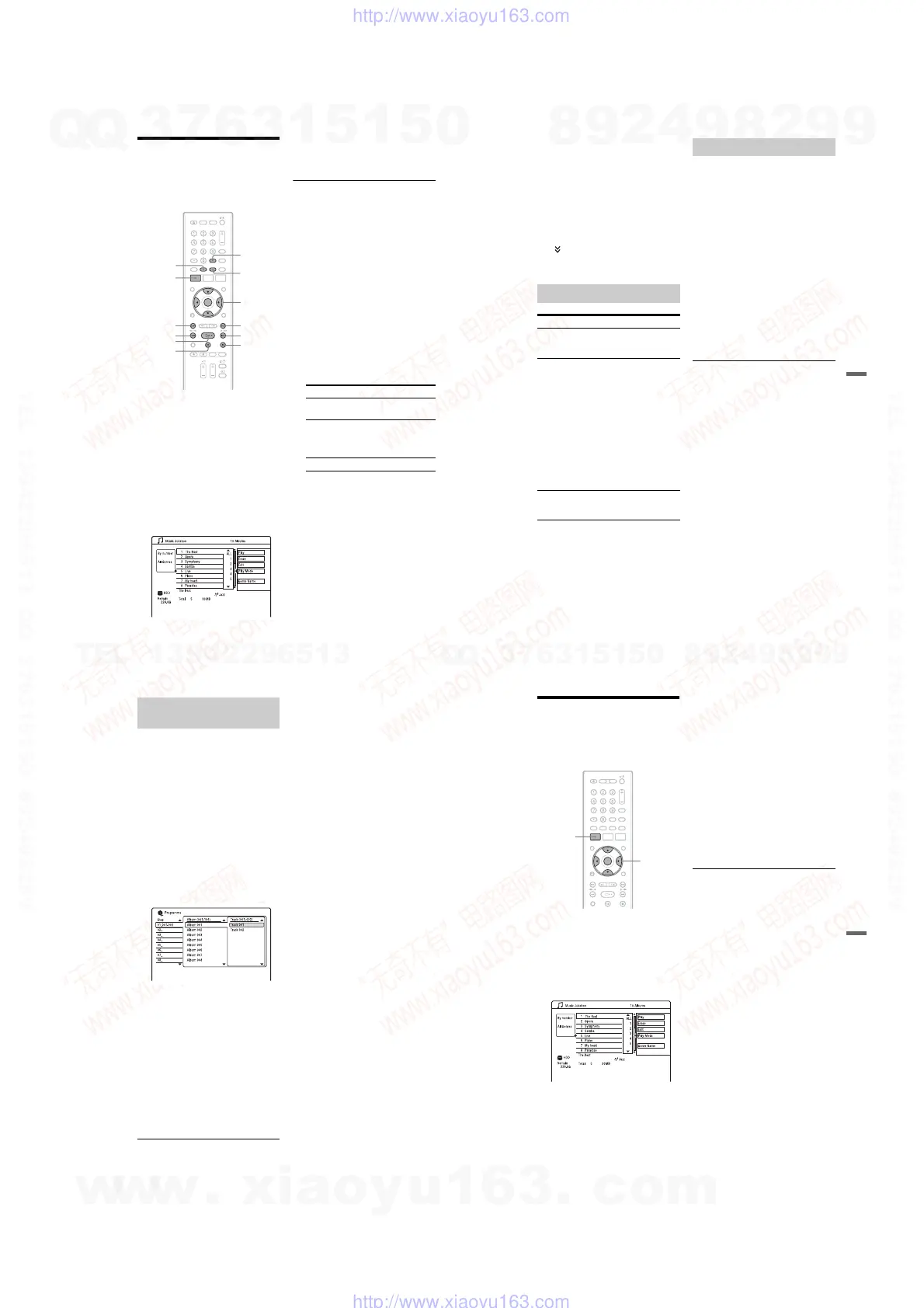
</M/m/,,
ENTER
x
>
m
H
X
SYSTEM
MENU
CLEAR
M
SUBTITLE
ANGLE
Order Sorted
By number In order of album
number.
By favourite In order of playback
times. The album that is
most often played is listed
at the top.
By album In alphabetical order.
95
Audio Tracks
To skip a track (Set Skip)
If you want a track not to play, set the track to
be skipped.
1 Select a track you want to skip.
2 Press , while the Album List is
displayed.
3 Select “Edit” using M/m, and press
ENTER.
4 Select “Set Skip” using M/m, and press
ENTER.
“” appears next to the selected track.
To cancel, select “Set Skip,” and press
ENTER again.
You can play repeatedly all the tracks or a
single track in the album.
1 Press , during playback.
2 Select “Play Mode,” using M/m, and
press ENTER.
The “Play Mode” menu appears.
3 Select “Repeat,” and press ENTER.
4 Select an item to be repeated using M/
m.
“Repeat Album”: repeats the current
album.
“Repeat Track”: repeats the current
track.
“Repeat Programme”: repeats the current
programme (page 96).
5 Press ENTER.
Repeat play starts.
To cancel Repeat play
Set “Repeat” to “Repeat Off” in the “Play
Mode” menu.
b Notes
• You can select “Repeat Programme” only during
Programme play.
•“A-B Repeat” is not available when using “Music
Jukebox.”
Playback options
Buttons Operations
./>
(previous/
next)
Goes to the next or previous
track when pressed during
playback.
m/M
(fast
reverse/fast
forward)
Fast reverses/fast forwards the
disc when pressed during
playback.
Search speed changes as
follows:
fast reverse fast forward
m
Tt
M
m
TT tt
M
When you press and hold the
button, fast forward/fast
reverse continues at the
selected speed until you release
the button.
To resume normal playback,
press H.
X (pause) Pauses playback.
To resume normal playback,
press H.
Playing repeatedly (Repeat)
,continued
96
You can play the contents of the HDD or
connected USB device in the order you want
by arranging the order of the tracks on the
HDD or connected USB device to create your
own programme. You can make a
programme of up to 24 steps.
1 Press , while the Album List is
displayed.
2 Select “Play Mode,” using M/m, and
press ENTER.
The “Play Mode” menu appears.
3 Select “Programme,” and press
ENTER.
4 Select “Input/Edit Programme,” and
press ENTER.
5 Select an album (example: Album
001) using M/m, and press ,.
6 Select a track (example: Track 001)
using M/m, and press ENTER.
The track is programmed.
If you make a mistake, select the step
number (example: 01.) using </M/m,
and press CLEAR.
7 To programme other tracks, press </
M/m/, to select a step number, and
repeat steps 5 and 6.
8 Press H.
Programme play starts.
To cancel Programme play
Set “Programme” to “Cancel Programme
Play” in the “Play Mode” menu during
playback.
To erase the programme
Set “Programme” to “Erase Programme List”
in the “Play Mode” menu.
z Hints
• You can select and play a track that is set to “Set
Skip.”
• The programme you made remains after
Programme play finishes. To play the same
programme again, set “Programme” to “Start
Programme Play” in the “Play Mode” menu.
However, the programme is cleared after you
press ?/1.
• You can repeat Programme play. Set “Repeat” to
“Repeat Programme” in the “Play Mode” menu
(page 95).
Creating your own programme
(Programme)
97
Audio Tracks
Managing Audio Tracks
on the Music Jukebox
You can erase or label albums/tracks on the
HDD. You can also assign an album a genre.
1 Press SYSTEM MENU.
The System Menu appears.
2 Select “Music Jukebox,” and press
ENTER.
3 Select “Listen to Music / Edit,” and
press ENTER.
The Album List appears.
4 Select an album or track, and press
,.
5 Select an option, and press ENTER.
“Erase”: Erases the selected album/track.
Select “Yes” when asked for
confirmation.
“Edit”: Allows you to make the
following edits.
•“Album Name”: Allows you to enter or
re-enter an album name (page 37).
•“Track Name”: Allows you to enter or
re-enter a track name (page 37).
•“Set Genre”: Assigns an album a genre.
•“Set Skip”: Sets a track to be skipped
(page 95).
“Play Mode”: Selects play modes
(page 95).
“Genre Name”: Allows you to enter a
genre name (up to 12 characters)
(page 37).
b Note
You cannot edit audio tracks on the connected USB
device.
SYSTEM
MENU
</M/m/,,
ENTER
w
w
w
.
x
i
a
o
y
u
1
6
3
.
c
o
m
Q
Q
3
7
6
3
1
5
1
5
0
9
9
2
8
9
4
2
9
8
T
E
L
1
3
9
4
2
2
9
6
5
1
3
9
9
2
8
9
4
2
9
8
0
5
1
5
1
3
6
7
3
Q
Q
TEL 13942296513 QQ 376315150 892498299
TEL 13942296513 QQ 376315150 892498299
http://www.xiaoyu163.com
http://www.xiaoyu163.com



 To Next Page