Naming Preset Stations and
Program Sources
You can enter a name of up to 8 characters for preset
stations and program sources. These names (Ibr exanlple,
"VHS") appear in tile receiver's display when a station or
program source is selected.
Note that no more than one name can be entered f_)t"each
preset station or program source.
This flmction is useflfl for distinguishing components of
tile saine kind. For exainple, two VCRs can be specified
as "VHS" and "8ram," respectively. It is also handy tot
identif_/ing coinponents connected to jacks meant fi_r
another type of coinponent, for example, a second CD
player connected to tile MD/DAT jacks.
1 To index a preset station
Rotate FUNCTION to select the tuner.
Tile last station you reeeived is tuned in.
To index a program source
Select the program source (component) to be
named, then go to Step 3.
2 Tune in the preset station you want to create an
index name for.
If you are not familiar with how to rune in preset
stations, see "Tuning to preset stations" on page 48.
3 Press NAME.
Create an index name by using the jog dial and
cursor buttons:
Turn the jog dial to seleet a charaeter, then press _ to
nlove tile cursor to tile next position.
1"Oinsert a space
Turn the jog dial until a blank space appears in the
display.
If you've made a mistake
Press _ or _ repeatedly until the character to be
changed flashes, then turn the jog dial to select tile
right character.
Press ENTER.
1"oassign index names to other stations
Repeat Steps 2 to 5.
Note
(Models of area code CED only)
Yon cannot change the name of"an RDS station.
Recording
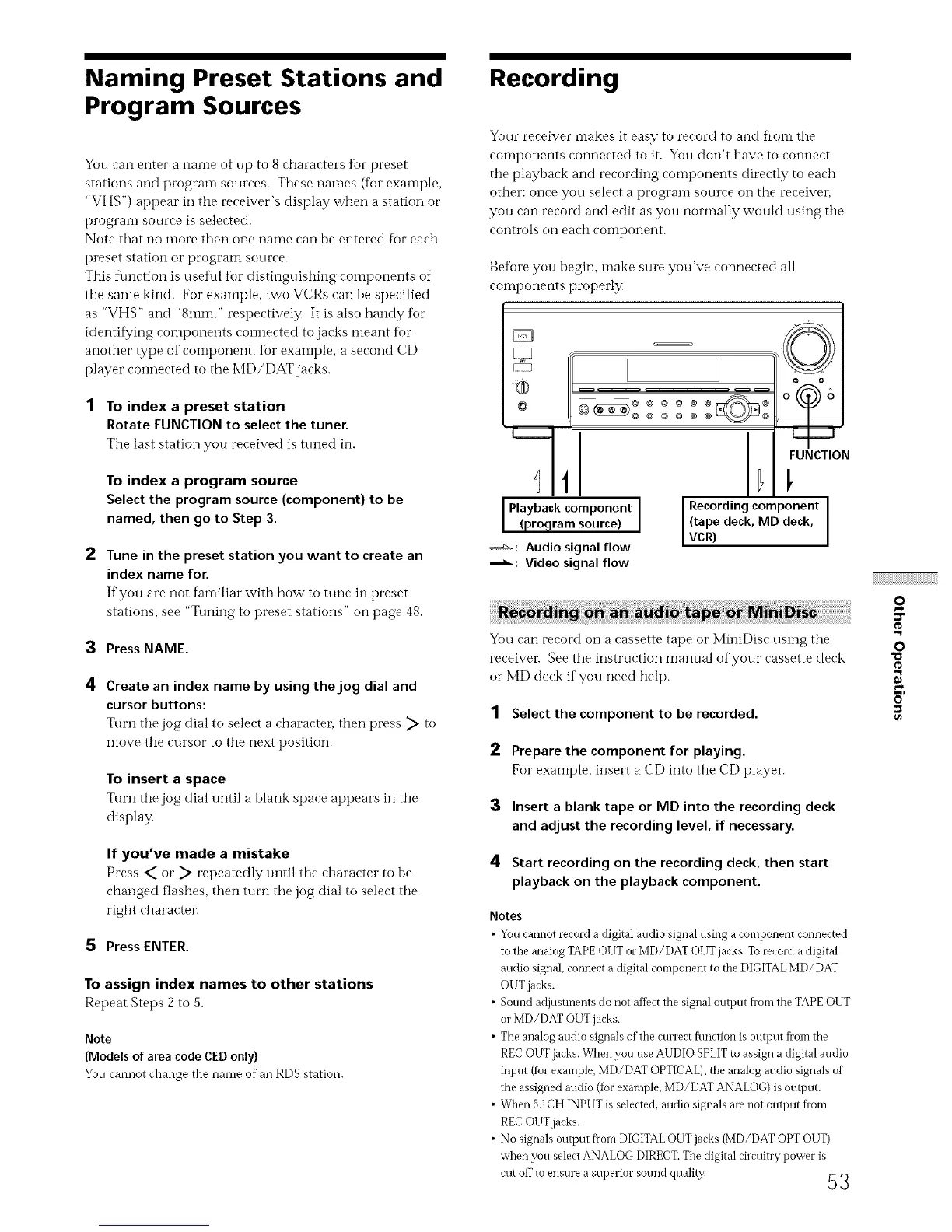
Your receiver makes it easy to record to and fi'om the
components connected to it. You don't have to connect
the playback and recording components directly to each
other: once you select a program source on the receiver,
you can record and edit as you normally would using tile
controls on each COIIlpoIleIlt.
Before you begin, 1hake sure you've connected all
components properly.
E,
I Playback component(program source) I
==_: Audio signal flow
--_: Video signal flow
=©
o o o
@ @ © @ @ @ _ @
J FUNCTION
Recording component
J (tape deck, MD deck,
LVCR)
You can record on a cassette tape or MiniDisc using the
receiver. See tile instruction manual of your cassette deck
or MD deck if you need hell).
1 Select the component to be recorded.
2 Prepare the component for playing.
For example, insert a CD into tile CD player.
3 Insert a blank tape or MD into the recording deck
and adjust the recording level, if necessary.
4 Start recording on the recording deck, then start
playback on the playback component.
Notes
• You cannot record a digital audio signal using a component connected
to the analog TAPE OUT or MD/DAT OUT jacks. To record a digital
audio signal, connect a digital component to the DIGITAL MD/DAT
OUT jacks.
• Sound adjustments do not attbct the signal ontpnt fionl the TAPE OUT
or MD/DAT OUT jacks.
• The analog audio signals of the cnrrect flmction is output fi'om the
REC OUT jacks. When yon use AUDIO SPLIT to assign a digital audio
input (fbr example, MD/DAT OPTICAL), the analog audio signals of
the assigned audio (for example, MD/DAT ANALOG) is outi)ut.
• When 5.1CH INPUT is selected, audio signals are not output fiom
REC OUT jacks.
• No signals output fi'om DIGITAL OUT jacks (MD/DAT OPT OUT)
when you select ANALOG DIRECT. The digital circuitry power is
cut off to ensure a superior sound quality. 5 3
O
¢D
,1 I
O
"a
¢D
,11


 To Next Page