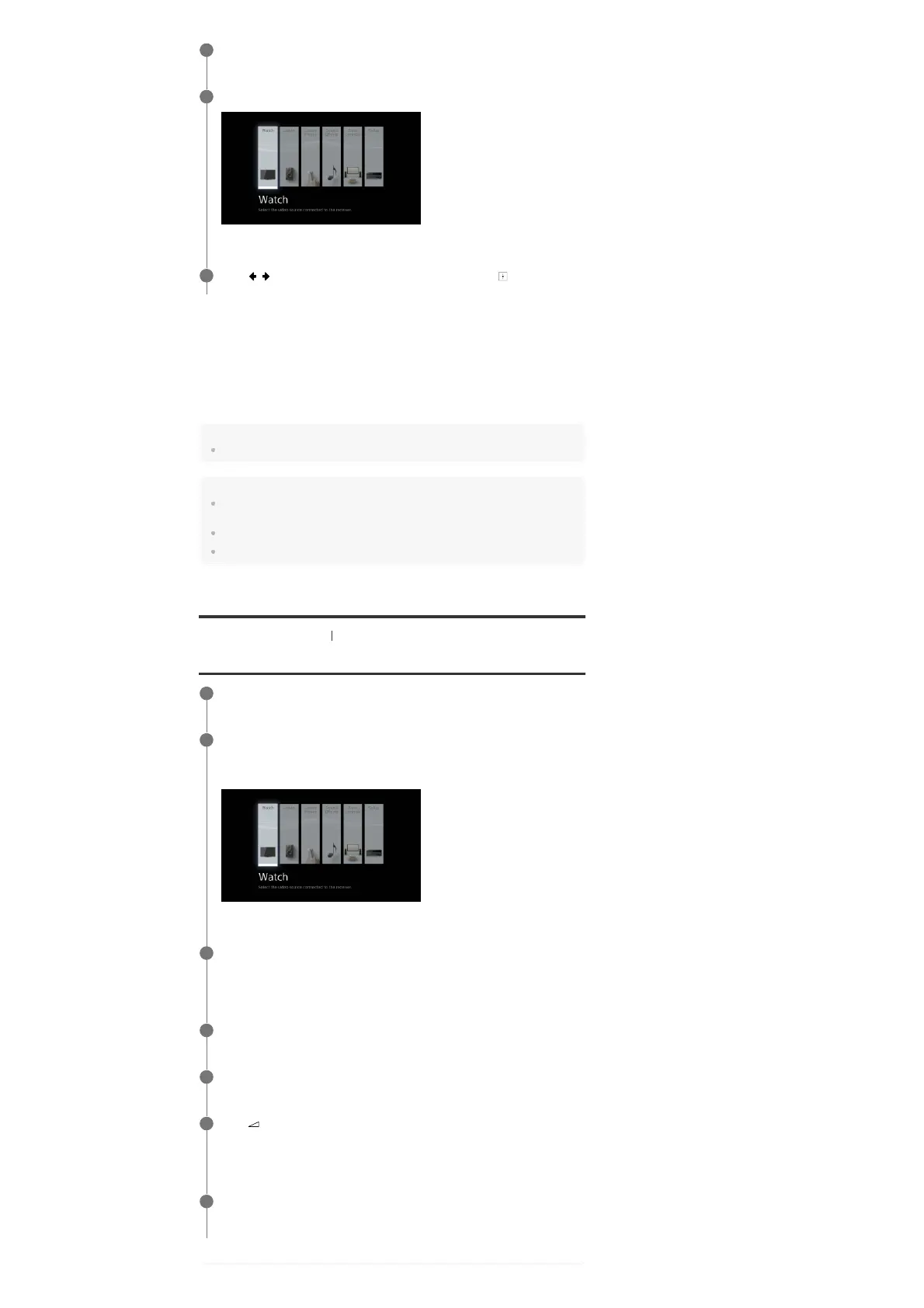
Home menu items
Watch: Select to display video from the connected device.
Listen: Select to listen to sound from the connected device.
Custom Preset: Select to save various settings for the receiver and recall those settings.
Sound Effects: Select to enjoy sound effects.
Zone Controls: Select to adjust settings for Zone 2 or Zone 3.
Setup: Select to adjust the various settings for the receiver.
Note
Sound is not output from the TV speakers while the home menu is displayed.
Hint
When [OPTIONS] appears in the lower right portion of the TV screen, you can display the function
list by pressing OPTIONS and selecting a related function.
To return to the previous screen, press RETURN.
To exit the menu, press HOME to display the home menu, then press HOME again.
[45] Enjoying Video and Sound Playing AV devices
Enjoying video/sound from the connected device
Switch the input of the TV to the input to which the receiver is connected.
1
Press HOME to display the home menu on the TV screen.
2
Press
/ repeatedly to select the menu you want, then press to enter the
menu.
3
Switch the input of the TV to the input to which the receiver is connected.
1
Press HOME.
The home menu is displayed on the TV screen.
Depending on the TV, the home menu may take some time to appear on the TV screen.
2
Select [Watch] or [Listen] from the home menu.
The menu item list appears on the TV screen.
3
Select the device you want.
4
Turn on the device and start playback.
5
Press
+/– to adjust the volume level.
You can also use MASTER VOLUME on the receiver.
6
Press 2CH/DIRECT, A.F.D., MOVIE or MULTI ST. to enjoy the surround sound.
You can also use 2CH/DIRECT, A.F.D., MOVIE or MULTI ST. on the receiver.
7



 To Next Page