89
Selecting the Native Scan/Scan Mode
Chapter 4 Operations
Selecting the Native
Scan/Scan Mode
You can select scan mode from a native scan, under scan
(–3%), normal scan (0%) and over scan (mask of 5% over
scan portion in the normal scan picture).
You can set scan mode with the NATIVE SCAN button or
SCAN button of the controller, or in the Function Switch
menu of the Function Setting menu.
Setting with the NATIVE SCAN button or
SCAN button of the controller
To set to the native scan mode
Set the NATIVE SCAN button to on. (The LED on the
button lights.)
To select the scan mode
1
Set the NATIVE SCAN button to off. (The LED on
the button is turned off.)
2
Press the SCAN button to select the scan mode.
Scan mode is changed to normal, under and over scan
mode by each press of the button.
Setting in the menu
Set Scan Mode or Native Scan in the Function Switch
menu (page 65) of the Function Setting menu.
To set to the native scan mode
Set Native Scan to On.
To select the scan mode
1
Set Native Scan to Off.
2
Select Scan Mode, then select scan mode from the
following.
Normal Scan: Normal mode
Under Scan: Under mode
Over Scan: Over mode
The scan mode is not selectable in the following cases:
• When Native Scan is set to On
• When the internal signal is displayed
• When Side by Side, Wipe, Butterfly or Blending is set to
On
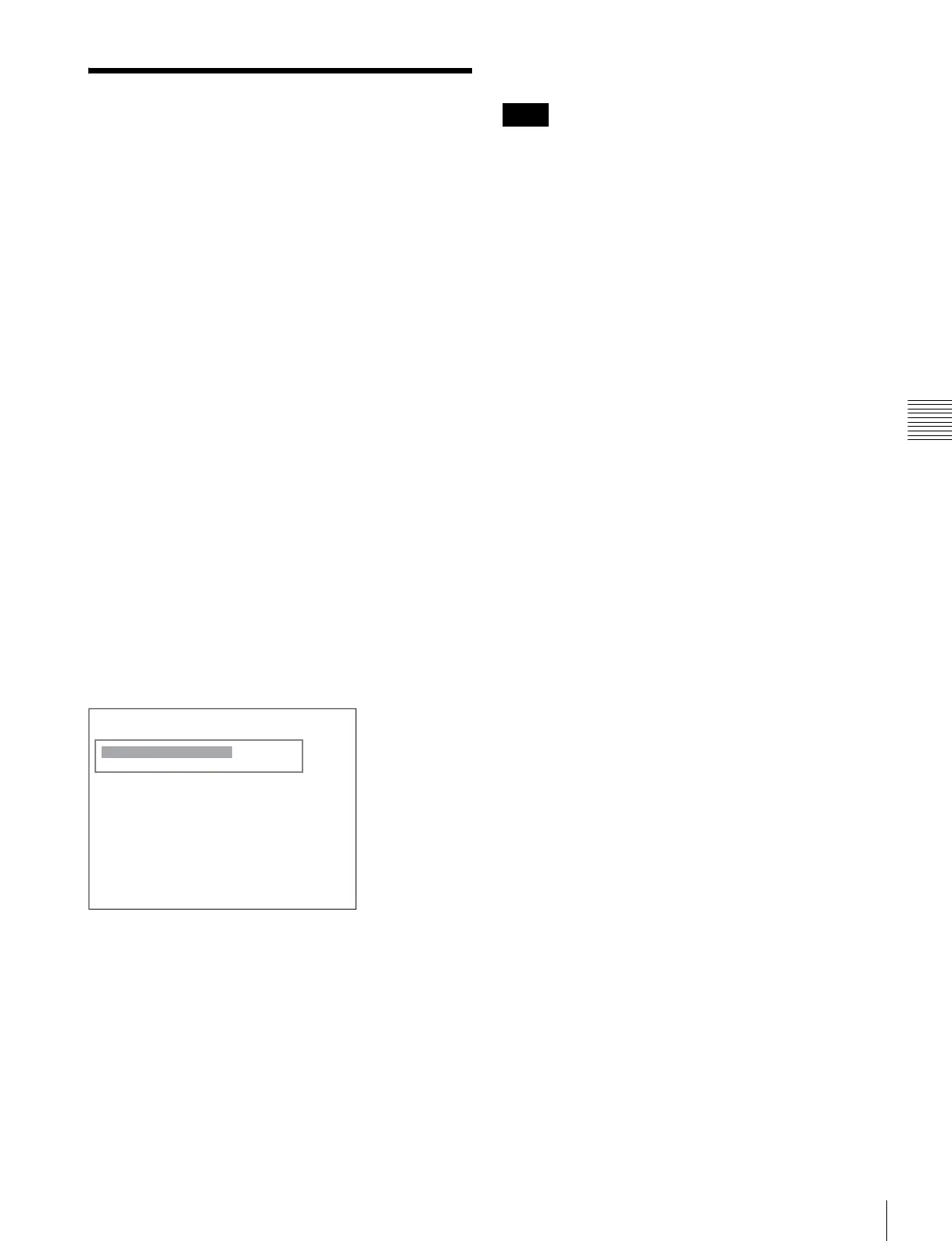
iiFunction Switch 1/5
Scan Mode: xxx
Native Scan: xxx
16:9: xxx
H Delay: xxx
V Delay: xxx
External Sync:: xxx
Comb: xxx
v
V
Note


 To Next Page