iil Adjusting your SET UP (menus) (continued)
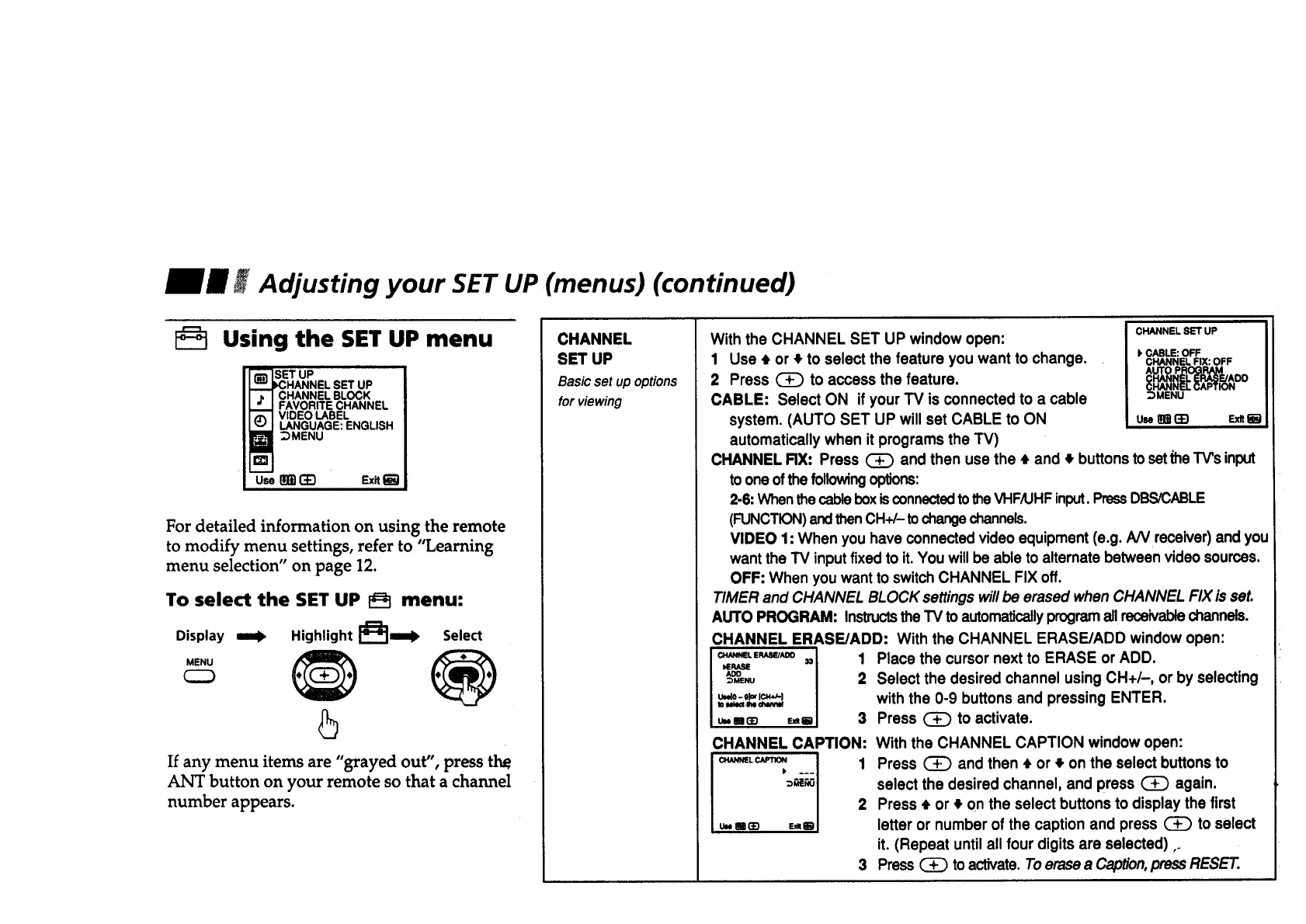
Using the SET UP menu
SET UP
UP
CHANNEL BLOCK
FAVORITE CHANNEL
VIDEO LABEL
LANGUAGE: ENGLISH
;)MENU
For detailed information on using the remote
to modify menu settings, refer to "Learning
menu selection" on page 12.
To select the SET UP _ menu:
Display
MENU
Highlight I_ i=lb Select
If any menu items are "grayed out", press the
ANT button on your remote so that a channel
number appears.
CHANNEL
BET UP
Basicsetup options
forviewing
With the CHANNEL SET UP window open:
1 Use • or • to select the feature you want to change.
2 Press _ to access the feature.
CABLE: Select ON if your TV isconnected to a cable
system. (AUTO SET UP will set CABLE to ON
automatically when it programs the TV)
CHANNEL SET UP
1,CABLE: OFF
CHANNEL RX: OFF
_MENU
use_13_ Ex_
i
CHANNEL RX: Press _ and then use the • and t buttons tosetihe TV'sinput
to oneof thefollowing op'dons:
2-6:Whenthe cableboxisconnectedtothe VHFMHF input.PressDBS/CABLE
(FUNCTION)andthenCH+/- tochangechannels.
VIDEO 1: When you have connected video equipment(e.g. A/V receiver) and you
want the TV inputfixed to it. You will be able to alternate between videosources.
OFF: When you want to switchCHANNEL FIX off.
TIMER and CHANNEL BLOCK settingswillbe erased when CHANNEL FIX is set.
AUTO PROGRAM: InstructstheTV toautomaticallyprogramall receivablechannels.
CHANNEL ERASE/ADD: With the CHANNEL ERASE/ADD window open:
CHANNEL ERASE/ADO
33
ADD
_MENU
IL_lO--O_ 10'I++'I
I0 IMllld.l_ d_WWl
CHANNEL CAPTION:
I CHANNEL CAPTION
1
k ---1
u_m_ E_EJ
1 Place the cursor next to ERASE or ADD.
2 Select the desired channel using CH+/-, or by selecting
with the 0-9 buttons and pressing ENTER.
3 Press _ to activate.
With the CHANNEL CAPTION window open:
Press _ and then • or t on the select buttons to
select the desired channel, and press (_ again.
2 Press • or 4 on the select buttons to display the first
letter or number of the caption and press _ to select
it. (Repeat until all four digits are selected) ,.
3 Press _ toactivate.Toerase a Caplion,press RESE'E.





 To Next Page