27
Menu Adjustment
Sony KV-SA32M36 Group F12 (GB)_2-348-392-11 (1)
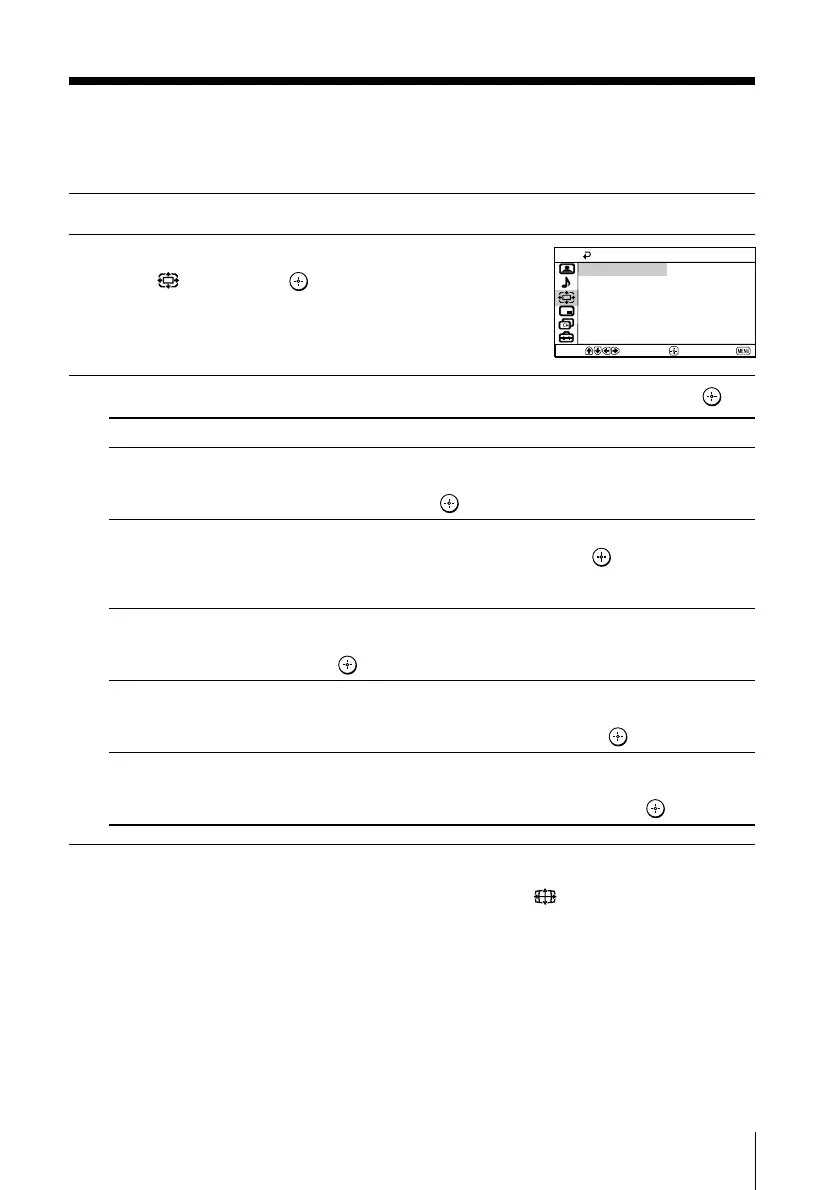
x Changing the “Wide Screen” setting
The “Wide Screen” menu allows you to watch the picture filling the 16:9 screen
of the TV.
1
Press MENU.
2
Press V or v to select the “Wide Screen”
icon ( ), then press .
3
Press V or v to select the desired item (e.g., “Wide Mode”), then press .
Select To
“Wide Mode” select the desired wide screen mode to fit the 16:9 screen.
Press V or v to select “Wide Zoom”, “Normal”, “Full” or
“Zoom”, then press
.
“Auto Wide” automatically display the picture in optimum wide screen mode.
Press V or v to select the “On” then press .
Select “Off” if you want to display any picture in currently
selected wide screen mode.
“4:3 Default” display a 4:3 picture in “Wide Zoom” or “Normal” mode.
Press V or v to select the “Wide Zoom” or “Normal”, then
press
.
“V Center” adjust the vertical position of the picture in “Wide Zoom” or
“Zoom” mode.
Press V or v to move the picture, then press
.
“V Size” adjust the vertical size of the picture in “Wide Zoom” or “Zoom”
mode.
Press V or v to adjust the vertical size, then press .
Tip
• You can also change to wide-mode picture size by pressing the button on the remote
control (see page 14)
Note
•“4:3 Default” does not function when “Auto Wide” is set to “Off”.
4:3 Default:
V Center:
V Size:
Auto Wide:
Wide Zoom
Wide Mode:
Wide Screen
Confirm
End
Select
00
00
On
Wide Zoom
01GB06ADJ-STMOce.p65 10/14/04, 6:07 PM27
Black



 To Next Page