......
......
Using On-Screen Menus
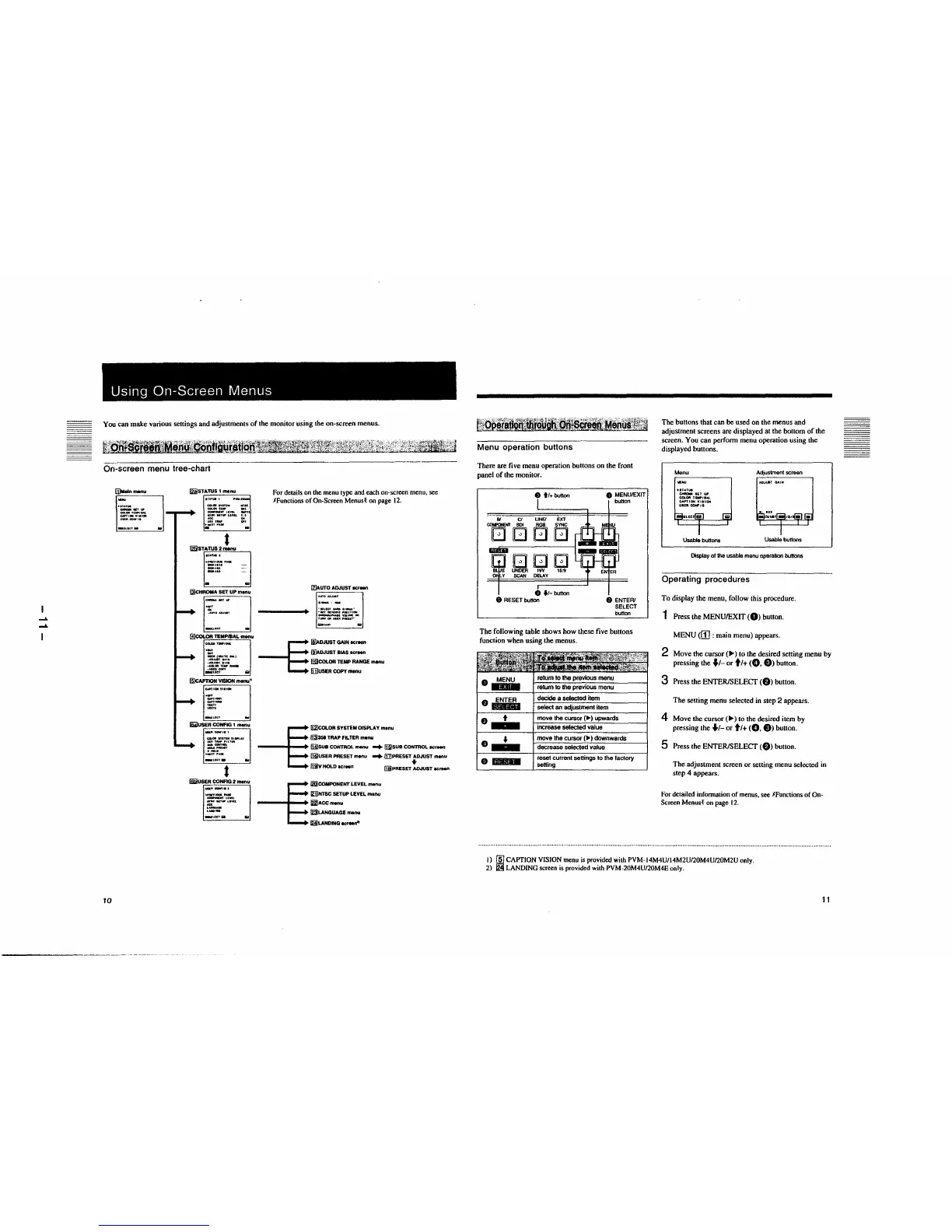
You can make various settings and adjustments of the monitor using the on-screen menus.
On-screen menu tree-chart
@~Malnmonu
-
-
.
..
10
[iiJST~
"-· ....
.:GI.GJlaWllfOI lffllC _,_ 011
-lltll'ff,L .. Tl
lff9CNT ... LUII.. J.I
- -
tll ,_ a,,
- -
t
f2iiST~ATUS2menu
-
-
-
-
&
13]cHROIIA SET UP menu
EJ
.
-
@cOLOR TEMP/BAL menu
-·
-·
jt,].:::
(5JCAPTIONEJVISIONmenu"
'
'
-
.
.
~
Wi)USER~CONFIG 1 menu
.
.
-
.
- ..
t
lliii!USEE]R CONAG2 menu
-
'
'
-
-
..
For details on the menu type and each on-screen menu, see
JFunctions of On-Screen Menust on page 12.
Iz)AUTO ADJUST acrean
. .,_llCT-11-.•
... , Nflllfl NalflQN
__ VQ....._OII
I .... GN ... 111, .. NT"
--§
18]AOJUSTGAINIC,_,
(s}ADJUST BIAS IICrNn
liil)COLOR TEMP RANGE SNnu
[i)USER COPY menu
--§
li2)COLOR SYSTEM DISPLAY menu
fl31351 TRAP FILTER m•nu
(HJsua CONTROL menu -+ II5}SUB CONTROL "'""
ffii!USER PRESET m•nu -+ 11z]PRESET .JUST menu
~y HOLD •crNn fiB!PRESET ADJUST acraen
--§
/&COMPONENT LEVEL menu
121]NTSC SETUP LEVEL menu
~ACCmenu
~LANGUAGE menu
lijLANOING scf"Nfl">
i,.:•· ... ;.,\',;\',~. si¼~Wlf:4'.t-~z~~i·"1,:, ... i,•··••:¾:l'.¥;J
lf.iQl)§!:IJJi!l'l W!!;.~;,i .. t..~~~l!O§, ... fi'
Menu operation buttons
There are five menu operation buttons on the front
panel of the monitor.
8 tt+button
Bl Cl LINE/ EXT
COIFCIENT SOI RGB SYNC
□□□□
□□□
UNDER tW 16:9
SCAN DELAY
0 ft-button
8 RESET button
0 MENU/EXIT
button
f) ENTER/
SELECT
button
The following table shows how these five buttons
function when using the menus.
ENTER
·--
·--
•
.,_
·-
return to the previous menu
decide a selected item
select an adjustment item
move the cursor
(
►)
upwards
increase selected value
move the
cursor(
►)
downwards
decrease selected value
reset current settings to the factory
setting
The buttons that can be used on the menus and
adjustment screens are displayed at the bottom of the
screen. You can perform menu operation using the
displayed buttons.
Menu
►
IU.TW
~IUUfl
COI.OIITEWJHL
::·:.:::•o.
Usable buttons
Adjustment screen
Usable buttons
Display of the usable menu operation buttons
Operating procedures
To display the menu, follow this procedure.
1 Press the MENU/EXIT (0) button.
MENU <II] : main menu) appears.
2 Move the
cursor(
►)
to the desired setting menu by
pressing the fl- or ti+ (0, 8) button.
3 Press the ENTER/SELECT (8) button.
The setting menu selected in step 2 appears.
4 Move the
cursor(
►)
to the desired item by
pressing the fl- or ti+ (0, 8) buuon.
5 Press the ENTER/SELECT (8) button.
The adjustment screen or setting menu selected in
step 4 appears.
For detailed infonnation of menus. see JFunctions of On-
Screen Menust on page 12.
I) (ID CAPTION VISION menu is provided with PVM-14M4U/14M2U/20M4U/20M2U only.
2)
~
LANDING screen is provided with PVM-20M4U/20M4E only.
11



 To Next Page