91369 Service Manual 2-19
Setup
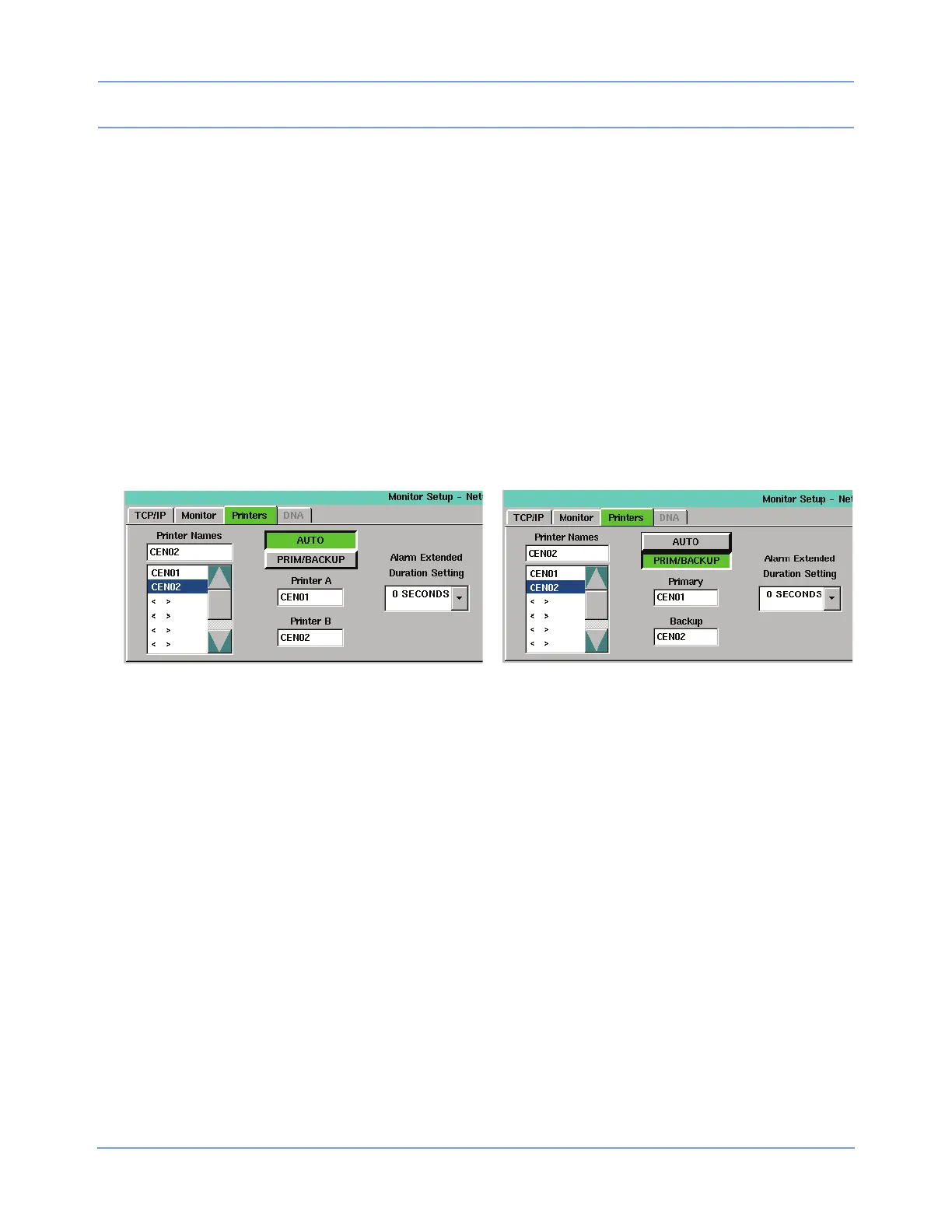
AUTO / PRIM/BACKUP
The AUTO / PRIM/BACKUP key selects which set of printer selection rules the monitor uses for selecting
network printers. It does not affect the monitor’s selection of whether a networked or non-networked printer is
used. Any changes made to the printer selection mode using this key take effect immediately, regardless of
monitor type. The default setting is AUTO, which selects the destination printer using the weight-based printer
selection rules. (Refer to the Ultraview SL Operations Manual, P/N 070-1150-xx, located on CD-ROM
P/N 084-1101-xx for additional information).
When PRIM/BACKUP is selected, the monitor automatically selects the primary printer, unless that printer is
unable to accept the recording. In that instance, the monitor then selects the backup printer. If the backup
printer is also unable to accept the recording, the monitor displays an Unable to record message.
Printer Selection Fields
The default for the printer selection fields is blank (i.e., no printer selected). The labels above these fields vary,
based on the current setting of the AUTO / PRIM/BACKUP key. If AUTO is selected, the labels are Printer A
and Printer B. If PRIM/BACKUP is selected, the labels are Primary and Backup (Figure 2-13).
Figure 2-13: AUTO / PRIM/BACKUP selection differences
To define a printer name:
1 Select a printer name from the Printer Names list.
2 Select one of the two printer selection fields. The new value displays in the selected field.
WLAN Tab
This tab allows the operator to set basic wireless local area network (WLAN) related settings.
The WLAN tab only displays on monitors that are configured for wireless operation (option -Z). Monitors are
configured for wireless operation by selecting the sysgen RADIO option. The RADIO ON/OFF keys and all
other input cells and combo boxes illustrated in Figure 2-14 are not available for selection if the radio is not
present.
Caution:
Do NOT power the radio ON until all network configuration has been completed. Powering the radio
ON with the monitor set to the factory defaults could interfere with the wireless network.


 To Next Page