9
Weekly schedule
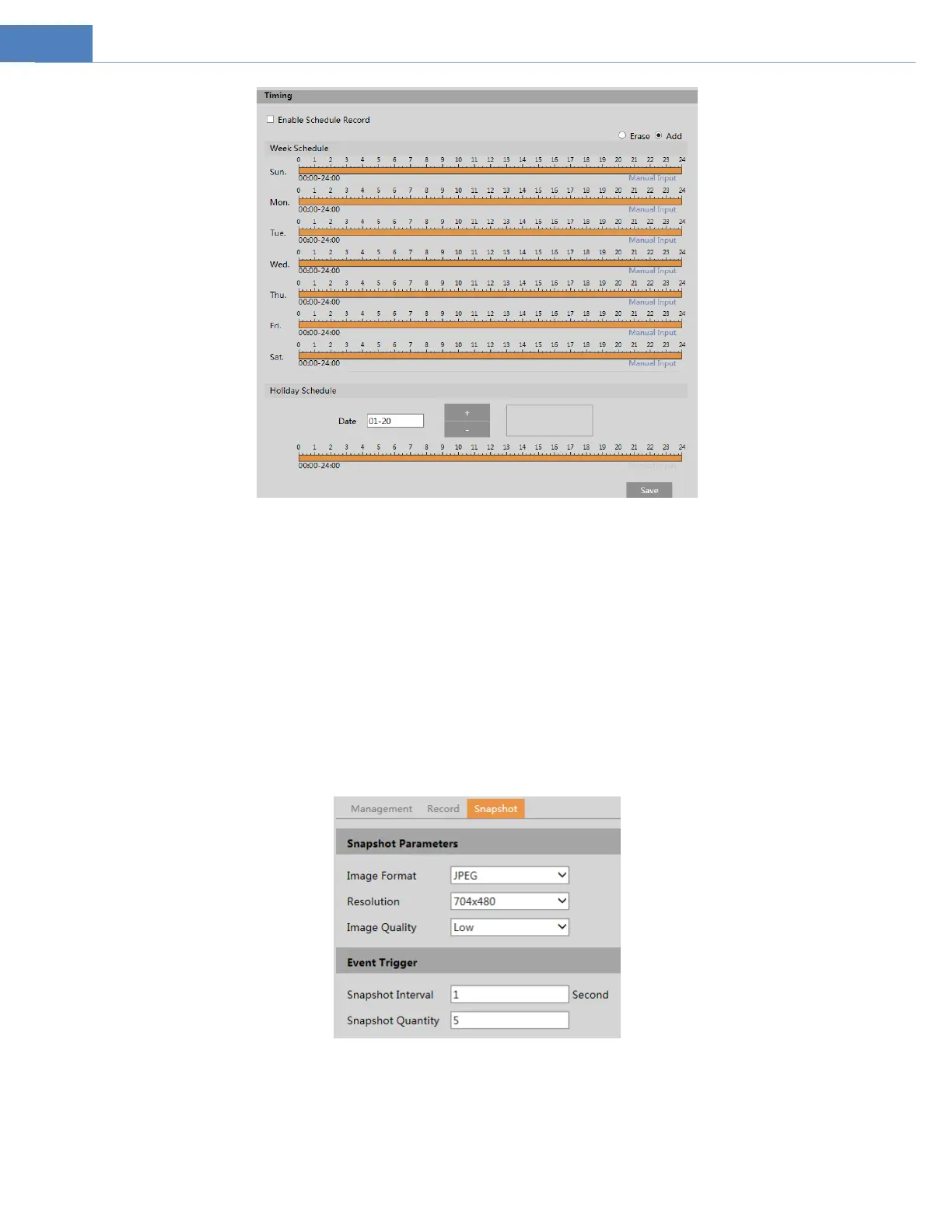
Set the alarm time from Monday to Sunday for a single week. Each day is divided in one-hour increments. Green means scheduled.
Blank means unscheduled.
“Add”: Add the schedule for a special day. Drag the mouse to set the time on the timeline.
“Erase”: Delete the schedule. Drag the mouse to erase the time on the timeline.
Manual Input: Click it for a specific day to enter specific start and end times. This adds more granularities (minutes).
Day schedule
Set the alarm time for alarm a special day, such as a holiday.
Note: Holiday schedule takes priority over weekly schedule.
Snapshot Settings
Go to SystemStorageSnapshot to go to the interface as shown below.
Set the format, resolution and quality of the image saved on the SD card and the snapshot interval and quantity and the timing
snapshot here.
Snapshot Quantity: The number you set here is the maximum quantity of snapshots. The actual quantity of snapshots may be less
than this number. Supposing the occurrence time of an alarm event is less than the time of capturing pictures, the actual quantity of
snapshots is less than the set quantity of snapshots.
Timing Snapshot: Enable timing snapshot first and then set the snapshot interval and schedule. The setup steps of schedule are the


 To Next Page