14
Click the “Clear” button to delete the current video mask area.
4.2.5 ROI Configuration
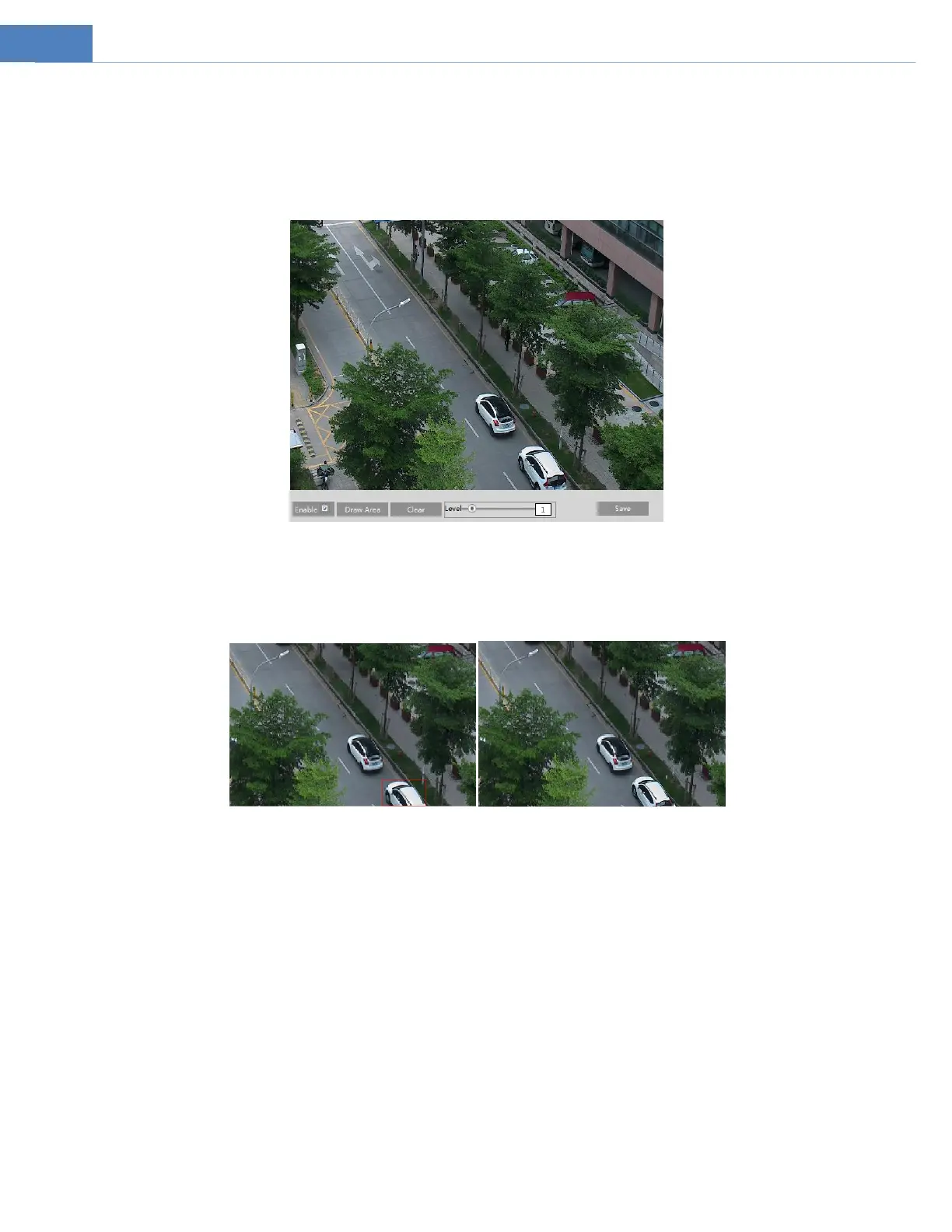
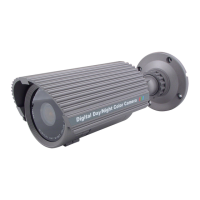
Go to ImageROI Config interface as shown below. An area in the image can be set as a region of interest. This area will have a
higher bitrate than the rest of the image, resulting in better image quality for the identified area.
1. Check “Enable” and then click the “Draw Area” button.
2. Drag the mouse to set the ROI area.
3. Set the level.
4. Click the “Save” button to save the settings.
4.2.6 Zoom/Focus
This function is only available for the model with motorized zoom lens. Within this section, zoom and focus can be controlled. If
the image is out of focus after a manual adjustment, one key focus can be used to set the focus automatically.


 To Next Page