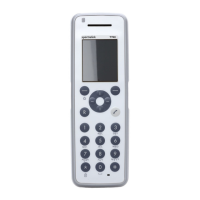
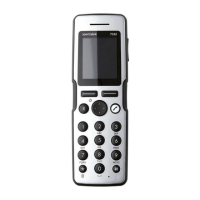
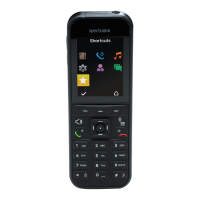
Spectralink 7622/7642 Handset User Guide
Spectralink 76-Series Handset User Guide.docx
April 2023 109
1. Enter the current PIN, and press Unlock to unlock the handset.
2. Press Menu to enter main menu.
3. Scroll to Settings, and press Select.
4. Scroll to Advanced, and press Select.
5. Scroll to Screen Lock, and press Select.
6. Scroll to Settings, and press Change.
7. Scroll to Unlock attempts, and press Select.
8. Press the top or bottom of the navigation key to change the digit, and press Save.
The maximum number of allowed attempts to unlock the handset is 250 (default is 3
attempts), but it is possible to define values from 1 - 250 attempts. Information about
attempts left, will only be shown when there are 10 attempts or less left before the handset
will lock itself.
Note:
Be careful when setting unlock attempts. If the limit is exceeded, then the handset must
be reset to factory settings and resubscribed. For more information, see “To reset to
Factory Settings” on page 111.
To Define Emergency Numbers
Ensure that the number to be defined as emergency number exists in the local phone book.
For more information about adding names/numbers to local phone book, see "Managing
Contacts" on page 55.
1. Press Menu to enter main menu.
2. Scroll to Settings, and press Select.
3. Scroll to Advanced, and press Select.
4. Scroll to Screen Lock, and press Select.
5. Scroll to Settings, and press Change.
6. Scroll to Emergency Numbers, and press Select.
7. Scroll to Add number, and press Select.
Local phone book name/numbers are shown in a list.
8. Scroll to the name/number to be added to the list of emergency numbers, and then
press Select.
Repeat this if you want to add more name/numbers.


 To Next Page