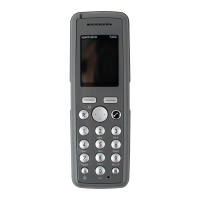
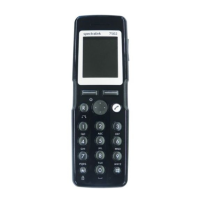
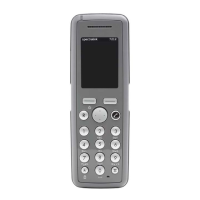
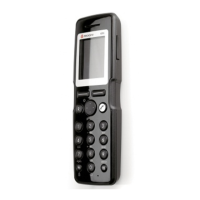
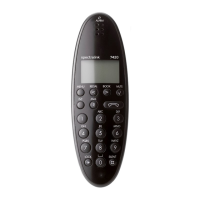
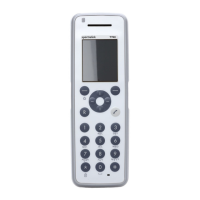
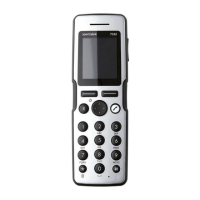
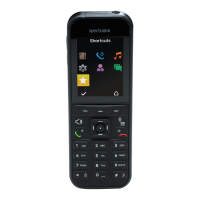
Spectralink 7622/7642 Handset User Guide
Spectralink 76-Series Handset User Guide.docx
April 2023 84
Auto Key Lock
Use auto key lock to prevent keys from being accidentally pressed.
With auto key lock turned on, the handset will automatically lock keypad after 30 seconds.
To Turn Auto Key Lock On/Off
1. Press Menu to enter main menu.
2. Scroll to Settings, and press Select.
3. Scroll to Auto key lock, and press Select.
4. Press Change to select between On or Off.
5. To answer a call when Auto key lock is on, press
. When you end the call, keypad
automatically locks
Note:
Alternatively, you can also turn auto key lock on/off by pressing Menu followed by *,
while on hook.
Backlight
To save power the backlight can be set to automatically either dim or turn off. This will
happen after the handset has been idle for a configurable time delay.
The display backlight automatically turns on again when e.g. an incoming call or message
arrives, or if a key is pressed.
The backlight turns off when handset is idle after a preset period of time delay.
The time delay can be adjusted between eight levels. The highest level will result in infinite
time delay, and the backlight will never dim or turn off. The other levels will dim with different
time delays.
The default delay setting is 5 seconds. The delay can be adjusted between 2 - 15 seconds.
Note:
Turning display backlight off when handset is idle will save battery power.
Setting Backlight to Automatically Dim or Turn Off
1. Press Menu to enter main menu.
2. Scroll to Settings, and press Select.


 To Next Page