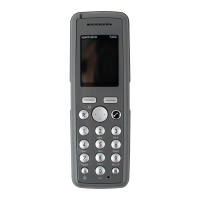
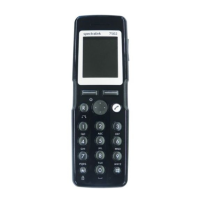
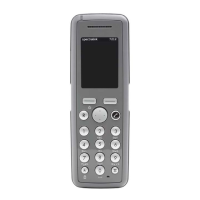
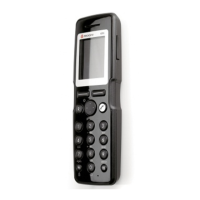
Spectralink 7622/7642 Handset User Guide
Spectralink 76-Series Handset User Guide.docx
April 2023 82
4. Scroll to the desired ring tone, and press the right side of the navigation key to
listen to the ring tone. Repeat the process if you want listen to other ring tones.
5. Press the left side of the navigation key to listen to the internal calls ring tone
(system dependent feature).
6. Scroll to the desired ring tone, and press Change to select the new ring tone.
Note:
If you cannot hear the ring tones, check that Silent mode is turned off.
Message Alert Volume
Alerts are different tones that appear during notifications and events, e.g.:
• You receive a new message.
• You send a message.
• The handset is moving out of range.
• The handset is out of range.
• The battery capacity is low.
• You create a login.
Note:
The message alert volume is not related to Alarm features and task messages.
To Adjust Message Alert Volume
1. Press Menu to enter main menu.
2. Scroll to Settings, and press Select.
3. Scroll to Message Alert vol, and press Select.
4. Press the left or right side of the navigation key to adjust the message alert
volume.
5. Press Set.
Note:
You cannot set vibrate to work with message alerts.


 To Next Page