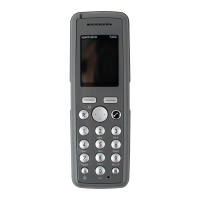
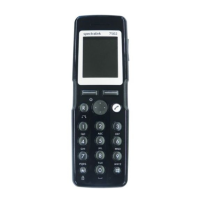
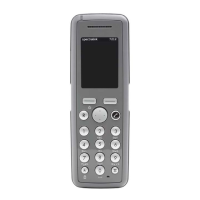
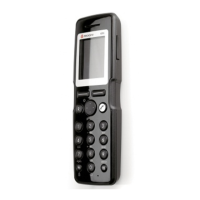
Spectralink 7622/7642 Handset User Guide
Spectralink 76-Series Handset User Guide.docx
April 2023 89
Note:
Bluetooth function must be set to
.
When setting up a Bluetooth connection, you will need to search for a compatible device
with Bluetooth connectivity in order to pair this device to your handset.
You will need a pin code of 1-16 numeric characters. (Consult the user guide of the
Bluetooth headset for the pin code information).
You are only asked to enter this pin code the first time you connect to the device. The
icon appears in the handset display when a wireless headset is connected.
1. Press Menu to enter main menu.
2. Scroll to Settings, and press Select.
3. Scroll to Bluetooth, and press Select.
4. Scroll to Search to search for compatible Bluetooth headset, and press Select.
5. Select the headset code number listed in the display of the handset, press Stop,
then press Add.
6. Enter pin code, and press Ok.
7. Press Ok, and press Options in order to connect to the headset.
8. Scroll to Connect, and press Select.
9. Press Ok. The wireless headset is now connected to your handset
Deactivate Bluetooth
1. Press Menu to enter main menu.
2. Scroll to Settings, and press Select.
3. Scroll to Bluetooth, and press Select.
4. Scroll to Active, and press Select.
5. Press Change to select Off. Bluetooth is now deactivated, and any Bluetooth device
connected to the handset has now been disconnected.
Activate Bluetooth Again
1. Press Menu to enter main menu.
2. Scroll to Settings, and press Select.
3. Scroll to Bluetooth, and press Select.
4. Scroll to Device list, and press Select.


 To Next Page