User guide UM1659
16/25 UM1659 Rev 4
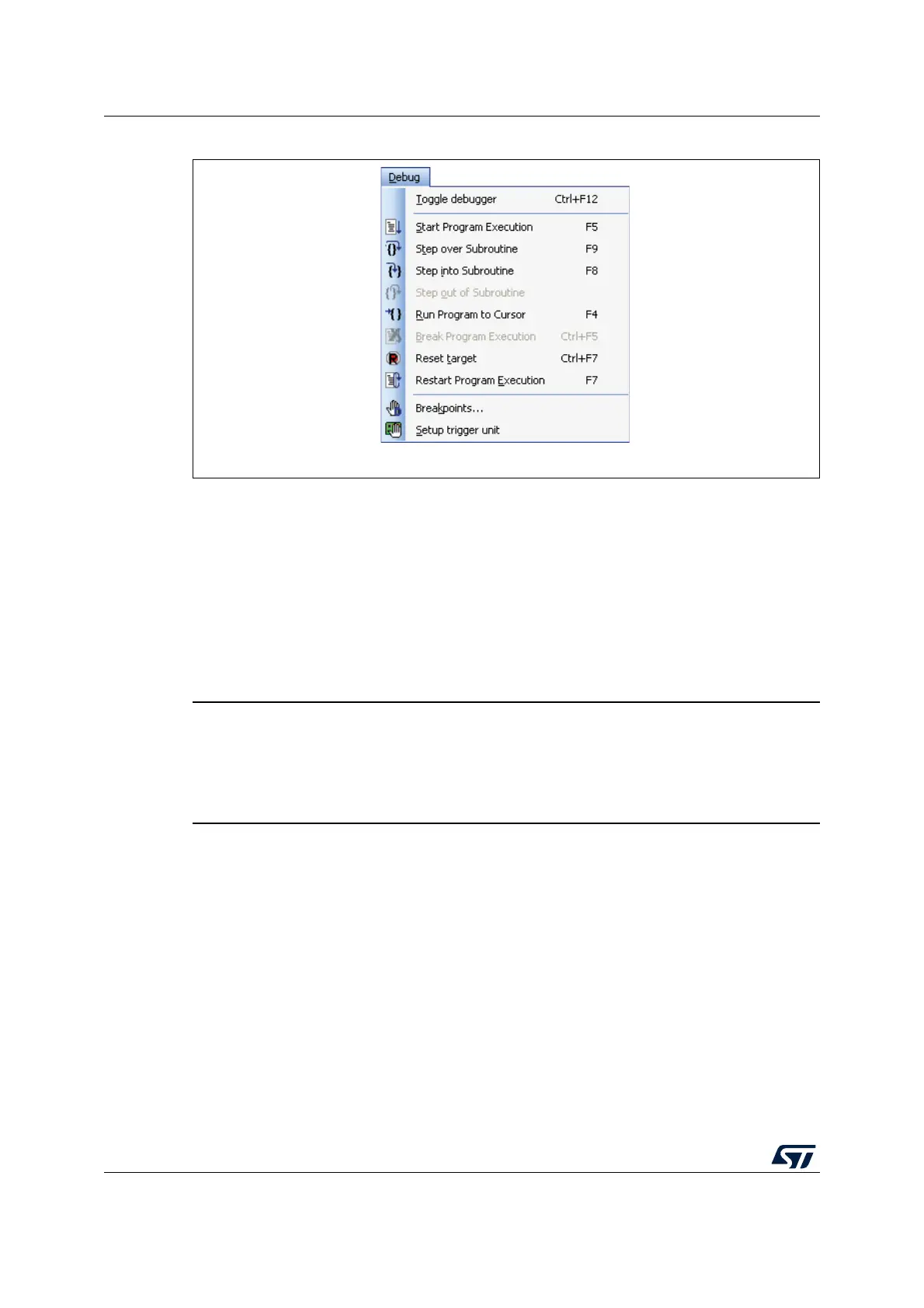
Figure 10. Debug menu
The icons from the Debug menu are also located in the tool bar covering the same
functionality. Short-cuts are available, too.
Click now onto the Start Program Execution entry or button and watch the LED on the
SPC56-L Discovery kit board flashing the TimeDemo code for UDE. When clicking onto
Break Program Execution, the application is halted and the current instruction pointer
position (code line) is displayed.
You may also step through the application by using Step over Subroutine (steps with freely
executing subroutines in one-step) or Step into Subroutine with following function calls and
executing subroutines instruction by instruction.
Warning: For debugging the C/C++ parts of the example program only,
the start-up code must be executed first. For this, make a
Step over Subroutine from the Debug menu of UDE. After
that, the IP will be shown at the main function; the start-up
code has been executed.
The application can be reloaded with Restart Program Execution. If the program is running
already, it will be started immediately after the reload terminates.
3.2.5 Setting breakpoints
Now, we assumed that a loaded application is error-free and ready for running. However, for
debugging purposes single step executions and breakpoints have to be performed to watch
program behavior and processor status.
Now we want to set a breakpoint in the timedemo program. To do this, click with the mouse
on a line in a procedure and then click on the simple Hand symbol in the tool bar. A red-filled
dot appears in the line indicating that the breakpoint has been successfully set.
Alternatively, you may also select the menu Debug - Breakpoints or the Hand symbol in the
tool bar marked with 'D' to open the Breakpoints dialog.


 To Next Page