UM1659 Rev 4 17/25
UM1659 User guide
24
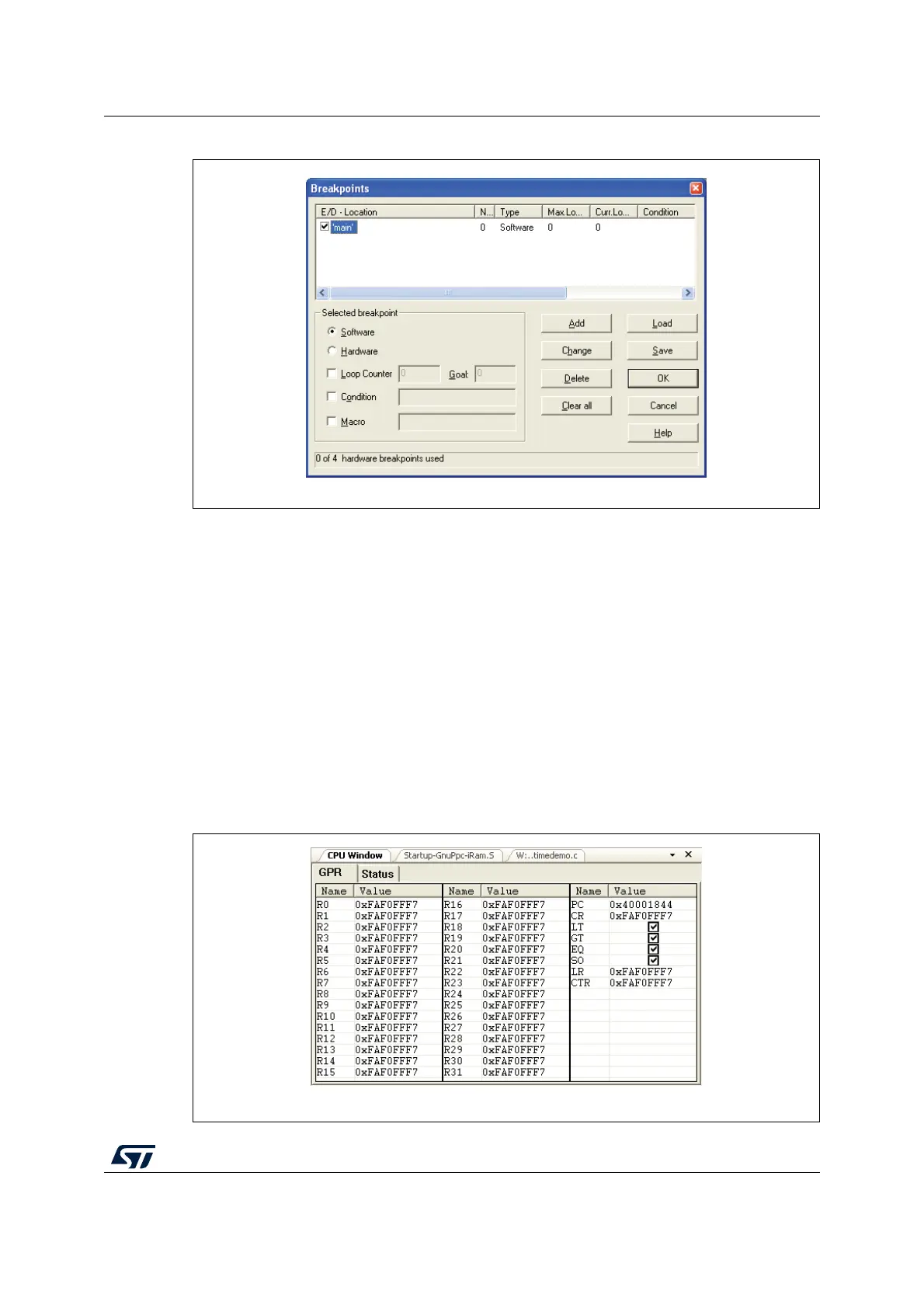
Figure 11. Setting breakpoints
Within the Breakpoint dialog, breakpoints may be added, changed of type and deleted using
the corresponding buttons. By clicking on the E/D (Enable/Disable) checkbox, you toggle
the breakpoint between active and suspended. Disabled breakpoints are indicated by a red-
shaped circle.
Now start the application again. The application will be executed until the first breakpoint in
the execution path is reached. The application will be stopped then immediately.
Another possibility to execute certain portions of code without setting a breakpoint explicitly
is placing the cursor into the line where the application is required to halt and then select
Debug - Run Program to Cursor from the menu or Run to Cursor from the context menu.
3.2.6 CPU registers
The CPU register window is opened by the menu View - CPU Window or the corresponding
tool bar button.
Figure 12. CPU register window


 To Next Page