UM1659 Rev 4 19/25
UM1659 User guide
24
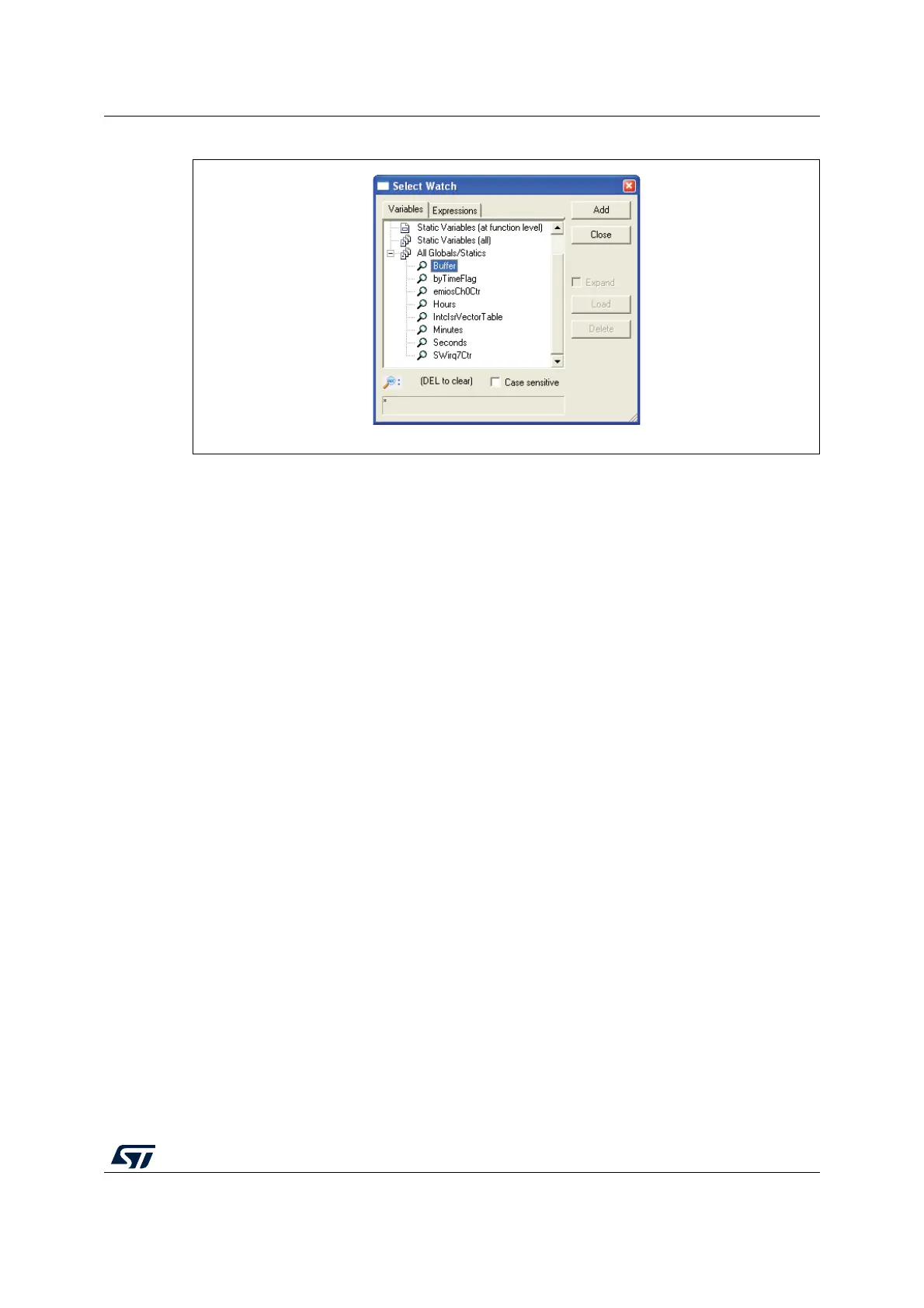
Figure 14. Watch window
The variables can be added by double-clicking to <new variable> or using the context menu
of the <new variable> entry via Browse Ins. The browser dialog shows you all available
global and static variables. Click Add for adding a new variable to the watch window.
The variables are sorted in following groups:
Global variables: shows all global variables with a global scope
Static variables (at file level): shows only variables visible at a specific file
Static variables (at function level): shows only static variables visible at a specific
function
Static variables (all): shows all static variables, which are not global variables
All global/static variables: shows all global and static variables
If the variable is expandable, i.e. it is a pointer or an array, clicking on the '+' sign in front of
the variable's name will expand it. This means, that the location where the pointer points to
or the content of the elements of the array will be displayed. Expanding is possible for more
than one level.
Variable values can be changed easily by double-clicking in the value area or pressing <F2>
and typing in the new value.
Watch tips
Furthermore, SPC5-UDESTK (UDE) offers so-called Watch tips, which show you the
content of simple variables in the Program window. Highlight i.e. the Buffer[] variable from
the main function by a double-click, move the mouse pointer over and the content will be
displayed in a watch tip after a short waiting time.


 To Next Page