User guide UM1659
18/25 UM1659 Rev 4
Perform a few single steps to see the CPU register values changing according to the
executed instructions. Registers which values have been changed compared with the
previous state are red highlighted to provide quick overview.
While the program is stopped (e.g. between single steps) you may alter the content of
registers. Simply click on the register's value in the CPU registers window and type in the
new value of the register.
3.2.7 SFR registers
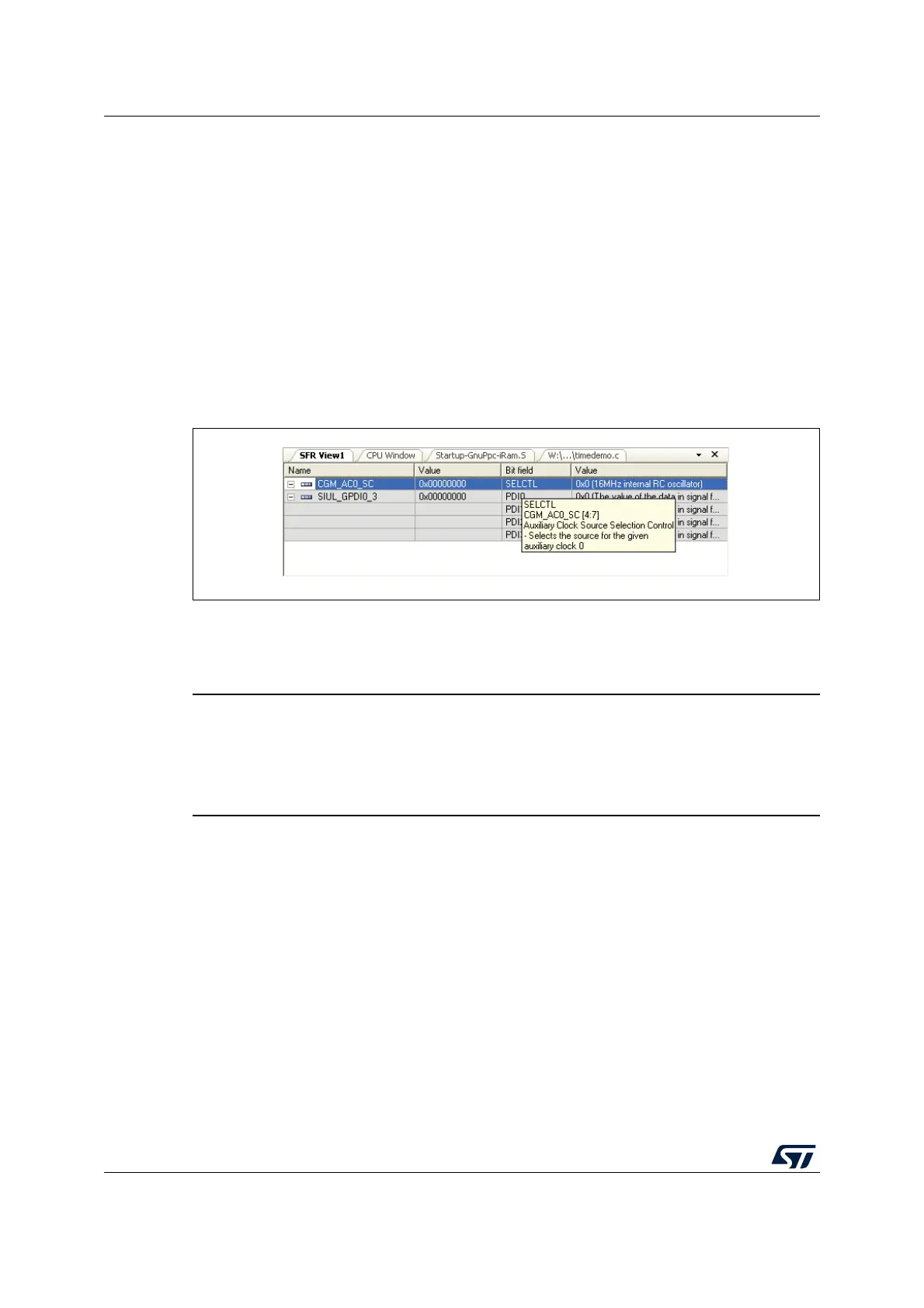
Special function register values are changed in the same way in the SFR register window
(open this window by selecting the menu View - SFR Window). To add a new register entry,
select Browse Ins from the context menu of the SFR Register window and take the SFR that
you want from the list.
Figure 13. SFR registers
Tooltips show the address, the reset value of the current SFR and further information about
the focused register. Expand a SFR for viewing all available fields composing this register.
With a right click on the values you can change them.
Warning: Various registers are protected which means that a special
unlock sequence is required to change the register value.
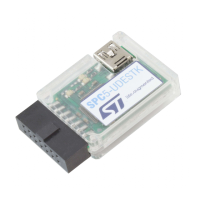
SPC5-UDESTK (UDE) can unlock these registers. Use the
context menu of the register name and disable the entry
Write protect.
3.2.8 Viewing variables
Viewing and changing global/static variables
All global and static variables from the C/C++ source code may be observed directly using
the Watch window. Open the Watch window by selecting the menu View - Watch Window or
the corresponding tool bar button.


 To Next Page