Page 50
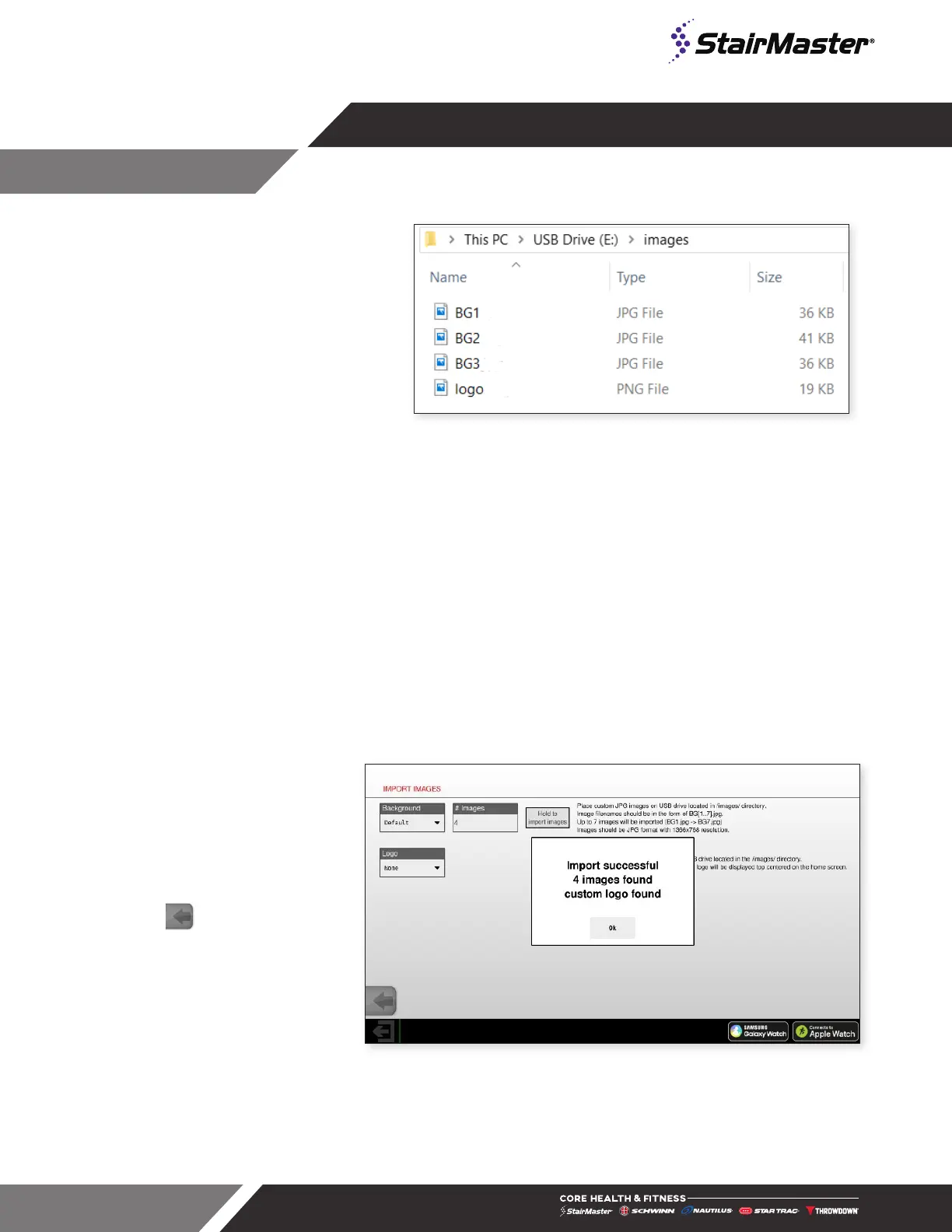
File Location
Fig. 66
File Locations
It is important to place the les on the USB drive
in a specic location. If the les are not placed
in
/images/ as shown, the image les will not
upload to the console. The total size of all
images combined cannot exceed 20 MB.
Upload Procedure
1. With unit sitting in IDLE mode, insert the USB key with the image files into the USB port
2. Enter the Service Menu by pressing the top left corner, top right corner and top left corner again in
succession
3. Enter the password as prompted. The password is “218”
4. Select “Calibration and Setup”
5. Select “Import Images”
6. Press and hold “Hold to Import Images” to download images.
Note: Depending on the quantity and size of the files, the uploading process may take up to a few
minutes. DO NOT unplug the USB key while the image files are uploading.
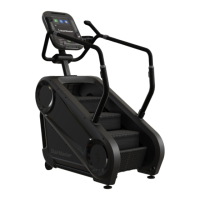
7. If upload is completed
successfully, screen will display
message show in Fig. 66.
8. Once completed, switch
background and/or logo drop
down to “Custom” to display
uploaded images.
9. Press to exit and go back to
the Home Screen.
10. To reset images to default,
return to Import Images screen
and set drop box to
Default/None
Fig. 67
Import Successful
Toggle Screen Shot
Factory Only



 To Next Page