114
B-Box
The Pattern Page
Selecting Sounds
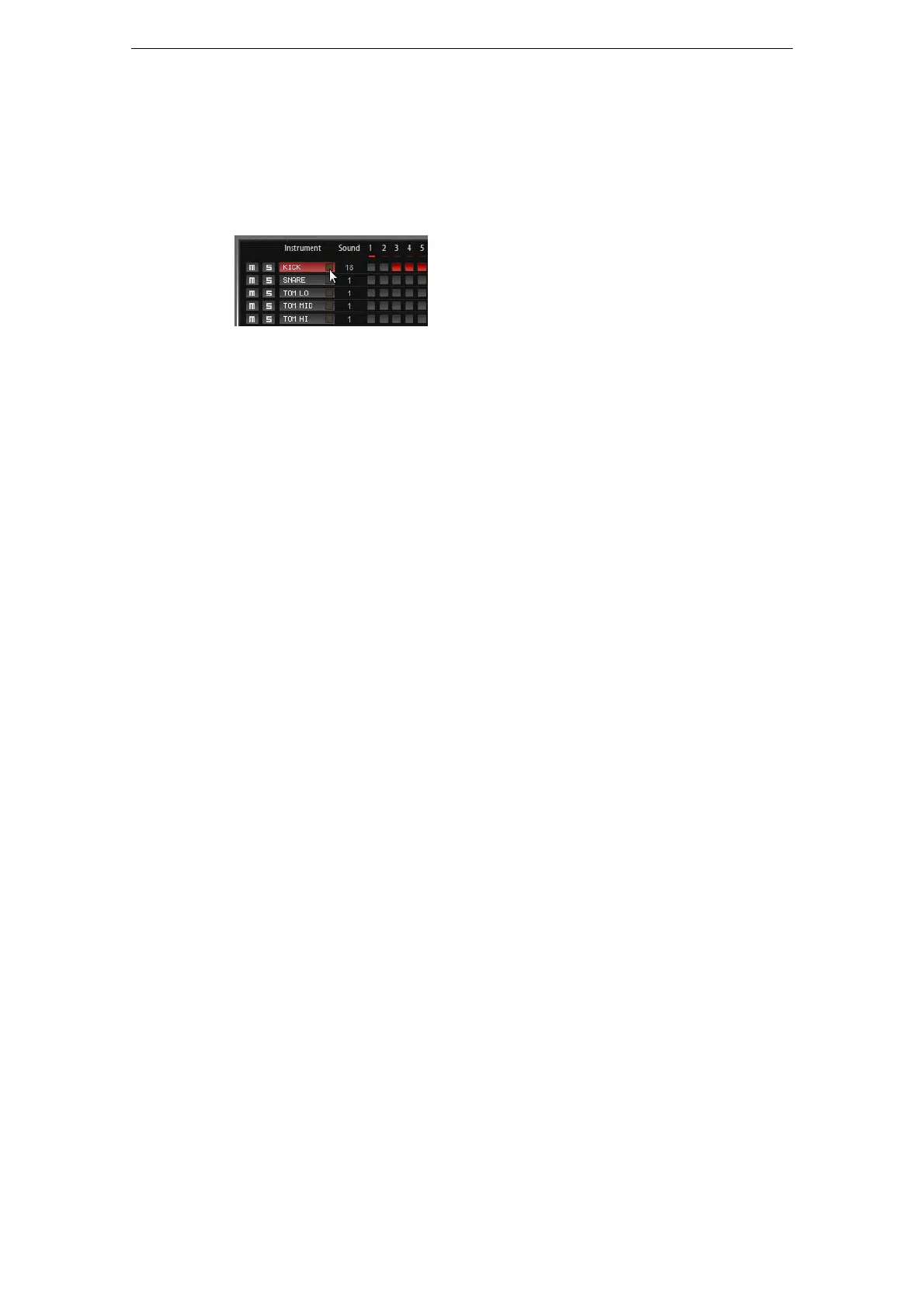
• To select another drum sound for a lane, change the value in the Sound column.
You can choose between up to 128 drum sounds, depending on the selected
drum instrument.
• To preview a drum sound, click the trigger button to the right of the instrument name.
Adding Steps to the Pattern
• To add drum steps, click on the step fields in the pattern editor.
• To set all steps at the same time, hold down [Shift] and click.
Setting up the Velocity
You can set each step to low, medium, or high velocity.
• To set up the velocity for a step, click it and drag the mouse up or down, or use the
mouse wheel.
To change the velocity of all steps in a lane, hold down [Shift] and use the mouse.
Playing Back the Pattern
• To play back the pattern, use the play button at the top of the B-Box.
An indicator below the step number shows which step is playing.
• To mute or solo individual lanes, click the mute and solo buttons of the lanes.
Setting Up the Drum Sounds
With the controls to the left and right of the pattern editor, you can make settings for
the selected drum instrument. The following parameters are available:
Coarse
Adjusts the tuning of the instrument in steps of semitones.
Fine
Fine-tunes the instrument in steps of cents.
Pan
Adjusts the panorama position.
Cutoff
Adjusts the cutoff frequency for the instrument.
Resonance
Adjusts the filter resonance for the instrument.
Distortion Type
Here, you can select one of the four available distortion types: tube, hard clip, bit
reduction, or rate reduction.
Distortion
Adjusts the amount of distortion for the instrument.



 To Next Page