115
B-Box
The Pattern Page
Level
Adjusts the level of the instrument.
Removing Steps
• To remove a step, click it.
• To remove all steps, hold down [Shift]-[Ctrl]/[Command] and click a step.
• To remove all steps in a pattern, click the Clear Pattern button below the pattern
editor.
Modifying the Pattern
• To move all steps of the pattern one step to the left or right, click the “Shift Pattern
Left/Right” buttons.
This is useful if you have created a pattern that sounds the way you want but does
not start on the first beat, for example.
• To mirror the pattern around its middle step, click the Reverse button.
Loading Patterns
You can load individual patterns for the selected variation.
Proceed as follows:
1. Below the Pattern editor, click in the Pattern field.
2. On the pop-up menu, select the pattern that you want to load.
Ö Keep in mind that each variation can have a different pattern.
Exporting Patterns
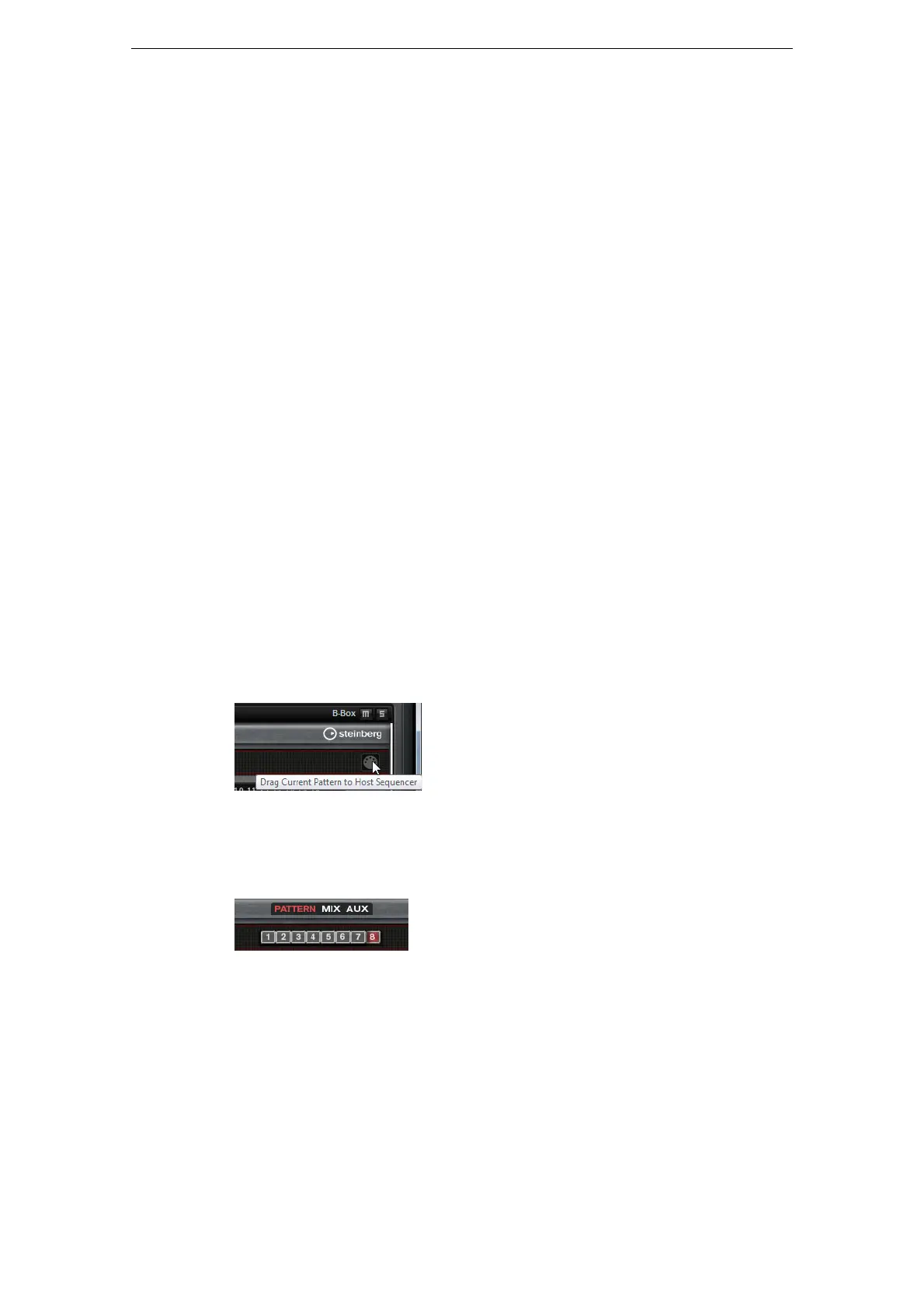
You can export your patterns as MIDI files using drag and drop.
Variations
Each program can contain up to eight variations that can be used to create different
rhythm patterns, such as intros, fills, and endings, for example.
• Click the variation buttons to switch between the available variations.
To create a variation, proceed as follows:
1. Activate the variation button for which you want to create a pattern.
2. Edit the pattern.
The variation is saved and can be recalled by clicking its variation button.
Copying Variations
You can copy the settings of an existing variation to another variation button with the
“Copy/Paste Drum Player Variation” commands from the context menu.



 To Next Page