®
stingersolutions.com
26
Press the HOME BUTTON > Settings >
Cameras to access camera settings.
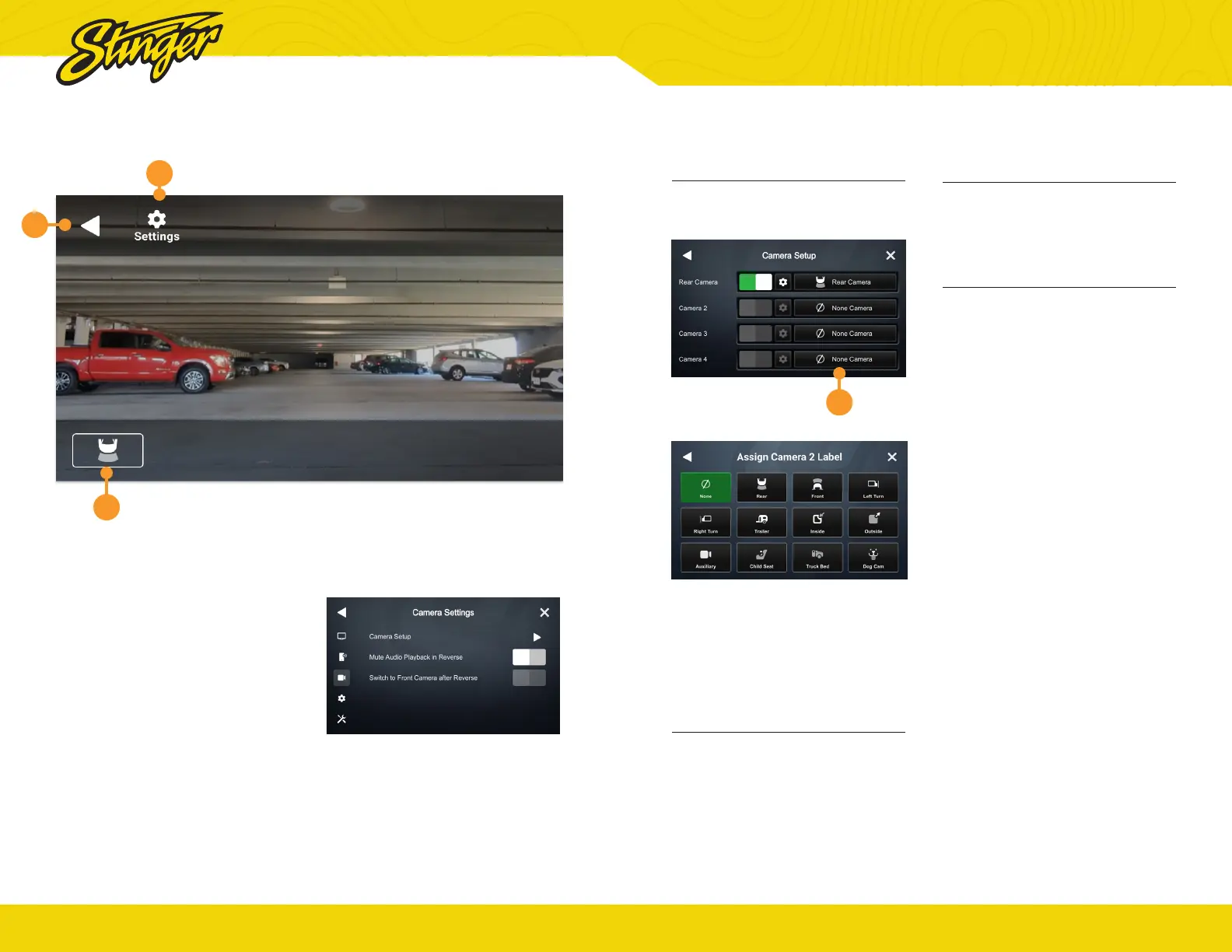
Press the HOME BUTTON > Cameras to select the Cameras app.
1. Camera Selection Bar
If there are optional cameras
installed, you may view them
at anytime using the camera
selection bar at the bottom of the
screen.
2. Back Arrow
Touch to exit camera view.
3. Settings
Touch to access Camera Settings.
CAMERAS
2
3
1
®
stingersolutions.com
27
Set Up a Custom Camera
1. Tap Camera Setup
2. Tap a Trigger’s Label Button
3. Assign a Label
Once you assign a label, that
camera’s trigger and settings will
be active.
Your assigned Camera will now
appear on the Camera Selection
Bar.
Reverse Camera Audio
When set to ON and a microphone
is connected, back up camera
audio will be heard through the
vehicle’s speakers.
Mute Audio in Reverse
When set to ON the system will
mute any audio playback while
in reverse.
Switch to Forward Camera After
Reverse
When set to ON the front camera
will turn on after shifting from
Reverse gear and remain On until
the speed reaches above 5MPH or
the display is touched
2


 To Next Page