®
stingersolutions.com
30
2. DEVICES SETTINGS
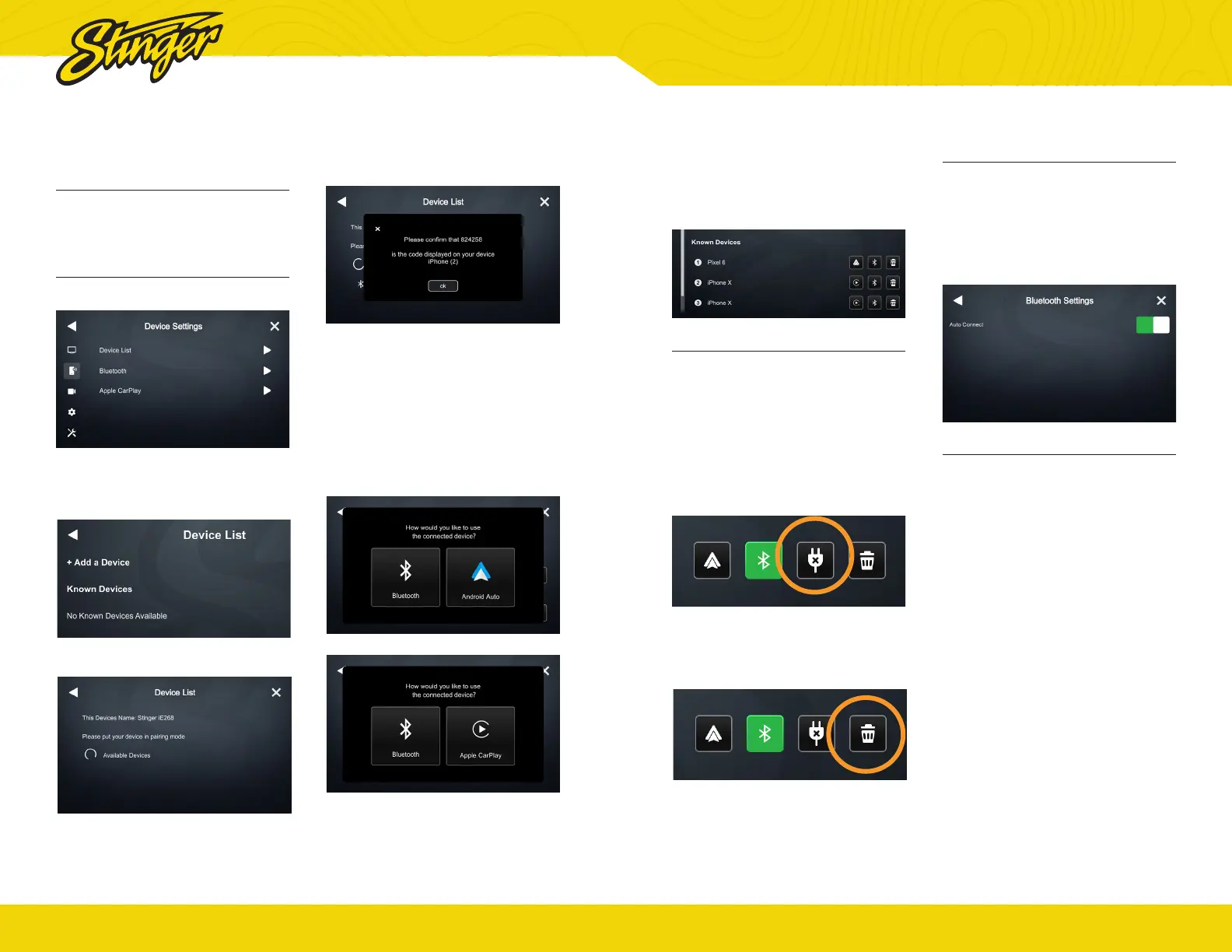
Device List
Your iE268 can store multiple
phones and can be selected under
the Device List Tab.
Add a New Device
1. Tap Device Settings > Device List
2. Make sure your device is in
pairing mode and tap +Add a
Device.
3. Select your device from the list.
If your device does not appear
in the device list, confirm it is
discoverable and tap Available
Devices to rescan.
4. Conrm PIN Code on the head
unit screen and the device.
5. Select the connection type you
want to use (bluetooth / phone
projection).
®
stingersolutions.com
31
Bluetooth Settings
Bluetooth Settings will allow you
to turn On/Off the phone Auto
Connect feature. When this feture
is turned off, your phone will not
auto connect when radio powers
on.
Apple CarPlay Options
You can change the orientation
of Apple CarPlay’s interface by
toggling the Steering Wheel control
left or right.
If you choose phone projection,
your phone projection application
(Apple CarPlay/Android Auto) will
launch automatically.
Connect to a Saved Device
A list of previously connected
devices is available under Known
Devices.
1. Make sure bluetooth is enabled
on your mobile device.
2. Press the phone projection or
bluetooth button to connect to
your device.
Disconnect a Device
Tap the DISCONNECT button to
disconnect a connected device.
Delete a Device
Tap the DELETE button to delete a
known device.


 To Next Page