®
stingersolutions.com
12
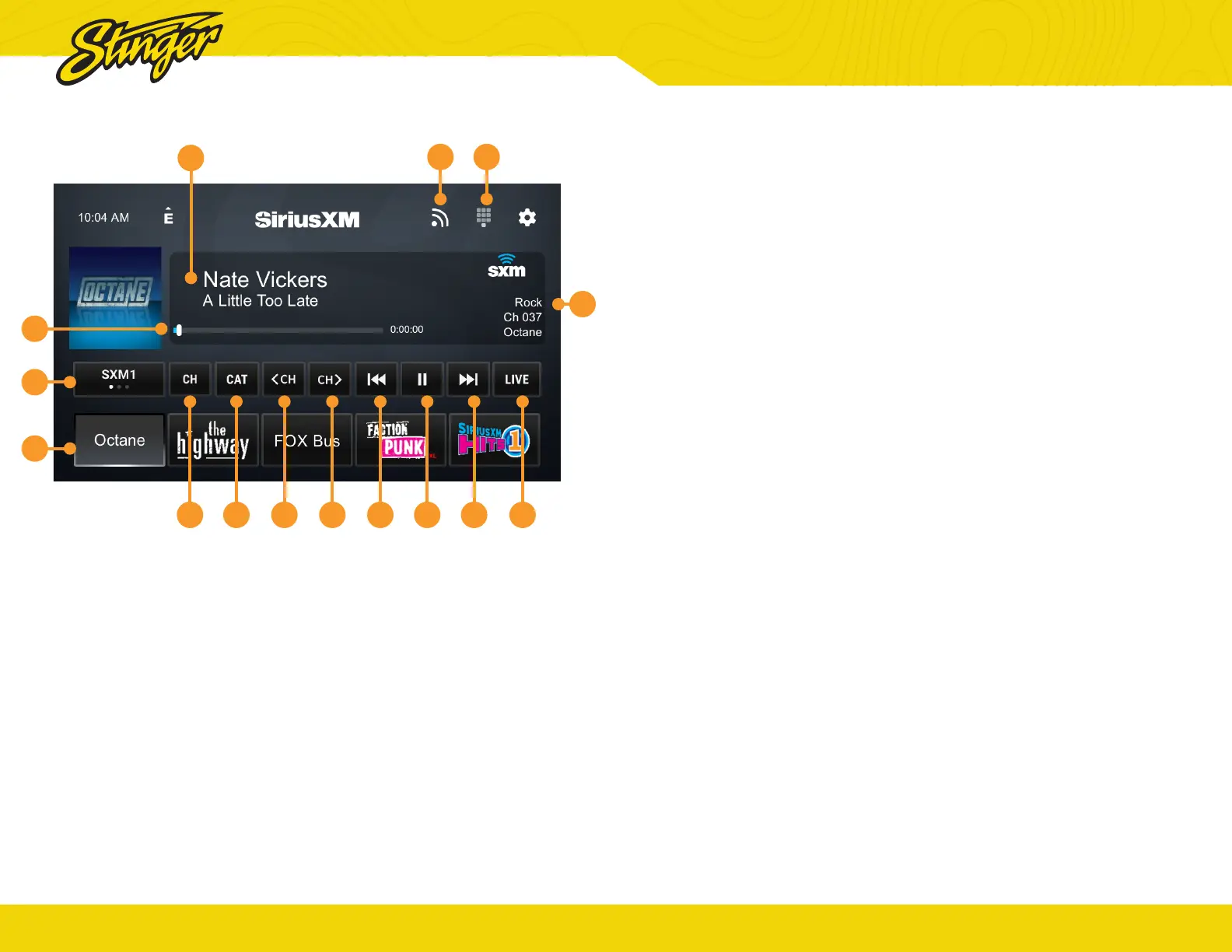
Press the HOME BUTTON > SiriusXM to select the SiriusXM Radio Source
1. Channel Presets
To assign a preset, press and hold
until button highlights and channel
name appears. Tap a preset to
tune to the preset station.
2. Channel Down/Up
Tap to advance through station
presets. Long Press to advance
to previous/next channel. Hold
5+ seconds to rapidly browse
channels.
3. SiriusXM Replay™ Time Bar
Shows time remaining in the Replay
audio playback buffer.
4. Channel Info
Displays channel name, song/
content info.
5. Signal Strength
Displays tuner signal strength, 0-3
bars.
6. SiriusXM Info
Displays current channel category,
channel number, and preset bank
number.
3
6
1
7
8 9 2 2 11 12 13 14
5 10
4
SIRIUSXM® SATELLITE RADIO (optional)
®
stingersolutions.com
13
SiriusXM Radio Overview
SiriusXM is where moments
happen. The widest, deepest
variety of music, ad-free. More
games, more sports, more
coverage than anywhere. Listen
in your car, on your phone, online
and at home.
A SiriusXM Vehicle Tuner and
subscription are required. For more
information, visit www.siriusxm.
com.
* SiriusXM Satellite Radio controls on
this unit are only available when a
SiriusXM Tuner is connected.
7. Band
Tap to cycle through SXM Preset
banks (1-3)
8. CH
Tap to display a list of available
channels with channel information.
9. CAT
Tap to display a list of channel
categories.
10. Direct Tune
Tap to tune by channel number
directly.
11. Rewind/Track Down
Tap to browse to previous song.
Hold to move backwards through
stored audio. (Replay Only)
12. Pause/Play
Touch to pause live broadcast /
play stored audio. (Replay Only)
13. Fast Forward / Track Up
Tap to advance to next song. Hold
to move forward through stored
audio. (Replay Only)
14. LIVE
Tap to return to live broadcast
when listening to stored audio.
(Replay Only)


 To Next Page