®
stingersolutions.com
36
UPDATING SYSTEM FIRMWARE
1. Format a USB Drive
In order to prepare a USB Flash Drive
for use with your IE268 system, the USB
drive must be formatted to FAT32 / MS-
DOS(FAT).
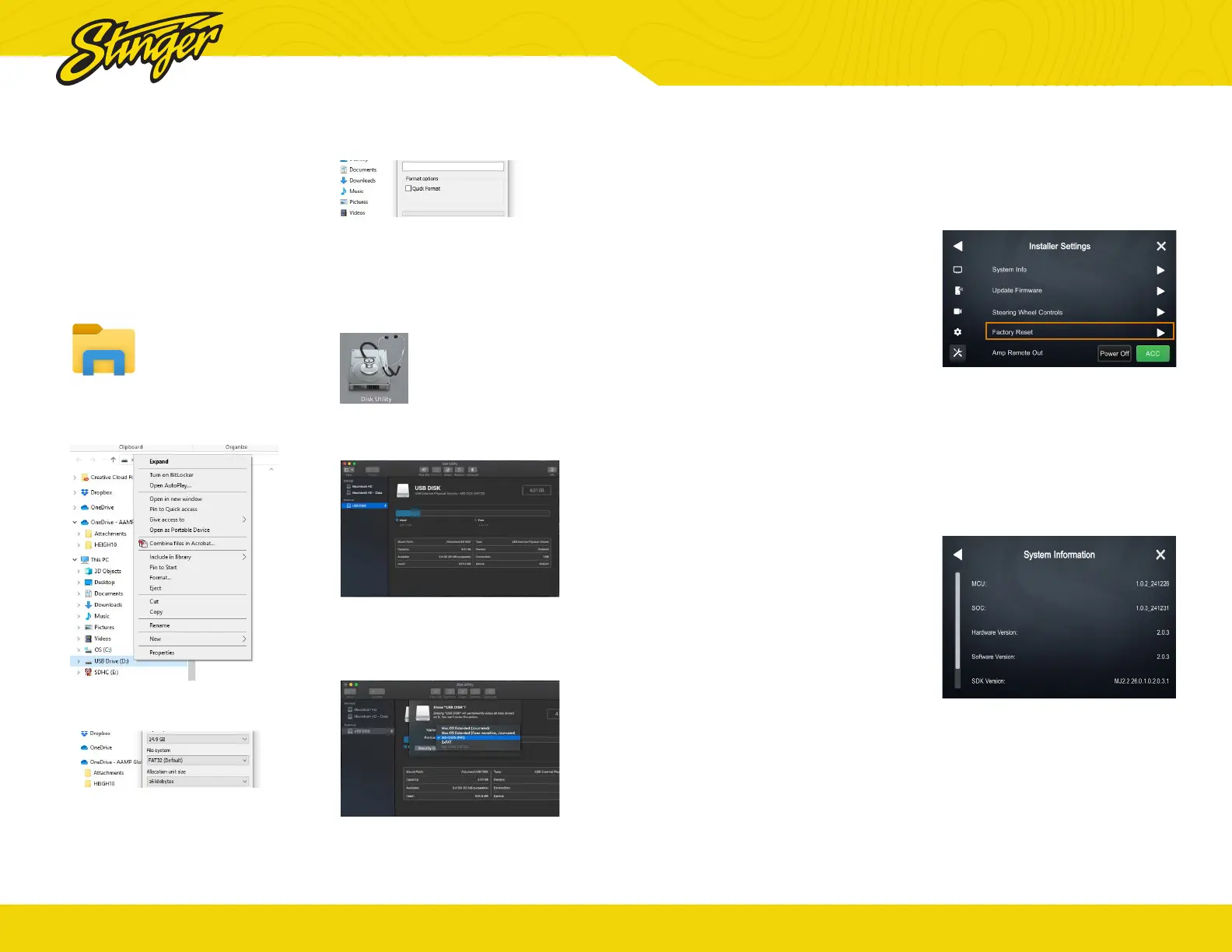
Windows PC
1. Insert an 32GB+ USB Drive
2. Open File Explorer
3. Right click on USB Drive and select
Format
4. Select FAT 32 (Default) File System
5. Deselect Quick Format
6. Click Start
MAC OSX
1. Insert an 32GB+ USB Drive
2. Launch the Disk Utility App from
the Utilities folder
3. Select the USB drive from the
External List and click Erase
4. Select MS-DOS(FAT) from the
format drop-down menu and
click Erase
®
stingersolutions.com
37
2. Download Firmware
Download the firmware file from
StingerSolutions.com. Transfer the
rmware le as-is onto the formatted
USBdrive.
Once the file is located in the Root
menu, unzip and open le to view the
le contents.
Copy all the le contents into the Root
menu of your USB. The root menu is the
rst menu that apears when you open
your thumbdrive on your PC.
3. Install System Update
Insert the USB drive into any USB port
on the radio.
NOTE: When updating the rmware, all
settings will be reset to factory defaults.
Station presets, EQ presets, audio/
crossover settings, time alignment,
camera settings will all be overwritten.
Navigate to SETTINGS > INSTALLER
SETTINGS > UPDATE FIRMWARE and the
IE268 will begin updating.
Tap Update Firmware on the popup. The
update will take 6 - 8 minutes.
NOTE: Do not attempt to stop an
update. DO NOT turn off power. The
system will be damaged if power is
lost during the update process.
4. System Reset (optional)
When the update is complete and
display is on the Radio source, it is
recomended to perform a Factory
Reset. This is not required and will reset
any modied settings, including presets.
The reset process takes 1-2 minutes,
when completed, the unit will return to
the Radio source.
You can reset by going to Settings >
INSTALLER SETTINGS > FACTORY RESET
5. Conrm Firmware Update
Conrm rmware update by accessing
System Information in Installer settings.
Note the APP Version and visit the IE268
page at StingerSolutions.com
Select the Firmware Tab on the product
page. The most current rmware will
be listed. The 8 digits of the APP Version
listing is the update date code (241231).


 To Next Page