®
stingersolutions.com
22
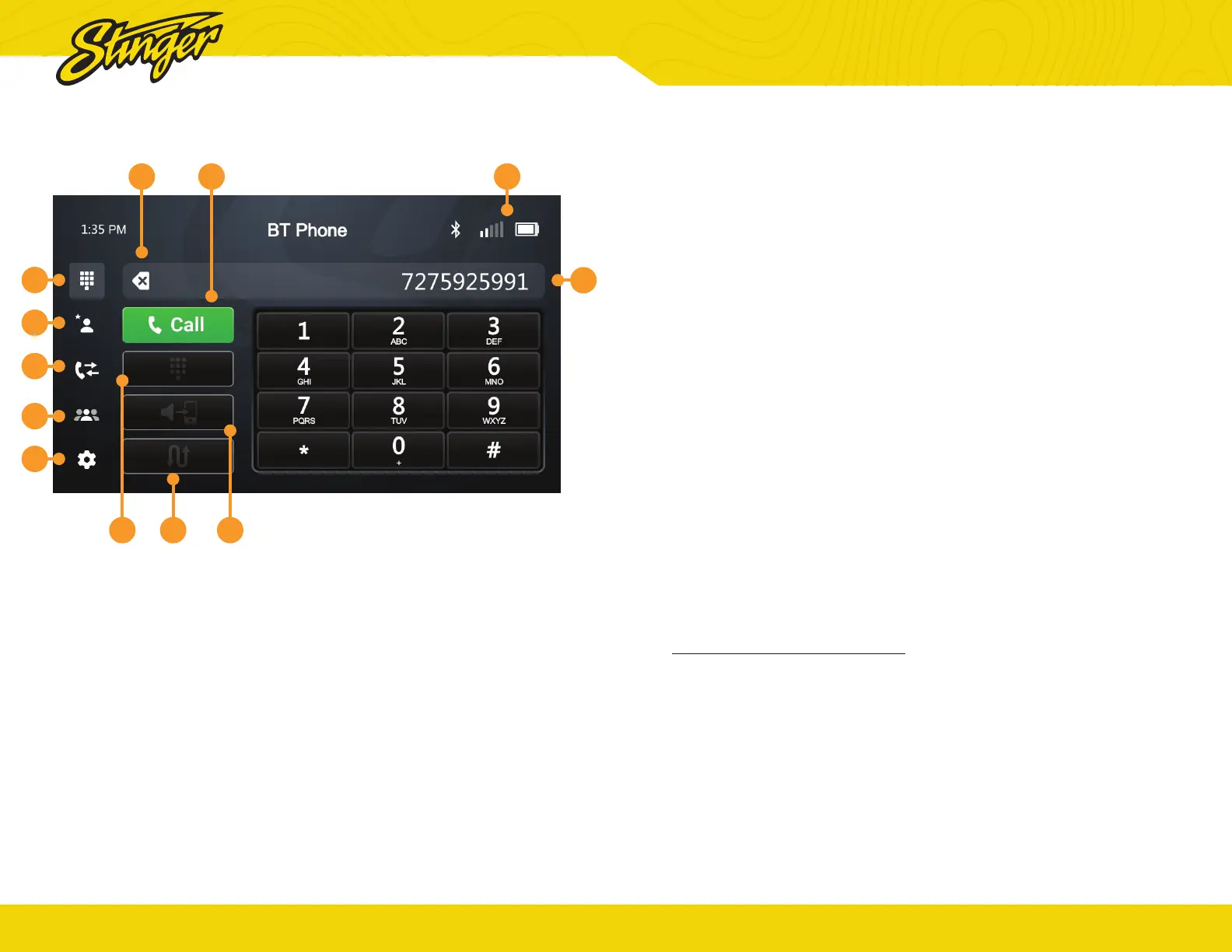
Press the HOME BUTTON > Phone to launch the Bluetooth Phone app.
1. Phone Settings
Tap here to access phone settings.
2. Contacts
List of contacts from paired phone.
Not supported by all phones.
3. Call Log
Recent Dialed, Received, and Missed
Calls.
4. Favorites
Customizable list of favorite
contacts.
5. Direct Dial
Direct Dial is the default phone view.
Make and receive calls here.
6. Backspace / Clear
Tap to delete the last character
entered. Hold to clear entire entry.
BLUETOOTH PHONE
1
2
3
4
5
6 7 9
8
10 1112
®
stingersolutions.com
23
7. Call / Answer / End Call Button
Dial the number entered on the
phone or number pad. Answer
incoming calls. While connected,
changes to End Call, when tapped
in this mode, ends currently
connected call.
8. Dialing Window
Displays currently dialed number.
9. Phone Info Area
Shows connected, active phone
information.
10. Number Pad
Tap to show number pad for dialing
phone numbers.
11. Speaker / Phone
Switches phone call audio between
car speakers and phone handset.
12. Swap Call
Tap to switch between active and
held call.
Pairing a Device
Refer to Get Connected on page
28.
Autoconnect
Once a device has been paired,
it will automatically connect
whenever the system is turned on
and the device is within range. You
can disable this feature by toggling
the microphone when using hands-
free phone.


 To Next Page