- 14 -
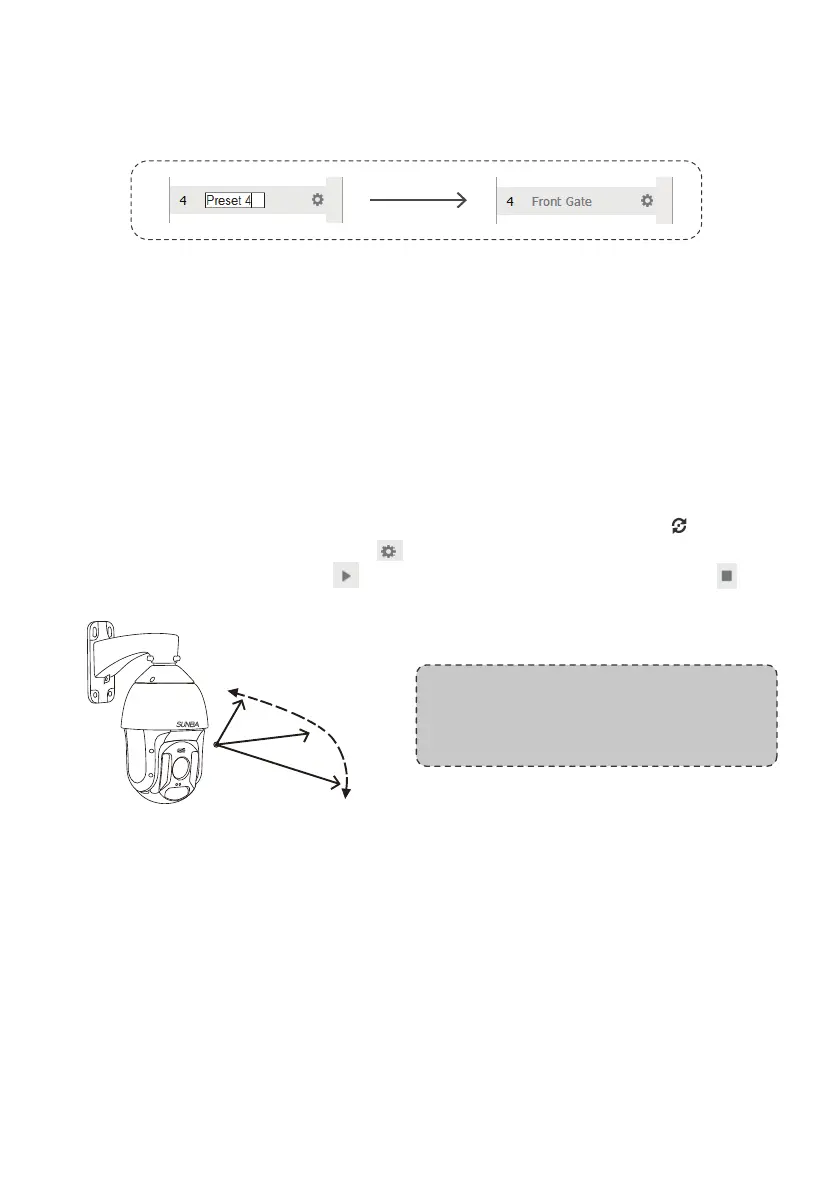
In the web interface, users can double click the preset name on the list to
customize the name for the position preset such as front gate, back yard
or parking lot.
Special Presets
Special presets are preset numbers associated with advanced commands
that cameras can follow to enable settings such as changing infrared LED
night vision mode, setting up auto tracking etc. You can call the preset
directly (no need to “add” a preset as they are pre-existed) according to
The Full Preset List.
Note: You cannot delete any special preset.
Patrol
The PTZ camera can travel from one preset to another by order. A patrol
is usually named as a tour or a cruise. To activate a patrol, first you will
need to save corresponding presets you want to tour across. Click to
access the patrol menu and click icon to add presets to the patrol group.
After that, click the play icon to activate the patrol. Click the stop icon
to stop the patrol.
Tracking Presets
Tracking presets are a mixture of position preset and special preset. More
details can be found in Chapter 7. Auto Tracking.
[Preset Tracking] Preset tracking requires you to set a position preset
(53-59) first, and call it to activate the preset tracking. The camera will
follow any moving object in this pre-defined position.
[Intrusion Tracking] User needs to set a home position (preset 50) for the
intrusion event, and call preset 50 to activate intrusion tracking. The camera
will return back to preset 50 when tracking completes.
[Line Cross Tracking] User needs to set a home position (preset 51) for the
line cross event, and call preset 51 to activate line cross tracking. The
camera will return back to preset 51 when tracking completes
preset1
preset2
preset3
Note: When executing any PTZ related
commands including calling a preset and
pressing PTZ direction key, the camera will stop
patrolling.


 To Next Page