35
2
2-2. Connectivity settings
Basic function
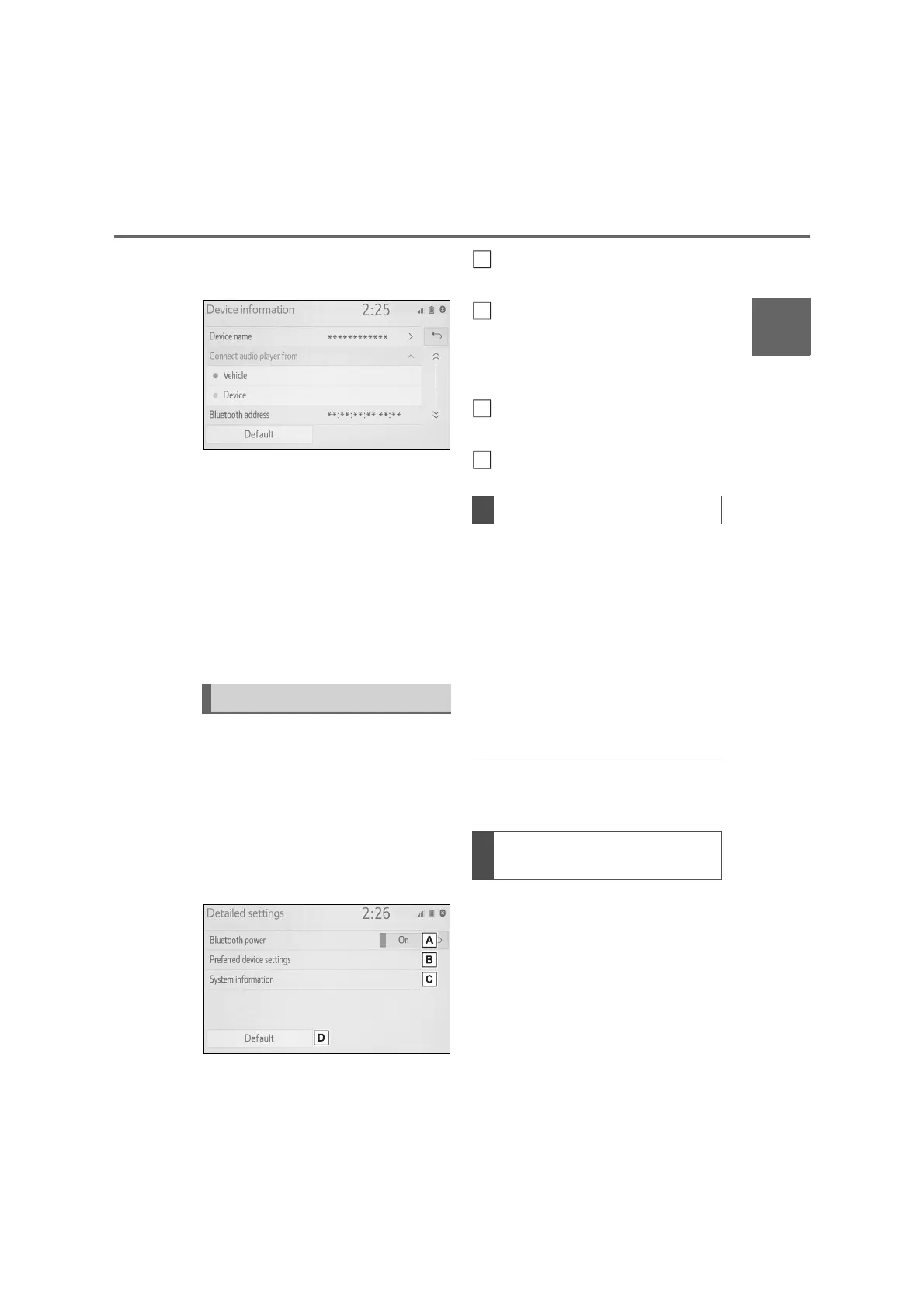
2 Select the desired connection
method.
“Vehicle”: Select to connect the audio
player from the vehicle’s audio/visual
system.
“Device”: Select to connect the vehi-
cle’s audio/visual system from the
audio player.
Depending on the audio player,
the “Vehicle” or “Device” connec-
tion method may be best. As
such, refer to the manual that
comes with the audio player.
The Bluetooth
®
settings can be
confirmed and changed.
1 Display the Bluetooth
®
settings
screen. (P.30)
2 Select “Detailed settings”.
3 Select the desired item to be
set.
Select to set Bluetooth
®
connec-
tion on/off. (P.35)
Select to change the automatic
connection priority of the regis-
tered Bluetooth
®
devices.
(P.35)
Select to edit the system infor-
mation. (P.36)
Select to reset all setup items.
1 Select “Bluetooth power”.
When “Bluetooth power” is on:
The Bluetooth
®
device is automati-
cally connected when the power
switch is turned to ACC or ON.
When “Bluetooth power” is off:
The Bluetooth
®
device is discon-
nected, and the system will not con-
nect to it next time.
● While driving, the auto connection
state can be changed from off to on,
but cannot be changed from on to off.
The automatic connection priority of
the registered Bluetooth
®
devices
can be changed.
1 Select “Preferred device set-
tings”.
“Detailed settings” screen
Changing “Bluetooth power”
Setting automatic connection
priority
B
C
D


 To Next Page