41
2
2-3. Apple CarPlay/Android Auto
Basic function
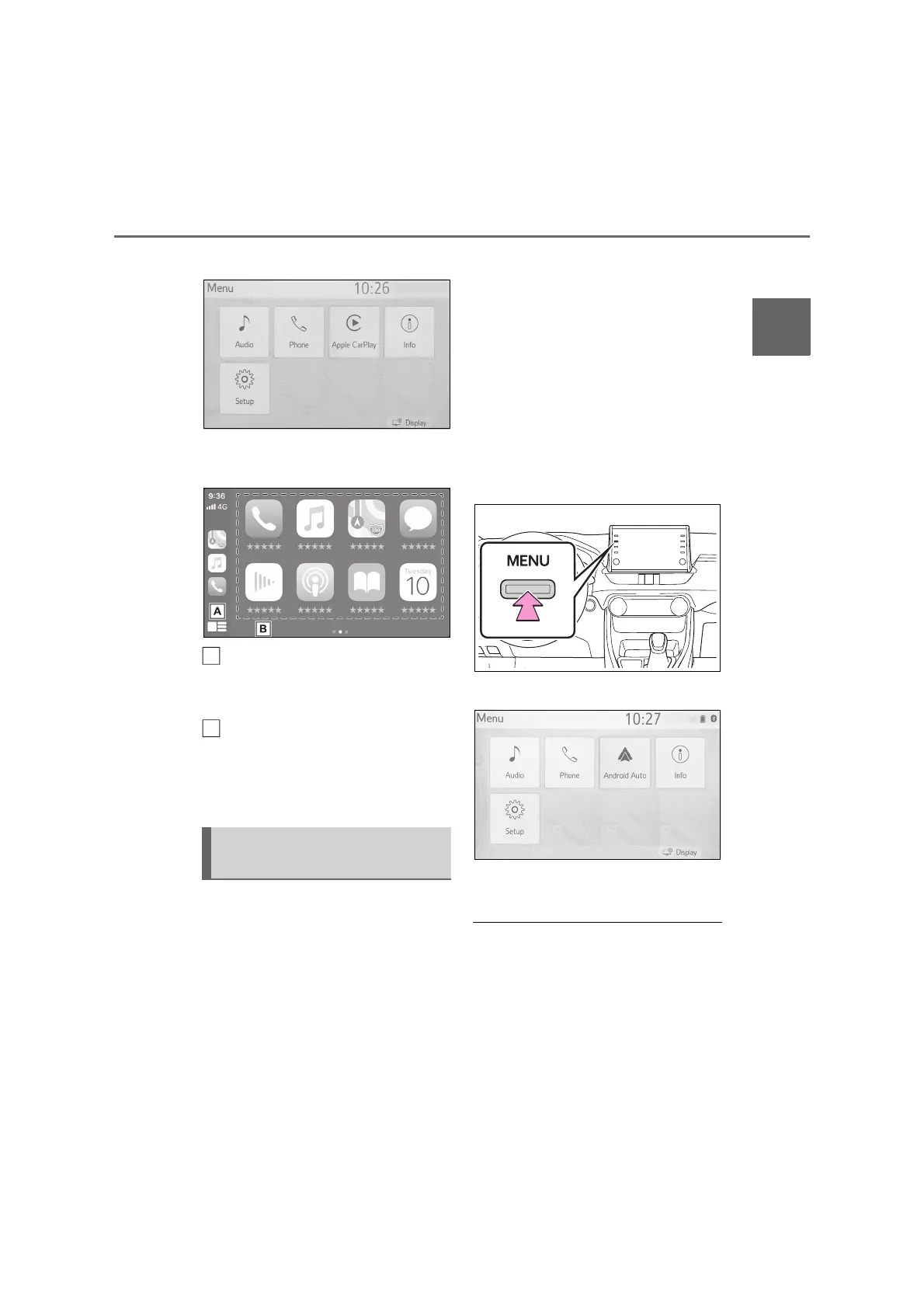
5 Select “Apple CarPlay”.
6 Check that home screen of
Apple CarPlay is displayed.
Select to display the home
screen of Apple CarPlay.
Select and hold to activate Siri.
Select to start the application.
User can use any iPhone appli-
cation supported by Apple
CarPlay.
1 Check that the Android Auto
application is installed to the
device to be connected.
2 Connect the device to the USB
port. (P.54)
3 Select “On” to enable the func-
tion.
“Off”: To enable Android Auto,
set “Preferred service” on the
general settings screen to
“Android Auto”. (P.46)
Depending on the device con-
nected, it may take approxi-
mately 3 to 6 seconds before the
system returns to previous
screen.
The screen may change to step
6 depending on the system.
4 Press the “MENU” button.
5 Select “Android Auto”.
6 Check that home screen of
Android Auto is displayed.
● When an Apple CarPlay/Android Auto
connection is established, the function
of some system buttons will change.
● When an Apple CarPlay/Android Auto
connection is established, some sys-
tem functions, such as the following,
will be replaced by similar Apple
CarPlay/Android Auto functions or will
Establishing an Android
Auto connection
A
B


 To Next Page