10. FILE OPERATIONS
10-6
10.6 How to Load the Equipment Settings
You can load saved settings data from an appropriate media to this unit, and share
them with the Multi-Function Display in the network.
1. Put a microSD card in either slot on the SD Card Unit.
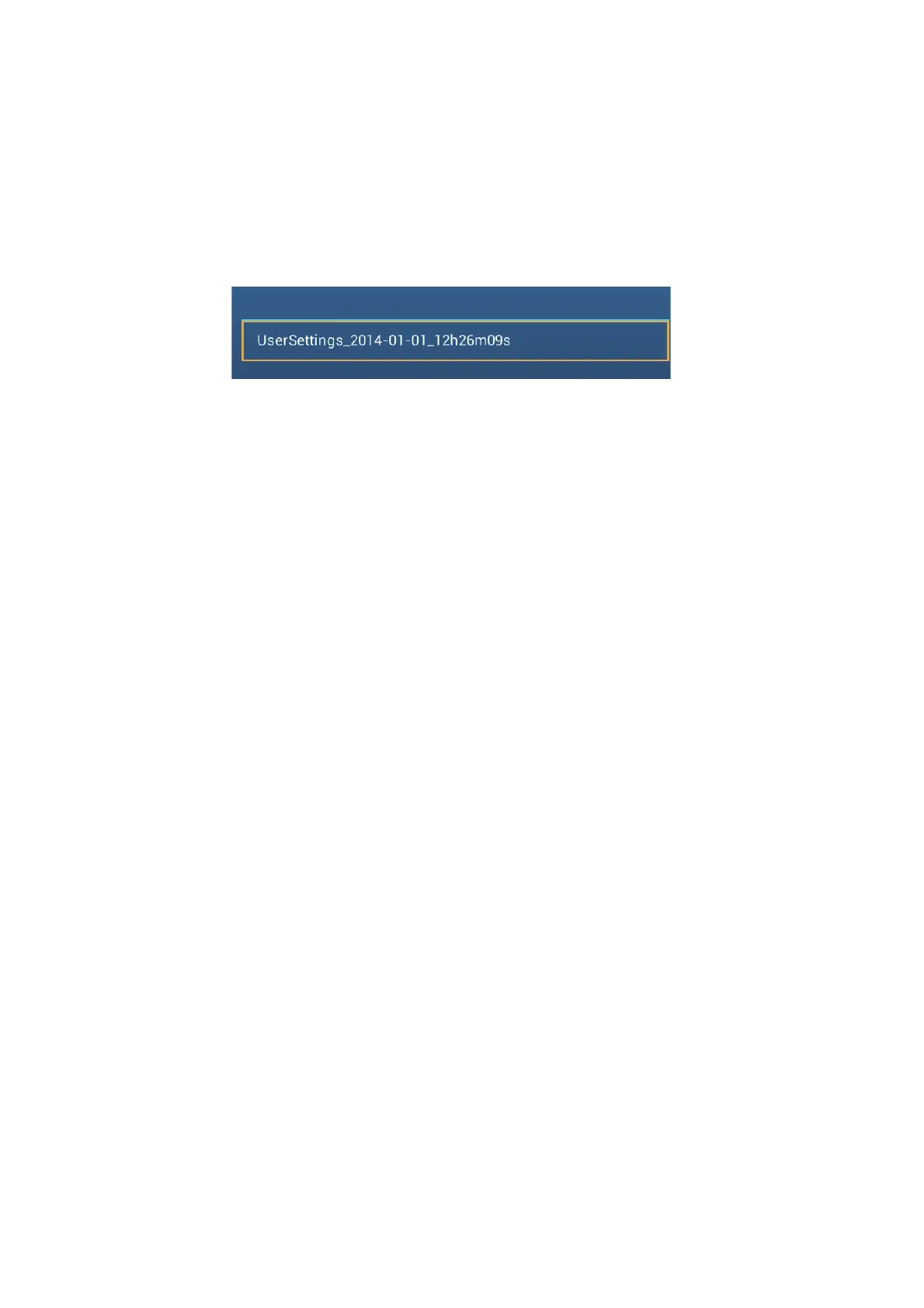
2. Open the home screen, then tap [Settings] - [Files] - [Restore Settings]. A list of
user settings stored on the card in the SD card unit or media in the USB port ap-
pears.
3. Tap the file to load. A confirmation message appears.
4. Tap the [OK] button. The message "IMPORT SUCCEEDED" appears if the im-
porting was successful.
5. Tap the [OK] button.
6. Tap the close button to finish.
10.7 My TimeZero Cloud Data Service
With the TimeZero
™
cloud data service, you can share data (settings, points, routes
and tracks) stored in your TimeZero
™
cloud account with another Multi-Function Dis-
play (requires software version 3.01 or after). To use the TimeZero
™
cloud data ser-
vice, connect to the internet and create a TimeZero
™
account.
10.7.1 How to save settings/data to the cloud
Do as follows to save settings data to the cloud.
1. Open the home screen, then tap [Settings][General].
2. Tap [Login] at the SOCIAL NETWORK section and login to your TimeZero
™
ac-
count.
3. Tap "<" on the title bar to return to the [Settings] menu.
4. Tap [Files][Backup Settings in the Cloud] or [Backup Data in the Cloud] as ap-
propriate. If a message announces that there is settings data in the cloud, tap the
[OK] button to write over the settings data in the cloud.
SDCARDRIGHT


 To Next Page